






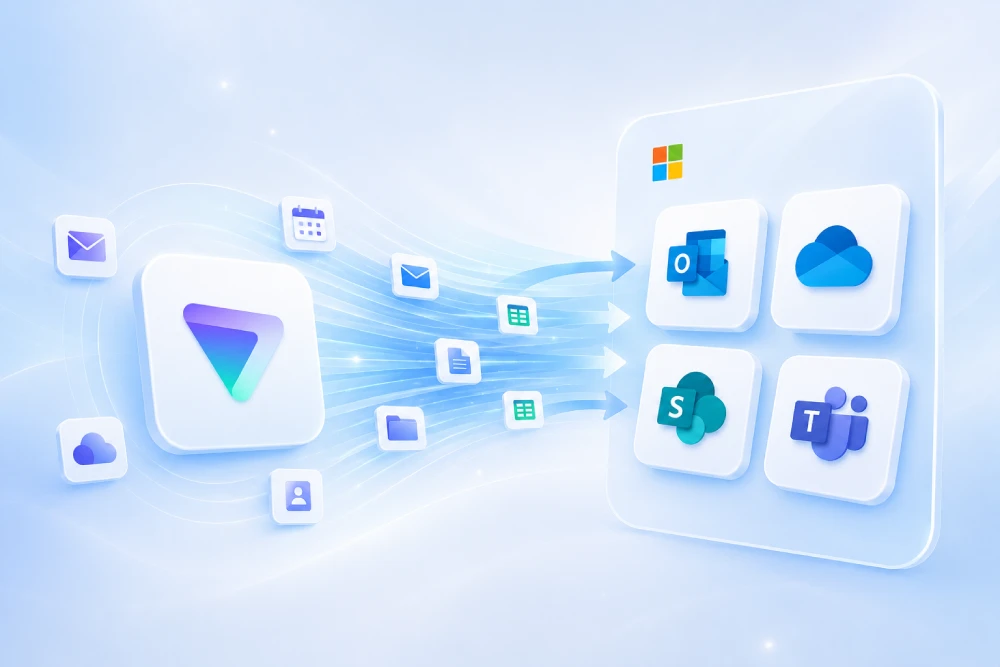
Do you want MSAdvance to handle your Proton to Microsoft 365 migration without complications?
Migrating from Proton Mail to Microsoft 365 is not just about “changing email”. It involves moving messages, contacts, calendars, domain, DNS, signatures, devices, authentication and working habits. In addition, Proton has important particularities due to its encryption-focused approach, so it is advisable to prepare the strategy carefully before touching the MX record.
At MSAdvance, we design and execute the migration from Proton to Microsoft 365 end to end: inventory, method selection, tenant preparation, data migration, domain cutover, security and user support.
- Initial assessment: mailboxes, aliases, groups, email volume, contacts, calendars and real business needs.
- Migration plan: Proton Bridge, export/import, PST, IMAP where applicable, or specialized tools.
- Controlled domain cutover: MX, SPF, DKIM, DMARC and delivery testing before and after the change.
- Security in Microsoft 365: MFA, Conditional Access, Defender, sharing policies and phishing protection.
- User support: Outlook, mobile devices, Teams, OneDrive and new ways of working.
Migrating Proton to Microsoft 365 means moving email from Proton Mail to Exchange Online, importing contacts and calendars, preparing users, configuring the corporate domain in Microsoft 365 and changing DNS records so that email starts arriving in Outlook. The delicate part is that a standard IMAP migration only moves email and does not migrate contacts, calendars or tasks. For this reason, in business environments it is advisable to combine exports, PST import, Proton Bridge or specialized tools, together with a well-tested domain cutover plan.
Quick summary: migrate Proton to Microsoft 365 in 10 points
- Do not start with the MX record: first prepare Microsoft 365, users, licenses, mailboxes and security.
- Proton is not a “normal” IMAP service: because of its encryption model, many migrations require Proton Bridge, email export or specific tools.
- IMAP only migrates email: contacts, calendars and tasks must be handled separately.
- Historical email can be moved in several ways: IMAP when the scenario allows it, EML/PST export, Outlook with Bridge or third-party tools.
- Calendars are usually exported in ICS format: they are then imported into Outlook or Microsoft 365.
- Contacts usually require VCF/CSV: it is advisable to clean duplicates before importing them.
- The domain is cut over at the end: the MX record is changed to Microsoft 365 once the mailboxes are ready.
- SPF, DKIM and DMARC are essential: they help improve deliverability and reduce domain spoofing.
- User communication matters: new Outlook profiles, mobile devices, MFA and a changed user experience.
- A partner reduces risk: especially when there are several mailboxes, aliases, critical users or continuity requirements.
When does it make sense to migrate from Proton to Microsoft 365?
Proton Mail is a highly valued solution because of its focus on privacy and encryption. However, many companies reach a point where they need a platform that is more integrated with daily work: Outlook, Teams, SharePoint, OneDrive, shared calendars, centralized management of users, devices, security and compliance.
Common scenarios
- The company grows: needs arise around centralized administration, groups, permissions, shared calendars and user support.
- Microsoft 365 is adopted as the work platform: Outlook, Teams, OneDrive, SharePoint and Office become the main environment.
- More internal collaboration is needed: shared mailboxes, rooms, team calendars, distribution lists and Microsoft 365 groups.
- There are corporate security requirements: MFA, Conditional Access, Defender for Office 365, auditing and data protection.
- Email needs to be integrated with processes: CRM, ERP, Power Automate, Power BI, Teams, SharePoint or internal solutions.
- There are operational issues: users configuring Bridge individually, difficult support, poorly integrated calendars or lack of centralized control.
The decision should not be seen as “Proton is better or worse”. They are different approaches. Proton prioritizes privacy and encryption; Microsoft 365 prioritizes productivity, enterprise administration, collaboration and integrated security. The migration makes sense when the business needs that integration.
Introduction: why migrating Proton to Microsoft 365 requires planning
A migration from Proton Mail to Microsoft 365 does not always look like a migration from another traditional IMAP provider. Proton works with end-to-end encryption and, to use clients such as Outlook through IMAP/SMTP, Proton Mail Bridge usually comes into play, creating a local service on the user’s computer.
This changes the strategy. In a business migration, Microsoft 365 needs to receive the data in Exchange Online in a controlled way, with users already created, licenses assigned and the domain prepared. If the process is improvised, problems appear: incomplete email, calendars not imported, duplicate contacts, poorly configured Outlook or email downtime during the MX cutover.
This guide explains how to approach the project properly: first the assessment, then the migration method, then tenant preparation, and finally the DNS cutover and adoption. The goal is for the company to move from Proton to Microsoft 365 without losing relevant information and with the least possible impact on users.
1. Methodology and project governance
In practice: a Proton to Microsoft 365 migration is won before the cutover, not during the cutover.
The right methodology depends on the size of the organization, but the pattern is usually the same: inventory, prepare, test, migrate, cut over and stabilize. The important thing is not to mix everything into a single night. Historical email, contacts, calendars and the domain move at different speeds.
Recommended phases
- Assessment: users, aliases, mailboxes, email volume, calendars, contacts, domain and security.
- Design: choose the migration method, licenses, user structure, groups and shared mailboxes.
- Pilot: migrate one or two representative mailboxes, validate Outlook, mobile devices, calendars and email delivery.
- Migration by waves: move users in groups, prioritizing critical areas.
- DNS cutover: change MX, SPF, DKIM and DMARC when Microsoft 365 is ready.
- Stabilization: support, device reconfiguration, error review and gap closure.
| Activity | Responsible | Approves | Consulted | Informed |
|---|---|---|---|---|
| Inventory and scope | MSAdvance / IT | IT | Key users | Management |
| Microsoft 365 preparation | MSAdvance | IT | Security | Users |
| Email/contact/calendar migration | MSAdvance | IT | Critical areas | Management |
| Domain and DNS change | IT / MSAdvance | IT | DNS provider | Users |
| Post-migration support | MSAdvance / IT | IT | Users | Management |
For companies with critical users —management, sales, support, administration or customer service— it is advisable to design separate waves and provide close support. Not all mailboxes carry the same business weight.
2. Assessment: what needs to be reviewed before migrating
In practice: if Proton is not properly inventoried, the problem is discovered when email should already be working in Outlook.
Before moving anything, you need to know what exists. Proton often includes personal mailboxes, aliases, custom domains, groups, calendars and contacts. There may also be users who use Proton Bridge with Outlook or Apple Mail, and others who work only from web or mobile.
- Active mailboxes and real users.
- Aliases per user and shared addresses.
- Approximate volume per mailbox.
- Folders, labels and archived email.
- Users with Proton Bridge configured.
Contacts and calendars
- Personal contacts and duplicates.
- Contact groups or manual lists.
- Personal calendars.
- Shared or team calendars.
- Recurring events and time zones.
Domain and security
- Primary domain and secondary domains.
- Current MX, SPF, DKIM and DMARC records.
- Providers or applications that send email.
- MFA and device requirements.
- Legal or retention requirements.
Key assessment questions
- Do you want to migrate the entire history or only a specific period?
- Are there shared mailboxes currently managed as normal users?
- Which users cannot be without email during the cutover?
- Are there applications sending as the corporate domain?
- Do you need to keep a backup copy of Proton before migrating?
In many migrations from Proton, the biggest problem is not email: it is discovering too late that there were important aliases, calendars or contacts that nobody had included in the scope.
3. Migration strategy: IMAP, Bridge, PST or specialized tool
In practice: there is no single correct way to migrate Proton to Microsoft 365; the method is chosen according to volume, permissions, urgency and acceptable risk level.
Migrating from Proton requires choosing the method carefully. The “direct IMAP” option may look attractive, but it is not always viable as it is with other providers because Proton does not expose encrypted email as a traditional enterprise IMAP service. Proton Bridge allows IMAP/SMTP to be used with clients such as Outlook, but it works as a local service on a computer.
| Method | What it migrates | Advantages | Limitations | When to use it |
|---|---|---|---|---|
| IMAP to Exchange Online | Email in folders | Microsoft supports it for accessible IMAP servers | Does not migrate contacts, calendars or tasks; Proton may require Bridge or an alternative approach | Small scenarios or when there is a viable IMAP endpoint |
| Proton Bridge + Outlook | Email synchronized in the client | Allows working with Outlook and exporting from the client | Not ideal for mass migrations without design; depends on local computers | Few users or controlled profile-by-profile migrations |
| Proton Export Tool | Emails exported as EML | Official Proton export, useful for backup and preparation | Requires conversion/import afterwards into Microsoft 365 | Need for backup or migration with preprocessing |
| PST + Microsoft Purview Import | Email in PST | Good option for bulk imports into Exchange Online | Requires preparing PST files, mapping and upload through the import process | Companies with several mailboxes or large historical volumes |
| Third-party tool | Email and, depending on the tool, more items | Reporting, batches, retries, traceability | Additional cost and prior validation | Medium/large migrations or migrations with support requirements |
For most companies, the best strategy is neither “everything through IMAP” nor “everything manual”, but a mixed approach: pilot, secure export, controlled import and DNS cutover with support.
4. Prepare Microsoft 365 before moving data
In practice: Microsoft 365 must be ready before Proton stops receiving email.
Before migrating data, the Microsoft 365 tenant must be prepared. This includes users, licenses, domain, mailboxes, security and admin roles.
4.1 Users and licenses
- Create users in Microsoft 365 with their correct names.
- Assign licenses with Exchange Online.
- Define aliases and primary addresses.
- Create shared mailboxes if shared accounts were previously used in Proton.
- Prepare Microsoft 365 groups or distribution lists.
4.2 Initial Exchange Online configuration
- Check that each user has a mailbox created.
- Define basic email policies.
- Create shared mailboxes for info@, support@, sales@ or admin@.
- Prepare transport rules if similar rules existed in Proton.
4.3 Minimum security before go-live
- Enable MFA for users and administrators.
- Separate administrative accounts from daily-use accounts.
- Configure basic anti-phishing and anti-spam policies.
- Prepare DKIM and DMARC before opening real traffic.
Microsoft recommends adding the domain, creating users and preparing mailboxes before changing the MX record. This prevents email from starting to arrive in Microsoft 365 without prepared mailboxes.
5. Migrate email from Proton Mail to Exchange Online
In practice: historical email is moved before or during the cutover; new email starts entering Microsoft 365 when the MX record changes.
Email is the most visible part of the migration. If it fails, the entire project is perceived as failed. That is why it is advisable to separate two concepts:
- Historical email: old messages already stored in Proton.
- New email: messages that will arrive in Microsoft 365 after changing the MX record.
5.1 IMAP migration: when it makes sense
Exchange Online allows IMAP migrations from compatible email systems. The key point is that IMAP migrates email in folders, but does not migrate contacts, calendars or tasks. In addition, Microsoft documents item and message size limits for this type of migration, so you should not assume that everything will be imported without prior review.
EmailAddress,UserName,Password
anna@company.com,anna@company.com,password-or-token
john@company.com,john@company.com,password-or-token
In Proton, IMAP feasibility must be validated carefully. If Proton Bridge is used, remember that Bridge runs locally, so it does not always fit a direct cloud-to-cloud migration.
5.2 Export from Proton and convert to PST
Proton provides an export tool that allows emails and metadata to be exported. In business projects, that export can serve as a backup or as a previous step to transform email into a format that can be imported into Microsoft 365.
When the goal is to import large volumes into Exchange Online, a common option is to prepare PST files and use the Microsoft Purview import service. This approach requires mapping each PST to the correct mailbox and validating the import.
5.3 Proton Bridge + Outlook
For a small number of users, Proton Bridge can be configured with Outlook, email can be synchronized and then exported to PST from the client. This is a useful approach for small or very controlled migrations, but it is not always the most efficient option for a company with many mailboxes.
5.4 Validation of migrated email
- Approximate count of folders and messages.
- Check recent and old emails.
- Review large attachments.
- Validate critical mailboxes with real users.
- Review errors and non-migrated messages.
A small company uses Proton with its own domain. Users work from the web, some have Bridge and others do not. If the MX record is changed without migrating historical email or preparing Outlook, on Monday everyone has new email in Microsoft 365 but still looks for historical email in Proton. The project does not fail technically, but the user experience does. That is why historical email is prepared and the change is communicated properly.
6. Migrate contacts from Proton to Microsoft 365
In practice: contacts often seem like a minor detail until sales, management or administration cannot find key phone numbers and addresses.
Contacts are not migrated through an IMAP migration. They must be exported and imported separately. Proton supports formats such as VCF/vCard and CSV in its contact workflows, while Outlook and Microsoft 365 support contact import from CSV in many scenarios.
6.1 What to review before importing contacts
- Personal contacts per user.
- Shared or company contacts.
- Duplicates and obsolete contacts.
- Fields that may be lost or renamed.
- File encoding, preferably UTF-8 to avoid errors with accents and special characters.
6.2 Import options
- Individual import in Outlook: useful for few users or personal contacts.
- External contacts in Exchange Online: useful for corporate contacts that must appear in the global address list.
- Prior cleanup in Excel: recommended to remove duplicates, normalize names and review fields.
First Name,Last Name,E-mail Address,Company,Business Phone
Anna,Smith,anna.client@client.com,Client Ltd,+44 7000 000000
Luis,Garcia,luis.supplier@supplier.com,Supplier Ltd,+44 7000 000001
In companies with many shared contacts, it is best to decide which contacts should remain personal and which should be managed as corporate contacts in Exchange Online. Not everything should end up in each user’s personal address book.
7. Migrate calendars from Proton to Outlook / Microsoft 365
In practice: calendars are sensitive because they affect meetings, client appointments and daily planning.
Calendar migration from Proton usually relies on exports in ICS format. Afterwards, ICS files can be imported into Outlook or Outlook on the web, depending on the case.
7.1 What to validate in calendars
- Single events and recurring events.
- Meetings with external guests.
- Time zones.
- Personal calendars vs shared calendars.
- Old events that no longer add value.
7.2 Practical recommendation
It is not always worth importing every year of calendar history. Many companies choose to migrate active calendars and keep a backup export of historical data. This reduces noise and makes the transition easier.
Before importing calendars in bulk, test a pilot calendar. Review recurrences, times, time zones and guests. Calendar errors are best detected with real users.
8. Move the domain: MX, SPF, DKIM and DMARC
In practice: the MX change is the visible moment of the migration; if the domain is not prepared, the whole company feels the impact.
If you use your own domain in Proton, email reaches Proton because the MX records point to Proton. For email to reach Microsoft 365, the domain must be added to Microsoft 365, verified and DNS updated.
8.1 Before changing the MX record
- Domain added and verified in Microsoft 365.
- Users and mailboxes created.
- Aliases configured.
- SPF prepared for Microsoft 365.
- DKIM configured or prepared.
- DMARC reviewed to avoid unexpected rejections.
- TTL reduced in advance to speed up propagation.
8.2 During the cutover
- Change MX toward Exchange Online Protection.
- Update SPF to include Microsoft 365.
- Enable DKIM in Microsoft 365 when appropriate.
- Review DMARC and apply a progressive policy.
- Send and receive tests from internal and external accounts.
# MX
@  MX  0  company-com.mail.protection.outlook.com

# SPF
@  TXT "v=spf1 include:spf.protection.outlook.com -all"

# DKIM (exact values from Microsoft 365 Admin Center)
selector1._domainkey  CNAME  selector1-company-com._domainkey.company.onmicrosoft.com
selector2._domainkey  CNAME  selector2-company-com._domainkey.company.onmicrosoft.com

# DMARC
_dmarc  TXT "v=DMARC1; p=none; rua=mailto:dmarc@company.com"
The DMARC policy usually starts in monitoring mode (p=none) and is progressively tightened once it is confirmed that all legitimate sending systems are correctly authenticated.
Do you want to know the best method to migrate your Proton environment to Microsoft 365?
MSAdvance can review your Proton environment, estimate volume, detect aliases, calendars and contacts, and propose a clear migration plan: recommended method, timelines, risks and cutover steps.
9. Security after the migration: MFA, Defender and Conditional Access
In practice: when migrating to Microsoft 365, it is advisable to raise the security level from day one.
Proton stands out for privacy, but when moving to Microsoft 365 the approach changes: you gain centralized administration, identity integration, access control, security policies and advanced email protection.
Recommended controls after migration
- MFA for all users: especially administrators and sensitive profiles.
- Conditional Access: rules by location, risk, device or user type.
- Defender for Office 365: protection against phishing, malicious attachments and dangerous links.
- Disable legacy protocols: reduce POP/IMAP/basic SMTP if they are not needed.
- Review external forwarding: prevent email leaks through misconfigured rules.
- Auditing: enable review of relevant events for investigation and compliance.
In many migrations, the biggest value leap is not just Outlook: it is having identity, email and security working together.
Related service: Microsoft 365 security and compliance.
10. Outlook, mobile devices and end-user experience
In practice: a technically correct migration can feel bad if users do not know what to do on the day of the change.
Users will notice changes: a new account in Outlook, new authentication, MFA, email on mobile, calendar in Outlook and possible disappearance of Bridge. That is why it is advisable to prepare a short and clear guide.
What changes for the user
- Email is accessed through Outlook, Outlook Web or the Outlook mobile app.
- MFA may appear when signing in.
- Calendars are managed from Outlook / Microsoft 365.
- Contacts may be imported or appear in the corporate address book.
- Proton Bridge is no longer needed for migrated corporate email.
Recommended user guide
- How to access Outlook Web.
- How to configure Outlook desktop.
- How to add the account on mobile.
- How to confirm that historical email has been migrated.
- How to report incidents during stabilization.
The day of the cutover is not the best time to explain MFA. Enable and test it beforehand with a pilot group.
11. Recommended licenses for Microsoft 365
In practice: not all users need the same license; it is advisable to adjust by profile.
When migrating from Proton to Microsoft 365, licenses must be chosen according to real usage. A user who only needs email is not the same as a profile that works daily with Office, Teams, SharePoint, devices and advanced security.
| Plan | When it fits | Comment |
|---|---|---|
| Business Basic | Users who need email, Teams, OneDrive/SharePoint and web apps | Good option if they do not need desktop apps |
| Business Standard | Users who need Office desktop apps | Very common for office profiles |
| Business Premium | Users with security and device management requirements | Includes very useful capabilities for SMEs with advanced security needs |
| Enterprise | Organizations with greater complexity, compliance or advanced security needs | Recommended to review E3/E5 depending on requirements |
MSAdvance can also help you with license supply and with choosing the right plan for each profile.
Related service: License supply and sales for businesses.
12. Migration tools: native vs third-party
In practice: the right tool depends on volume, source format and the level of traceability the company needs.
| Option | Advantage | Limitation | When to choose it |
|---|---|---|---|
| Microsoft 365 IMAP | Integrated into Exchange Online | Email only; requires a valid IMAP endpoint | Few mailboxes or compatible scenarios |
| Proton Export Tool | Official Proton email export | Generates EML/JSON; requires a subsequent process | Backup and controlled migration |
| PST Import | Robust for bulk import into Exchange Online | Requires preparing PST files and mapping | Companies with extensive historical email |
| Third-party tools | Reporting, retries, batches and traceability | Additional cost | Medium-sized projects or projects with operational risk |
In business projects, reporting carries a lot of weight: knowing what migrated, what failed and what was retried avoids disputes and gives confidence to the business.
13. Operational checklists
Before migrating
- Inventory of users, aliases and shared mailboxes.
- Estimated email volume per mailbox.
- Exportable contacts and calendars identified.
- Domain verified in Microsoft 365.
- Users created and licenses assigned.
- Baseline security policies prepared.
- Communication plan sent to users.
During the migration
- Migrate a pilot first.
- Validate historical email in Exchange Online.
- Import contacts and calendars according to scope.
- Check Outlook and mobile devices.
- Change MX only when mailboxes are ready.
After the cutover
- Validate internal and external delivery.
- Review SPF, DKIM and DMARC.
- Handle user incidents.
- Disable old methods that are no longer used.
- Keep exports or backups according to company policy.
14. KPIs and business validation
In practice: a migration does not end when the MX record changes; it ends when users are working normally.
| Area | What to validate | Success criteria |
|---|---|---|
| Incoming email | Reception from external domains | Messages arrive in Exchange Online |
| Outgoing email | Delivery to clients and suppliers | No relevant bounces |
| Historical email | Folders and migrated messages | Critical users validate their mailbox |
| Contacts | Personal or corporate contacts | No critical duplicates |
| Calendars | Events and recurrences | Users validate their operational agenda |
| Security | MFA and correct access | No unexpected lockouts |
15. Common risks and how to avoid them
| Risk | Impact | How to avoid it |
|---|---|---|
| Assuming IMAP will migrate everything | Contacts and calendars are missing | Plan contacts and calendars as separate workloads |
| Changing MX too early | New email arrives in unprepared mailboxes | Create users and validate mailboxes before cutover |
| Not reviewing aliases | Important addresses stop receiving email | Complete inventory of aliases and shared mailboxes |
| Misconfigured SPF/DKIM/DMARC | Deliverability or phishing issues | Prepare email authentication before go-live |
| Not communicating changes to users | Mass tickets and resistance to change | Short guide, pilot and close support |
| Not keeping a backup copy | Difficult to investigate missing data | Export or back up before migrating if the case requires it |
16. Frequently asked questions about migrating Proton to Microsoft 365
Can Proton Mail be migrated to Microsoft 365?
Yes. Email, contacts and calendars can be migrated, but not always with a single method. The usual approach is to combine export, import, Proton Bridge, PST or specialized tools depending on size and scope.
Can Microsoft 365 migrate Proton directly through IMAP?
It depends on the scenario. Microsoft 365 can migrate from compatible IMAP systems, but Proton uses encryption and normally requires Proton Bridge to expose IMAP/SMTP to clients. That is why you need to validate whether IMAP fits or whether another method is preferable.
Does an IMAP migration move calendars and contacts?
No. IMAP moves email in folders. Contacts, calendars and tasks must be handled separately through export/import or other methods.
What happens to Proton contacts?
They can be exported and prepared for import into Outlook or Microsoft 365. It is advisable to clean duplicates and review formats before importing.
What happens to Proton calendars?
They are usually exported in ICS format and imported into Outlook or Microsoft 365. It is recommended to test first with a pilot calendar to review recurrences and time zones.
When is the MX record changed?
The MX record is changed at the end, when Microsoft 365 already has the verified domain, users created, mailboxes ready and basic security configured.
Will email be lost during the change?
With a correct plan, email should not be lost. TTL is reduced, Microsoft 365 is prepared, delivery is validated and monitoring is maintained during DNS propagation.
Will Proton Bridge still be needed?
For corporate email migrated to Microsoft 365, normally not. Users will work with Outlook, Outlook Web or the Outlook mobile app connected directly to Exchange Online.
Which Microsoft 365 license do I need?
It depends on the profile. Business Basic may be enough for email and web apps; Business Standard adds desktop Office; Business Premium adds security and device management. In larger companies, reviewing Enterprise plans may make sense.
Can MSAdvance handle the entire process?
Yes. MSAdvance can perform the assessment, prepare Microsoft 365, migrate email/contacts/calendars, coordinate the DNS change, configure security and provide support during stabilization.
17. Official resources and external links
Official Microsoft documentation
- Migrate IMAP mailboxes to Exchange Online
- CSV files for IMAP migration batches
- Import PST files to Microsoft 365
- Use network upload to import PST files
- Add a custom domain to Microsoft 365
- Create DNS records for Microsoft 365
- Configure SPF in Microsoft 365
- Configure DMARC for Microsoft 365
- Import contacts in Outlook using a CSV file
- Import ICS calendars into Outlook
Official Proton documentation
- Proton Mail Bridge and IMAP/SMTP
- Proton Mail Bridge
- Proton Mail Export Tool
- Export calendars in Proton Calendar
- Proton Contacts
- Custom domain in Proton Mail
- SPF, DKIM and DMARC in Proton
Related MSAdvance services
18. Conclusion and next steps
Migrating Proton to Microsoft 365 can be a very positive transition for a company that needs Outlook, Teams, shared calendars, centralized security and integrated collaboration. But it should not be treated as a simple IMAP migration.
Success depends on properly preparing four pieces: data (email, contacts and calendars), tenant (users, licenses and mailboxes), domain (MX, SPF, DKIM and DMARC) and users (Outlook, mobile devices, MFA and support).
As next steps, the recommended approach is:
- Inventory mailboxes, aliases, calendars and contacts in Proton.
- Choose the appropriate migration method for the volume and risk.
- Prepare Microsoft 365 before touching DNS.
- Run a pilot and then migrate by waves.
- Provide close support after the change.
Do you want MSAdvance to handle your Proton to Microsoft 365 migration?
We can help you with the whole process: assessment, technical plan, migration of email, contacts and calendars, domain cutover, security, licenses and user support.
Contact MSAdvance View Microsoft 365 migration service
· We can also help you with Modern Workplace, security and compliance and Microsoft 365 licensing.