
'/%3E%3Cpath%20fill='%23b2b2b2'%20d='M241%20382q0%2016%2017%2026%2017%2011%2042%2011t42-11q16-11%2017-26V269H241'/%3E%3Cpath%20fill='%239f7e00'%20d='M241%20379q0%2014%208%2023%209%209%2021%209%2014%200%2021-9%209-9%209-23V269h-59'/%3E%3Cpath%20d='M241%20339v-70h59v110q0%2014-9%2023l-6%205v-68h-15v72q-8%200-14-4v-68zm59%2040c0%2022%2015%2032%2029%2032%2021%200%2030-18%2030-32v-40h-59'/%3E%3Cpath%20fill='%239f7e00'%20d='M266%20277v5h2v12h-3v-5h2v-5h-9v5h2v5h-4v9h3v18h-5v10h34v-10h-5v-18h3v-9h-4v-5h2v-5h-9v5h2v5h-3v-12h2v-5zm42%20101q0%2010%206%2017%206%206%2015%207%2010-1%2016-7%206-7%206-17v-29h-43'/%3E%3Ccircle%20fill='%230044ad'%20cx='329.5'%20cy='372'%20r='6'/%3E%3Cellipse%20fill='%230044ad'%20cx='300'%20cy='340'%20rx='16'%20ry='21'/%3E%3C/svg%3E)

Do you want MSAdvance to design and automate your employee onboarding and offboarding process in Microsoft 365?
Employee onboarding and offboarding in Microsoft 365 should not depend on scattered emails, manual tasks, or “remembering” to remove access. A poorly defined process can create two very serious problems: users who start without the tools they need and former employees who keep access to email, Teams, SharePoint, OneDrive, or internal applications.
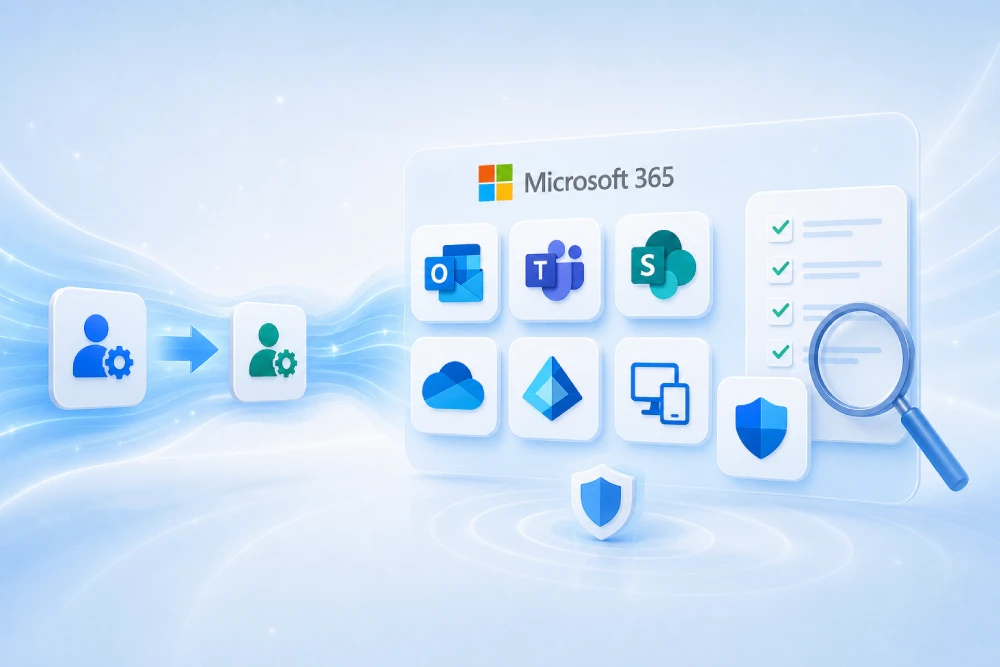
MSAdvance helps design a secure Microsoft 365 onboarding and offboarding process by aligning identity, licenses, devices, email, data, groups, Teams, SharePoint, OneDrive, Power Platform, and compliance.
- Design of the joiner-mover-leaver process for new hires, role changes, and departures.
- Automation with Microsoft Entra ID, groups, licenses, lifecycle workflows, and access governance.
- Protection of critical data: mailboxes, OneDrive, SharePoint, Teams, devices, and connected applications.
- Operational checklist for HR, IT, security, managers, and compliance.
Contact our team View Microsoft 365 Security & Compliance service
It may also fit with: Modern Workplace Microsoft 365 · Software license procurement and sales · All services
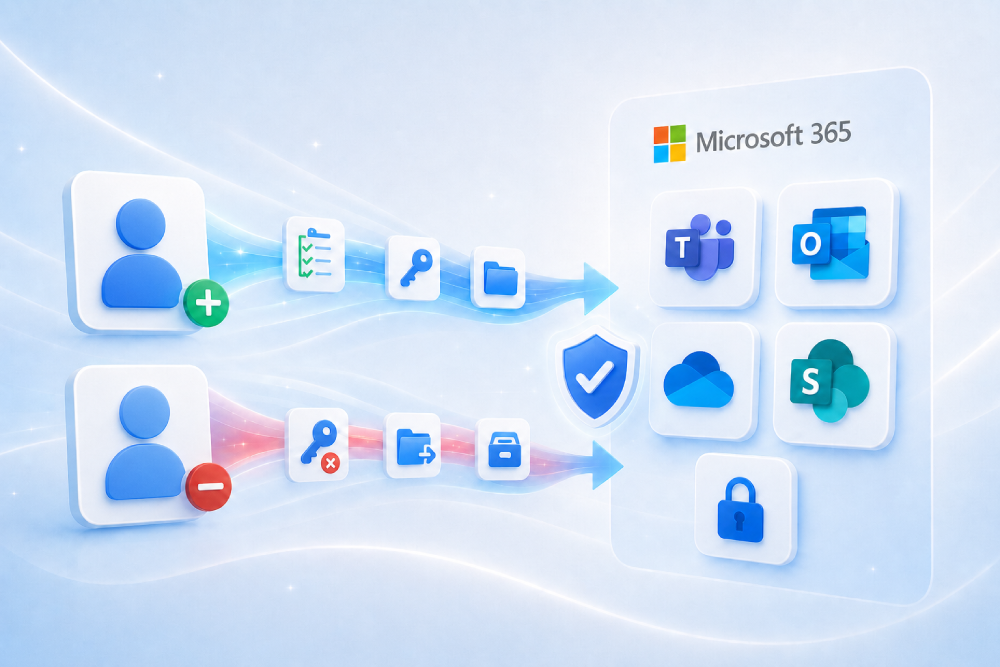
A secure employee onboarding and offboarding process in Microsoft 365 defines what happens when a person joins, changes role, or leaves the company: user creation, license assignment, groups, permissions, MFA, devices, Teams, SharePoint, OneDrive, email, and applications. The key is to apply a joiner-mover-leaver model: grant only the access needed when someone joins, adjust permissions when their role changes, and remove access immediately when they leave, without losing email, files, or compliance evidence.
Quick summary: employee onboarding and offboarding in Microsoft 365 in 10 points
- The process starts in HR: IT needs a reliable signal for a new hire, role change, or departure in order to act on time.
- Identity is the foundation: the user in Microsoft Entra ID must be created with accurate attributes: department, job title, manager, location, contract type, and start or departure date.
- Licenses should be assigned through groups: this reduces errors, speeds up onboarding, and makes it easier to remove licenses when the person leaves.
- Access must be minimal from day one: groups, Teams, SharePoint, and applications should be assigned by role, not by “copying” users without review.
- Offboarding must block access before touching data: first block sign-in, revoke sessions, and protect credentials; then decide what to do with email, OneDrive, and teams.
- Do not remove licenses without a data plan: removing certain licenses triggers limited retention periods; it is advisable to convert mailboxes, delegate OneDrive, and apply retention policies when needed.
- Teams and SharePoint need new owners: if the employee was an owner of teams or sites, responsibility must be reassigned so spaces are not left orphaned.
- Power Platform is often forgotten: flows, apps, connections, and automations may depend on a person’s account.
- Devices matter: in Intune, you need to decide whether to retire, wipe, or reassign the device depending on whether it is corporate-owned or BYOD.
- The process must be measured: onboarding time, access revocation time, orphaned access, recovered licenses, and post-offboarding incidents.
When do you need a formal onboarding and offboarding process in Microsoft 365?
Any company that uses Microsoft 365 needs a user onboarding and offboarding process. The difference is the level of maturity: some organizations handle it manually from the admin center; others integrate it with HR, groups, licenses, automated workflows, and access reviews.
Common scenarios
- Growing companies: new employees join every week, and email, Teams, OneDrive, licenses, and devices must be delivered without delays.
- High turnover: sectors with temporary staff, branches, stores, shifts, or operational teams where the risk of leaving access open multiplies.
- Hybrid or remote work: access does not depend on being in the office; that is why blocking identity, sessions, and devices is critical.
- Regulated environments: companies that need evidence of who had access, when it was removed, and which data was preserved.
- Intensive use of Teams and SharePoint: employees do not only have email; they are also owners of teams, sites, flows, apps, and documentation.
- Internal reorganizations: when a person changes department, it is not enough to add new permissions; old ones must also be removed.
A sales representative leaves the company. Their account is blocked, but nobody reviews OneDrive, Teams, or SharePoint groups. Months later, the company discovers that the person was the owner of a critical team, had files shared with customers, and several Power Automate flows depended on their user account. The problem was not the departure itself: it was the lack of a complete process.
Introduction
Employee management in Microsoft 365 does not begin when an account is created and does not end when a user is deleted. In a modern company, one identity touches many components: Microsoft Entra ID, Exchange Online, Teams, SharePoint, OneDrive, Intune, Defender, Purview, Power Platform, groups, SaaS applications, and, in many cases, on-premises systems.
That is why talking about employee onboarding and offboarding in Microsoft 365 means talking about security, productivity, and business continuity. Good onboarding allows a person to start working with the right tools from day one. Good offboarding prevents unauthorized access, preserves critical data, and leaves traceability for audits.
This guide is designed for IT, security, operations, and HR teams that want to move from a manual and improvised process to a more secure, repeatable, and auditable model. The goal is not to create bureaucracy: it is to remove uncertainty.
1. Joiner-mover-leaver methodology
In practice: the joiner-mover-leaver model structures the employee lifecycle: a person joins, changes role, and leaves.
Microsoft Entra ID Governance uses the joiner-mover-leaver approach to automate user lifecycle tasks. In plain language:
- Joiner: a person joins the organization and needs initial access.
- Mover: a person changes role, area, country, project, or responsibility.
- Leaver: a person leaves the organization or no longer needs access.
Why this model works
Because it prevents IT from acting only when “someone remembers.” The process is triggered by business events: hiring, role change, voluntary resignation, dismissal, contract end, leave of absence, a supplier finishing a project, or manager change.
| Activity | R | A | C | I |
|---|---|---|---|---|
| Communicate onboarding, role change, or offboarding | HR | HR | Manager | IT / Security |
| Create or modify identity | IT | IT | HR | Manager |
| Assign groups, licenses, and apps | IT | IT | Manager / Security | User |
| Block access during offboarding | IT / Security | Security | HR / Legal | Manager |
| Decide data preservation | Legal / Compliance | Compliance | IT / Manager | Leadership |
| Review evidence | Security | Compliance | IT | Audit |
The key is that each phase has an owner. If “everyone” is responsible for offboarding, in practice nobody is.
2. Assessment: inventory of identities, access, and critical data
In practice: before automating, you need to know what is being automated and what risks exist.
Many companies try to automate onboarding and offboarding without first reviewing their groups, licenses, permissions, and applications. The result is often a fast process, but not necessarily a secure one.
What the assessment should review
Identity and licenses
- User types: employees, external users, suppliers, interns, shared accounts.
- Identity source: cloud-only, on-premises Active Directory, Entra Connect, Cloud Sync, or HR.
- Manual or group-based license assignment.
- Users without a manager or with incomplete attributes.
Access and collaboration
- Microsoft 365 groups, security groups, and Teams teams.
- SharePoint sites with unique permissions.
- Users who own teams, sites, flows, or apps.
- Guests and external collaboration.
Data and compliance
- Exchange Online mailboxes and shared mailboxes.
- User OneDrive accounts containing business data.
- Retention policies, eDiscovery, DLP, and labels.
- Devices in Intune and the risk of access from BYOD.
Expected outcome
The assessment should end with a clear roadmap: what can be automated immediately, what must be cleaned up first, which groups will be used for licensing, which data will be preserved during offboarding, and which roles must review access periodically.
Do not start by “creating an offboarding script.” Start by deciding what should happen to each type of employee when they join, change role, or leave.
3. Employee onboarding in Microsoft 365 step by step
In practice: good onboarding allows the person to work from day one without requesting access one by one.
Employee onboarding in Microsoft 365 should be predictable. The person should not start with “I don’t have email,” “I can’t see Teams,” or “I’m missing SharePoint access.” At the same time, they should not receive excessive permissions “just in case.”
3.1 Minimum data HR should send
- Full name and preferred name.
- Start date and contract type.
- Department, job title, location, and manager.
- Access profile: standard, executive, external, temporary, frontline, technical, privileged.
- Need for corporate device, mobile phone, groups, specific apps, or access to sensitive data.
3.2 User creation
The user can be created manually in the admin center, synchronized from on-premises Active Directory, or provisioned automatically from an HR system. In any case, it is important to standardize:
- UPN and primary email format.
- Email aliases, if applicable.
- Complete attributes to automate rules: department, country, manager, job title.
- Base groups according to role.
3.3 Group-based licensing
Group-based licensing in Microsoft Entra reduces errors: when a person joins the right group, they receive the correct license; when they leave, the license can be removed in a controlled way.
| Group | Profile | Typical licenses / access |
|---|---|---|
| GRP-LIC-M365-BusinessPremium | Standard employee | Microsoft 365, Defender, Intune, desktop apps |
| GRP-LIC-M365-Frontline | Store / field staff | Email, Teams, mobile apps, limited access |
| GRP-APP-Finance | Finance team | Finance SharePoint, Finance Teams, finance apps |
| GRP-CA-Privileged | Administrators | Stricter Conditional Access, PIM, strong MFA |
3.4 MFA, security registration, and Conditional Access
Onboarding should include MFA method registration, self-service password reset if used, and Conditional Access policies adapted to the profile. A new account without MFA is an open door.
3.5 Device, Intune, and applications
If the person receives a corporate laptop or mobile device, onboarding must be coordinated with Intune:
- Device assignment or Autopilot, if applicable.
- Compliance policies.
- Required applications.
- Configuration of Outlook, Teams, OneDrive, and the corporate browser.
On day one, the employee receives their account, MFA, email, Teams, OneDrive, applications, and access to the right sites. They do not need to request 12 permissions or share passwords. For IT, every step is traceable.
4. Role changes: the forgotten part of the lifecycle
In practice: many access gaps are created when someone changes role and keeps old permissions.
Most companies have some onboarding and offboarding process. But internal changes are usually less controlled. An employee moves from sales to finance, from support to administration, or from one project to another, and accumulates historical permissions.
What should happen during a role change
- Update attributes: department, job title, manager, location, and cost center.
- Add new access: groups and applications for the new role.
- Remove old access: team groups, SharePoint, Teams, applications, and shared mailboxes that no longer apply.
- Review licenses: the required license type may change.
- Review device: if the role requires higher security, compliance, or different apps.
Practical recommendation
Every role change should be treated as partial offboarding and partial onboarding: remove what no longer applies and deliver what is new.
If a user has been with the company for years and belongs to dozens of old groups, there is probably no real mover process.
5. Employee offboarding in Microsoft 365 step by step
In practice: secure offboarding quickly blocks access, preserves required data, and removes what should no longer remain active.
Employee offboarding should follow a clear order. If you delete the account first or remove licenses without thinking about data, you may lose email, OneDrive, evidence, or automations. If you take too long to block access, you leave a risk window open.
5.1 Types of departure
- Planned departure: retirement, contract end, agreed exit. Allows preparation for knowledge and data transfer.
- Immediate departure: dismissal, incident, security risk. Requires priority access blocking.
- Extended absence: medical leave, leave of absence, or temporary suspension. Does not always mean deleting the account.
- Supplier or external user: requires removing access to teams, sites, apps, and possibly deleting the guest user.
5.2 Recommended offboarding order
- Confirm the departure: HR or an authorized owner sends a formal request.
- Classify risk: normal, sensitive, immediate, legal/compliance.
- Block sign-in: prevent the user from accessing Microsoft 365.
- Revoke sessions: cut tokens and active sessions to reduce persistent access.
- Change password: prevent known credentials from being reused.
- Protect email and OneDrive: decide on forwarding, shared mailbox, delegation, or retention.
- Reassign owners: Teams, SharePoint, groups, flows, apps, and shared mailboxes.
- Remove groups and applications: eliminate access that no longer applies.
- Manage devices: retire, wipe, block, or reassign depending on type.
- Recover licenses: only when data and compliance have been resolved.
- Save evidence: audit, ticket, approvals, and completed actions.
First cut access. Then preserve what matters. Finally, delete or recover licenses.
6. Exchange Online: mailbox, forwarding, automatic replies, and shared mailbox
In practice: the mailbox often contains critical information: customers, contracts, conversations, and decisions.
During offboarding, email is one of the most sensitive components. Blocking the account is not enough. You need to decide what happens to new messages and to the historical mailbox.
Common options
- Convert the mailbox to a shared mailbox: useful when several people need to consult the history.
- Grant delegated access to the manager: allows email review without sharing credentials.
- Configure forwarding: for new incoming emails, if the business requires it.
- Automatic reply: informs senders that the person is no longer there and redirects them to the correct contact.
- Inactive mailbox or retention: if there are legal or audit requirements.
What to avoid
- Do not share the former employee’s password.
- Do not remove the license without reviewing email preservation.
- Do not leave permanent forwarding without review.
- Do not depend on a personal account for business processes.
Connect-MgGraph -Scopes "User.ReadWrite.All","Directory.AccessAsUser.All"

# Block sign-in
Update-MgUser -UserId "user@company.com" -AccountEnabled:$false

# Revoke active sessions
Revoke-MgUserSignInSession -UserId "user@company.com"
Recommendation: adapt scripts to your environment, administrative roles, and approval process.
8. Microsoft Teams: owners, channels, files, and meetings
In practice: if an employee was a Teams owner, their departure can leave teams without an accountable owner.
Microsoft Teams is not just chat. Behind it there are Microsoft 365 groups, SharePoint sites, files, channels, meetings, recordings, Planner, tabs, and applications. That is why offboarding must review:
- Teams where the user was an owner.
- Private or shared channels with specific permissions.
- Files posted in channels.
- Recurring meetings organized by the user.
- Recordings associated with meetings.
- Applications or tabs configured by the user.
Recommended actions
- Assign a new owner to teams and groups.
- Review private and shared channels.
- Transfer or recreate recurring meetings if they are critical.
- Review files and recordings containing sensitive information.
- Remove guest access if the user is external.
Related resource: Microsoft Teams and Modern Workplace consulting.
9. Devices and Intune: retire, wipe, or reassign endpoints
In practice: a blocked identity is not always enough if sessions, data, or active devices remain.
Devices are a key part of offboarding. A corporate laptop is not the same as a personal mobile phone with access to Outlook and Teams.
Decisions by device type
| Device | Typical action | Objective |
|---|---|---|
| Corporate laptop | Block, collect, wipe, or reprovision | Prevent data leakage and prepare reassignment |
| Corporate mobile | Wipe or retire according to policy | Remove corporate data |
| BYOD | Retire / selective wipe | Remove corporate data without touching personal data |
| Shared device | Review sessions, profiles, and apps | Avoid persistent credentials |
What to review in Intune
- Devices associated with the user.
- Compliance status.
- Installed corporate applications.
- Wi-Fi, VPN, certificate profiles, and access to internal resources.
- BitLocker, recovery keys, and reprovisioning.
10. Applications, Power Platform, and service accounts
In practice: many departures break processes because a flow, app, or connector depended on a personal account.
In Microsoft 365 environments, employees can own:
- Power Automate flows.
- Internal Power Apps.
- Connections to SharePoint, Exchange, Dataverse, SQL, or APIs.
- Power BI reports and models.
- App registrations and secrets in Entra ID.
- Automations using personal accounts.
Recommended actions
- Inventory the user’s flows, apps, and connections.
- Change ownership to a service account or responsible team.
- Reauthenticate critical connectors.
- Review secrets, certificates, and application permissions.
- Document the change for future audits.
An invoice approval flow stops working because the creator left the company and their license was removed. The solution is not “never remove licenses,” but to govern Power Platform with shared owners, environments, and appropriate accounts.
11. Security: MFA, Conditional Access, sessions, and privileged roles
In practice: secure offboarding starts by blocking access and revoking active sessions.
Offboarding must act on identity immediately, especially when the departure involves risk. “Removing the license” is not enough. An account without a license, but still enabled in certain contexts, can remain a problem.
Key controls
- Block sign-in in Microsoft Entra ID.
- Revoke sessions to cut active tokens.
- Change password if the account is not deleted immediately.
- Remove MFA methods or record the authentication state, if applicable.
- Remove administrative roles and review PIM if used.
- Review enterprise applications and granted OAuth permissions.
Privileged accounts
If the user had administrative roles, access to Azure, security, billing, or sensitive data, the departure must be treated as a sensitive case. It is advisable to review:
- Roles in Entra ID.
- Roles in the Microsoft 365 admin center, Exchange, SharePoint, Teams, Intune, and Purview.
- Access to Azure subscriptions.
- Stored credentials, certificates, and secrets.
- Recent activity and administrative changes.
Related resource: Conditional Access in Microsoft Entra: baseline policies · MFA in Microsoft Entra ID.
12. Compliance: retention, eDiscovery, auditing, and evidence
In practice: not all data should be kept forever, but what must be retained has to be protected.
During offboarding, you need to decide what data is preserved, who can access it, and for how long. IT should not make this decision alone: legal, compliance, security, or the business owner should participate when appropriate.
Compliance questions
- Is there a legal obligation to preserve email or documents?
- Is there an open litigation, investigation, or audit?
- Did the user handle sensitive, financial, health, contractual, or confidential information?
- Should retention or eDiscovery be applied?
- Which evidence of the offboarding process is stored?
Recommended minimum evidence
- Formal offboarding request.
- Account blocking time.
- Session revocation.
- Actions on mailbox, OneDrive, Teams, and SharePoint.
- Devices retired or wiped.
- Licenses recovered.
- Legal/compliance approval, if applicable.
If your organization needs auditing, retention, DLP, or eDiscovery, see: Microsoft 365 Security & Compliance service.
13. Automation with Microsoft Entra ID Governance and Lifecycle Workflows
In practice: automating onboarding and offboarding reduces errors, but only if the role and group design is clear.
Microsoft Entra ID Governance enables user lifecycle task automation through Lifecycle Workflows. These workflows can help execute onboarding, role-change, and offboarding actions based on attributes such as start date, manager, department, or user type.
What can be automated
- Send welcome emails.
- Add users to groups.
- Assign tasks to the manager.
- Remove users from groups during offboarding.
- Run preparation actions for offboarding.
- Review workflow runs and reports.
Realistic automation
Not everything needs to be automated from day one. A healthy approach is to start with:
- Standard onboarding with groups and licenses.
- Standard offboarding with blocking, revocation, and group removal.
- Manager and owner reviews.
- Sensitive cases with human approval.
Automate what is repeatable. Keep human approval for sensitive departures, regulated data, and privileged accounts.
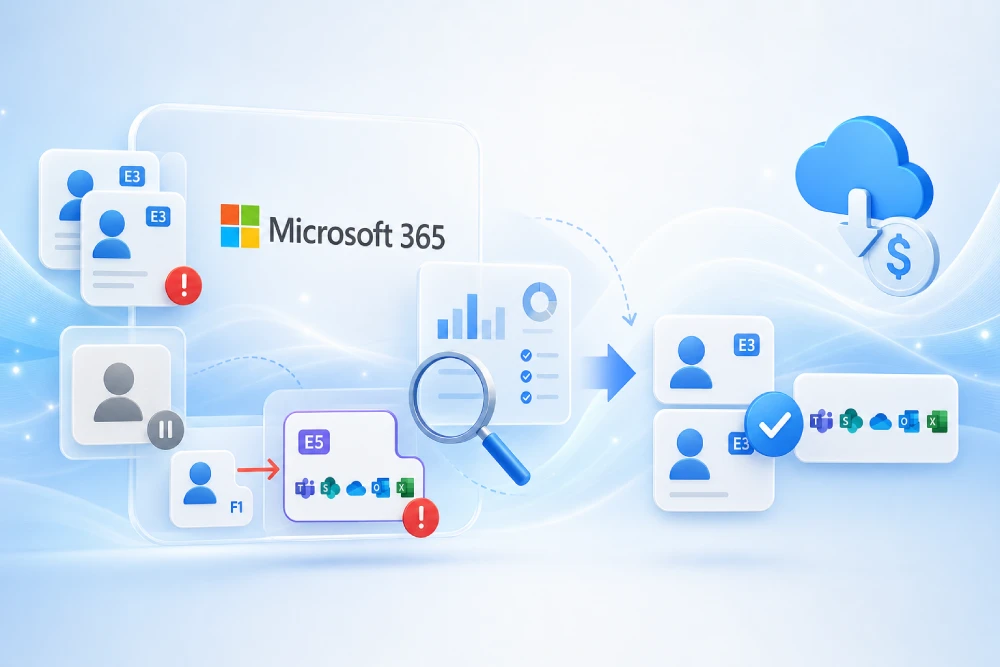
14. Licenses and costs: how to recover licenses without losing information
In practice: removing licenses saves costs, but doing it too early can cause data loss.
Many companies want to recover licenses quickly when a person leaves. That makes sense, but it has to be done in the right order. Before removing licenses, review whether you need to preserve the mailbox, OneDrive, Teams, compliance data, or temporary delegated access.
Best practices
- Use group-based licensing for onboarding and offboarding.
- Do not remove the license until you decide what happens to email and OneDrive.
- Convert the mailbox to a shared mailbox when appropriate.
- Apply retention if there is a legal obligation.
- Review Power BI, Power Apps, Visio, Project, Defender, Teams Phone, or other add-on licenses.
| Element | Risk if removed without review | Recommended action |
|---|---|---|
| Exchange Online | Loss of mailbox access after the retention period | Convert, delegate, retain, or export depending on the case |
| OneDrive | Deletion after the configured period | Grant temporary access and move business data |
| Power Platform | Flows and apps stop working | Change owner and connections |
| Teams Phone | Number, queues, or configuration left unassigned | Reassign number or remove plan |
| Defender / Intune | Device without the expected management | Complete retire or wipe before cleaning up licenses |
MSAdvance can also help you review licensing: Software license procurement and sales for businesses.
Do you want to validate whether your current onboarding and offboarding process leaves access open?
MSAdvance can perform a short assessment of your onboarding and offboarding process: we review users, groups, licenses, Teams, SharePoint, OneDrive, Intune, Power Platform, and audit evidence.
15. Operational checklists for onboarding, role changes, and offboarding
In practice: a checklist reduces errors and helps prove that the process was executed correctly.
15.1 Employee onboarding checklist
- Request approved by HR and the manager.
- User created or synchronized in Microsoft Entra ID.
- Complete attributes: department, job title, manager, location.
- License assigned through group.
- MFA and security methods configured.
- Groups, Teams, and SharePoint assigned by role.
- Device prepared in Intune, if applicable.
- Enterprise applications assigned.
- Welcome guide and best practices sent.
15.2 Role-change checklist
- New manager and department updated.
- New groups and apps assigned.
- Previous access reviewed and removed.
- Licenses adjusted.
- Access to sensitive data reviewed.
- Manager confirms that the user can work normally.
15.3 Employee offboarding checklist
- Formal request received.
- Account blocked.
- Sessions revoked.
- Password changed.
- Mailbox converted/delegated/retained depending on the case.
- OneDrive reviewed and access delegated to the responsible owner.
- Ownership of Teams, SharePoint, groups, and flows reassigned.
- Devices retired, wiped, or reassigned.
- Groups and applications removed.
- Licenses recovered after data protection.
- Evidence stored in a ticket or audit system.
16. KPIs and quality controls
In practice: if it is not measured, the process ends up depending on memory and goodwill.
| KPI | What it measures | Practical objective |
|---|---|---|
| Onboarding time | From approved request to operational user | Reduce waiting time for new employees |
| Offboarding blocking time | From departure confirmation to blocked access | Reduce the risk window |
| Recovered licenses | Licenses removed after data has been protected | Optimize cost without losing information |
| Users without manager | Identities with an empty manager attribute | Improve automation and approval |
| Teams without owner | Teams or sites without a valid owner | Avoid orphaned spaces |
| Former employee access | Groups, apps, or guests still active after offboarding | Eliminate gaps |
17. Common risks and mitigations
In practice: the most serious risks often come from small steps nobody reviewed.
| Risk | Impact | Mitigation |
|---|---|---|
| Former employee account remains active | Unauthorized access | Immediate blocking + session revocation |
| Removing license before preserving data | Loss of email or information | Mailbox and OneDrive checklist before license removal |
| Teams or SharePoint without owner | Orphaned and unmanaged spaces | Reassign owners during offboarding |
| Power Automate dependent on the user | Broken processes | Review flows and connections before deleting account |
| Corporate device not recovered | Data leakage | Intune retire/wipe and physical return process |
| Role change without removing old permissions | Privilege accumulation | Access reviews and mover process |
| Lack of evidence | Audit problems | Ticket with actions, owners, and timestamps |
18. Useful scripts and snippets
In practice: scripts help, but they must be integrated into a process with approvals and evidence.
Connect-MgGraph -Scopes "User.ReadWrite.All"

$user = "user@company.com"

Update-MgUser -UserId $user -AccountEnabled:$false
Revoke-MgUserSignInSession -UserId $userConnect-ExchangeOnline
Set-Mailbox -Identity "user@company.com" -Type SharedSet-MailboxAutoReplyConfiguration -Identity "user@company.com" `
-AutoReplyState Enabled `
-InternalMessage "This person is no longer part of the organization. Contact support@company.com." `
-ExternalMessage "This person is no longer part of the organization. Contact support@company.com."{
"user": "user@company.com",
"offboardingType": "normal",
"actions": {
"blockSignIn": true,
"revokeSessions": true,
"reviewMailbox": true,
"delegateOneDrive": true,
"reassignTeamsSharePoint": true,
"retireDevices": true,
"recoverLicenses": "after_preserving_data"
}
}These examples are indicative. They must be tested in a controlled environment and adapted to permissions, roles, and internal policies.
19. Frequently asked questions about employee onboarding and offboarding in Microsoft 365
What is onboarding and offboarding in Microsoft 365?
It is the process of granting the right access to new employees and securely removing access when a person changes role or leaves the company. It includes identity, licenses, email, Teams, SharePoint, OneDrive, devices, applications, and compliance.
What should be done first when an employee leaves?
The first step is to block sign-in and revoke active sessions to cut access. Then email, OneDrive, Teams, SharePoint, devices, licenses, and evidence are reviewed.
Should I delete the user immediately?
Not always. In many cases, it is better to block first, preserve or transfer data, and delete later according to internal policy. If there are legal requirements, retention or an inactive mailbox can be applied.
What happens to a former employee’s mailbox?
It can be converted into a shared mailbox, delegated to a responsible person, configured with an automatic reply, or preserved with retention if there are legal or audit obligations.
What happens to the OneDrive of a deleted employee?
OneDrive has a configurable retention period for deleted users. Before it expires, it is advisable to review files, delegate access to the responsible owner, and move business documents to SharePoint.
When should licenses be removed?
After deciding what to do with email, OneDrive, compliance data, devices, and applications. Removing licenses too early may cause loss of access to important information.
How do you prevent a former employee from keeping access to Teams or SharePoint?
The user must be removed from groups, teams, and sites, unique permissions must be reviewed, owners reassigned, and any active invitations or shared links checked.
What happens if the employee owned Power Automate flows?
Flows, connections, and owners must be reviewed. If they are not reassigned, processes may stop working when the account is blocked or deleted.
Can the entire process be automated?
A large part of the process can be automated with groups, group-based licensing, Lifecycle Workflows, PowerShell, and Microsoft Graph. Even so, sensitive departures, regulated data, and privileged accounts usually require human review.
Can MSAdvance help design this process?
Yes. MSAdvance can perform an assessment, design the joiner-mover-leaver process, automate tasks, review security and compliance, and document operational checklists for HR, IT, and security.
20. Official resources and external links
- Microsoft Learn — Add users and assign licenses in Microsoft 365
- Microsoft Learn — Remove a former employee and secure data
- Microsoft Learn — Give another employee access to OneDrive and Outlook data
- Microsoft Learn — Convert a user mailbox to a shared mailbox
- Microsoft Learn — OneDrive retention and deletion
- Microsoft Learn — What are Lifecycle Workflows?
- Microsoft Learn — Lifecycle Workflow tasks
- Microsoft Learn — Plan access reviews
- Microsoft Learn — Retention settings in Microsoft Purview
- Microsoft Learn — Group-based licensing in Microsoft Entra ID
MSAdvance internal resources
21. Conclusion and next steps
A good employee onboarding and offboarding process in Microsoft 365 is not limited to creating or deleting users. It must protect identity, data, email, OneDrive, SharePoint, Teams, devices, applications, and audit evidence.
If the organization wants to reduce risk, improve productivity, and avoid information loss, the next steps usually are:
- Document the current joiner-mover-leaver process.
- Review groups, licenses, and inherited permissions.
- Define onboarding, role-change, and offboarding checklists.
- Automate repeatable tasks with Microsoft Entra ID and groups.
- Measure onboarding time, blocking time, access removal, and recovered licenses.
Do you want MSAdvance to design your secure Microsoft 365 onboarding and offboarding process?
We can help you close access, preserve data, automate tasks, and leave a clear process for HR, IT, security, and the business.
Contact MSAdvance View Microsoft 365 Security & Compliance
· You may also be interested in: Modern Workplace · Licenses · All services