









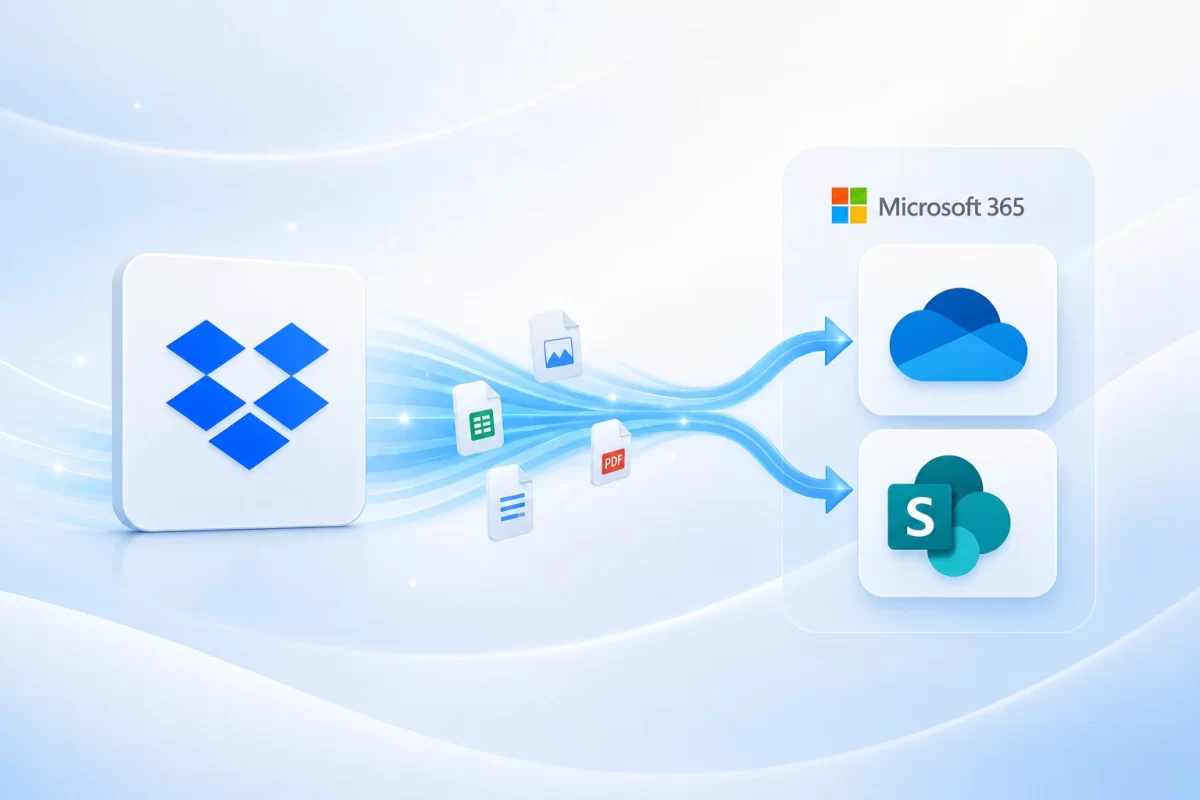
Do you want MSAdvance to handle your Dropbox to Microsoft 365 migration?
Migrating Dropbox to Microsoft 365 is not just about copying folders. It is a project involving structure, security, and adoption: deciding what goes to OneDrive, what goes to SharePoint, how permissions are preserved, what happens to shared links, and how to prevent users from losing productivity during the transition.
At MSAdvance, we design and execute the Dropbox to Microsoft 365 migration from end to end, including prior assessment, wave-based planning, testing, controlled migration, and support during stabilization.
- Dropbox inventory: users, team folders, personal folders, permissions, links, and data volume.
- Target design in Microsoft 365: OneDrive, SharePoint, Teams, permissions, document structure, and governance.
- Secure migration with Microsoft Migration Manager or specialized tools when the scenario requires it.
- Communication, training, and support plan so users can work in Microsoft 365 from day one.
Contact our team View Microsoft 365 migration service
You may also be interested in: Modern Workplace · Microsoft 365 Security & Compliance · All services
A Dropbox to Microsoft 365 migration is the process of moving files, folders, permissions, and document structure from Dropbox Business or Dropbox Team to OneDrive, SharePoint Online, and, where appropriate, Microsoft Teams. The safest way to do it is with a prior assessment, user and group mapping, error scanning, wave-based migration, and business validation. Microsoft provides Migration Manager to migrate Dropbox content to Microsoft 365, although there are limits and items that must be handled separately, such as Dropbox Paper, certain links, special permissions, or historical versions.
Quick summary: Dropbox to Microsoft 365 migration in 10 points
- What is migrated: Dropbox files and folders to OneDrive, SharePoint, and Teams, depending on the type of content and how the team works.
- What you should avoid: copying everything “as is” without cleaning it up, because the disorder is simply moved into Microsoft 365.
- Native tool: Microsoft Migration Manager lets you create migration projects from Dropbox, scan, map identities, migrate, and monitor progress.
- Correct destination: OneDrive for individual work; SharePoint for team, department, project, and intranet documents; Teams as the collaboration layer on top of SharePoint.
- Permissions: identity mapping is critical. If users and groups are not mapped correctly, access may be lost or metadata may be incorrect.
- Versions: with Migration Manager, a Dropbox migration transfers the most recent version of the file, so historical versions require a specific strategy.
- Non-migratable content: Dropbox Paper, certain link files, and Google files stored in Dropbox may require separate handling.
- Performance: very large folders should be split into smaller tasks to reduce errors and improve speed.
- Users: communication is as important as the tool. You need to explain where files will be, and what will happen to links and sharing.
- Specialized partner: it is worth it when there are many users, complex permissions, sensitive data, compliance requirements, or a need to migrate without disrupting operations.
When do you need to migrate Dropbox to Microsoft 365?
Many companies start using Dropbox because it is fast, simple, and very convenient for sharing files. The problem appears when the organization grows: permissions become difficult to understand, documents are duplicated, external links lack control, and teams already work in Teams, Outlook, and Microsoft 365, while files remain on another platform.
At that point, the question is no longer “can we keep using Dropbox?”, but “does it make sense to maintain two collaboration ecosystems?”.
Common scenarios
- Consolidation in Microsoft 365: the company already uses Outlook, Teams, Word, Excel, PowerPoint, and SharePoint, and wants to centralize documents in the same environment.
- Cost reduction: the goal is to avoid duplicate licenses across Dropbox and Microsoft 365.
- Improved document governance: the organization needs more integrated permissions, auditing, retention, sensitivity labels, or DLP.
- Teams adoption: users collaborate in Teams, but documents remain scattered in Dropbox.
- Compliance and security: stronger control is required over external sharing, conditional access, identity, and information classification.
- Internal reorganization: the company wants to organize team folders, departments, projects, and critical documentation.
- Mergers or company integration: one organization uses Dropbox and another uses Microsoft 365, and the goal is to unify collaboration.
A company already works in Teams every day, but every meeting ends with phrases like “the file is in Dropbox”, “I’ll send you the link”, or “I don’t know whether that is the latest version”. By migrating Dropbox to SharePoint and OneDrive, documents move into the natural Microsoft 365 workflow: Teams, Office, search, permissions, auditing, and security.
Introduction to Dropbox to Microsoft 365 migration
This guide explains how to plan a Dropbox to Microsoft 365 migration in an organized way: what should be reviewed before migrating, how to decide between OneDrive and SharePoint, how to handle permissions and shared links, what limitations exist, and how to support users so they adopt the new environment.
Although it is technically possible to start a migration from the Microsoft 365 admin center, a well-executed migration requires prior design. Dropbox and Microsoft 365 are not identical: the way folders, links, teams, permissions, and shared files work does not always translate automatically. That is why an honest assessment should be completed before moving data.
The objective is not to “empty Dropbox” and fill SharePoint without criteria. The objective is for the business to gain control, security, and productivity. If the migration is used to organize information, create a strong document structure, and train users, Microsoft 365 can become a much more complete collaboration platform.
1. Project methodology and governance
In practice: a Dropbox to Microsoft 365 migration should be treated as a business and adoption project, not as a simple file copy.
The recommended methodology is to work in phases: discovery, design, pilot, waves, and stabilization. This reduces risk and allows the team to learn before moving the entire organization.
Recommended phases
- Initial assessment: inventory of Dropbox, users, folders, permissions, links, volume, and special content.
- Target design: decide what goes to OneDrive, what goes to SharePoint, and what will be integrated with Teams.
- Pilot: migrate a representative group with real scenarios, not only the easiest team.
- Waves: migrate by departments, projects, or business units.
- Validation: review access, critical files, links, permissions, and user experience.
- Stabilization: intensive support, issue resolution, and controlled closure of Dropbox.
| Activity | Responsible | Accountable | Consulted | Informed |
|---|---|---|---|---|
| Dropbox assessment | MSAdvance / IT | IT | Business areas | Management |
| OneDrive / SharePoint design | MSAdvance | IT | Business / Security | Key users |
| Permission mapping | IT / MSAdvance | Security | Data owners | Business |
| Pilot | MSAdvance | IT | Pilot users | Management |
| Communication and adoption | MSAdvance / Business | Management | IT | Users |
One important point: every important folder must have an owner. If nobody is responsible for a folder in Dropbox, the migration is the perfect moment to decide whether it should be kept, archived, reorganized, or deleted.
2. Assessment: Dropbox inventory, permissions, and risks
In practice: the assessment prevents moving clutter, duplicates, unnecessary access, and problems that later become support tickets.
Before migrating, you need to know what is really in Dropbox. It is not enough to know the total number of users or the storage volume. What matters is understanding how Dropbox is used: which folders are critical, which links are shared externally, which files have a clear owner, and which content has been abandoned.
2.1 Technical inventory
- Active and inactive users.
- Personal folders and team folders.
- Total volume and distribution by user or folder.
- Large files, problematic names, and long paths.
- Special content: Paper, links, Google files, external access.
2.2 Business inventory
- Departments that depend on Dropbox.
- Documentation critical to operations.
- Legal, financial, sales, or customer content.
- Active and historical projects.
- Folders that can be archived or deleted.
2.3 Risks
- External links without an owner.
- Inherited or hard-to-interpret permissions.
- Files without a clear owner.
- Sensitive data without classification.
- Users who depend on Dropbox Sync for their daily work.
The result of the assessment should be a clear matrix: what is migrated, where it is migrated, who validates it, what is archived, and what requires special handling. This matrix becomes the basis of the wave plan.
Do not migrate everything “because it is there”. A Dropbox to Microsoft 365 migration is an opportunity to organize documentation, remove duplicates, and turn chaotic folders into useful workspaces in SharePoint and Teams.
3. Target design: OneDrive, SharePoint, and Teams
In practice: choosing the right destination is more important than moving files quickly.
One of the most common mistakes is migrating all of Dropbox into a single SharePoint site or distributing folders without a clear rationale. Microsoft 365 has several components, and each serves a different type of work.
| Type of content in Dropbox | Recommended destination | Why |
|---|---|---|
| Personal files belonging to a user | OneDrive | It is the personal workspace for drafts and individual documents. |
| Team or department folders | SharePoint Online | It supports libraries, permissions, metadata, versions, approval, and document governance. |
| Active project documentation | SharePoint + Teams | Teams enables conversation; SharePoint stores the files behind the team. |
| Official documents or internal policies | SharePoint | Better version control, publishing, approval, and retention. |
| Old or rarely used content | Archive / restricted SharePoint | It should not be mixed with operational content if it is no longer used daily. |
Simple rule for users
- OneDrive: “mine”, drafts, individual work.
- SharePoint: “ours”, team, department, or project documentation.
- Teams: conversations, meetings, and daily collaboration on files that live in SharePoint.
This rule, explained with real examples, reduces many questions after the migration.
4. Migration Manager: native tool to migrate Dropbox
In practice: Migration Manager allows you to connect Dropbox, scan, map identities, migrate, and monitor from Microsoft 365.
Microsoft provides Migration Manager for migrations from cloud sources such as Dropbox. The process is managed from the Microsoft 365 admin center and allows you to create a migration project, connect to Dropbox, analyze folders, assign destinations, map identities, and launch the migration.
General workflow with Migration Manager
- Create a project: from the Microsoft 365 admin center, in the migration and import area.
- Connect Dropbox: sign in with a Dropbox administrator account with the appropriate permissions.
- Scan and assess: detect folders, size, errors, problematic files, and potential blockers.
- Assign destinations: map Dropbox folders to OneDrive or SharePoint.
- Map identities: associate Dropbox users and groups with Microsoft 365 users and groups.
- Migrate: run the initial migration and, where appropriate, incremental synchronizations.
- Monitor: review scan and migration reports to resolve errors.
Starting the migration copies Dropbox content to the specified Microsoft 365 destination. That is why it is critical to validate the destination carefully before launching the migration. Changing a destination after a task has started may not be possible or may require repeating work.
Official documentation: Migrate Dropbox to Microsoft 365 with Migration Manager.
5. Identity and permission mapping
In practice: if user and group mapping fails, the migration may copy files but break access.
Identity mapping means linking Dropbox users, groups, and domains with their equivalents in Microsoft 365. It is one of the most sensitive parts of the migration.
What needs to be reviewed
- Dropbox users who no longer exist in the company.
- Users with different email addresses in Dropbox and Microsoft 365.
- Dropbox groups that should become Microsoft 365 groups or security groups.
- Folders shared with external users.
- Inherited or unclear permissions.
Conceptual identity mapping CSV
DropboxIdentity,Microsoft365Identity,Type
ana@company.com,ana@company.com,User
sales@company.com,sales@company.com,Group
projects@olddomain.com,projects@company.com,Group
The recommendation is not to blindly trust automapping. It can help, but it must be reviewed, especially when there are domain changes, former users, aliases, legacy groups, or external collaborators.
If a Dropbox folder is shared with “commercial@company.com”, but the correct group in Microsoft 365 is “sales@company.com”, the migration may end up with incorrectly assigned or incomplete permissions. Detecting this beforehand prevents tickets and loss of access.
6. Migrating Dropbox to OneDrive
In practice: OneDrive is the natural destination for personal files and individual work, not for shared company documentation.
When a user has personal files in Dropbox, the most logical destination is usually OneDrive. There, the user can continue working with local sync, versions, co-authoring, and access from any device.
What to migrate to OneDrive
- Personal drafts.
- Individual work documents.
- Files that clearly belong to a user.
- Content that should not be in a shared library.
What should not be migrated to OneDrive
- Department folders.
- Project documentation with multiple owners.
- Corporate templates.
- Official documents.
- Files that must survive a user leaving the company.
A common mistake is migrating shared folders into one person’s OneDrive. This creates dependency on the owner user. For team information, SharePoint is usually the correct destination.
8. Fit with Microsoft Teams
In practice: Teams does not replace SharePoint; it uses SharePoint as its document foundation.
Many companies migrate Dropbox because they want to work better in Teams. It is important to understand that Teams files are stored in SharePoint. That is why, when SharePoint is designed well, Teams works much better.
When to create a Teams team
- When there is a group of people working recurrently on a project or process.
- When there are associated conversations, meetings, and files.
- When the content is not just a repository, but a living collaboration space.
When SharePoint alone is enough
- Corporate reference documentation.
- Internal policies.
- Libraries with controlled access.
- Content that does not require daily conversation.
Do not create a Teams team for every Dropbox folder. First design the information architecture. Then decide which spaces need conversational collaboration.
9. Limitations, non-migratable files, and special cases
In practice: a migration without surprises starts by knowing what will not migrate as expected.
No tool migrates everything perfectly in every scenario. Dropbox contains elements that require special attention.
Items that should be reviewed
- Dropbox Paper: it may not migrate as a standard document and requires an export or conversion strategy.
- Link files: some shortcut or hyperlink files may not download or migrate correctly.
- Google files in Dropbox: files such as Google documents, sheets, or presentations may not download from Dropbox.
- Historical versions: the native migration focuses on the most recent version of the file.
- Huge folders: they should be split into smaller tasks to improve stability.
- Shared links: they do not always behave the same way in Microsoft 365 and may require resending or new communication.
How to mitigate this
- Run a prior scan and review detailed reports.
- Identify Dropbox Paper and decide whether it should be exported, converted, or archived.
- Separate overly large folders into several tasks.
- Create a list of critical links shared with customers or suppliers.
- Communicate to users which links will need to be updated after the migration.
Externally shared links are often the most visible point for the business. If sales, support, or project teams share documentation with customers from Dropbox, a specific plan for those links must be prepared.
10. Security and compliance: Entra ID, Purview, DLP, and retention
In practice: migrating from Dropbox to Microsoft 365 is an opportunity to raise the level of document security.
An important advantage of Microsoft 365 is that files can be integrated with identity, compliance, and security: Microsoft Entra ID, Microsoft Purview, DLP, sensitivity labels, retention, auditing, and Conditional Access.
Recommended controls
- MFA: mandatory for users, especially administrators and profiles with access to sensitive data.
- Conditional Access: control access from locations, devices, or risky sessions.
- Sensitivity labels: classify confidential, internal, or public documents.
- DLP: prevent sensitive data leakage, such as financial, personal, or contractual information.
- Retention: keep documents for the required period and delete what should no longer be kept.
- Auditing: know who accesses, shares, downloads, or modifies critical documents.
Security should not block work. The objective is to apply stronger controls where there is more risk, while keeping the experience simple for low-sensitivity content.
Related service: Microsoft 365 Security & Compliance.
11. Performance, waves, and incremental sync
In practice: migrating in waves allows you to control errors, timelines, and support.
Migration Manager allows you to run migrations and rerun a task to perform an incremental synchronization. This is useful when you perform an initial migration and then synchronize changes before the final cutover.
Performance recommendations
- Do not migrate the entire organization in a single window.
- Split very large folders into smaller tasks.
- Prioritize critical content and pilot users.
- Schedule migrations outside peak activity hours.
- Review reports after each wave.
- Prevent users from moving or renaming migrated files before the final cutover.
| Wave | Content | Objective |
|---|---|---|
| Pilot | Representative users and folders | Detect real issues before scaling. |
| Area-based wave | Full departments or teams | Organize support and communication. |
| Critical content | Finance, legal, management, customers | Stricter validation and controlled permissions. |
| Historical archive | Rarely used content | Separate daily operations from historical content. |
12. Native tools vs third-party tools
In practice: Migration Manager is usually the starting point, but it is not always the only tool required.
| Method | Advantages | Limitations | When to use |
|---|---|---|---|
| Microsoft Migration Manager | Integrated into Microsoft 365; supports scanning, mapping, migration, and reporting. | Does not migrate everything perfectly; there are limitations with versions, Paper, links, and certain files. | First option in many standard scenarios. |
| Third-party tools | Advanced reporting, specific rules, granular control, and support for complex scenarios. | Additional cost and specific configuration. | Environments with complex permissions, high volume, or special requirements. |
| Controlled manual export | Useful for special cases and specific content. | Does not scale well and increases the risk of human error. | Dropbox Paper, critical links, content requiring manual review. |
| Document redesign | Avoids moving chaos and improves adoption. | Requires business decisions. | When Dropbox is disorganized or contains legacy folders. |
The decision should not automatically be “native or third-party”. The recommended approach is to start with the assessment and choose the tool according to volume, permissions, special content, and the level of control required.
13. Adoption: how to help users leave Dropbox behind
In practice: success is measured when users stop looking for Dropbox and start working comfortably in Microsoft 365.
Resistance to change usually does not come from technology, but from uncertainty: “where is my folder?”, “how do I share now?”, “can I sync as before?”, “what happens to the links I already sent?”.
Messages that should be communicated
- Where personal files will be.
- Where team folders will be.
- How to share a file from OneDrive or SharePoint.
- What changes compared to Dropbox links.
- How to use OneDrive sync.
- Who to contact if a file or permission is missing.
Useful materials
- One-page “Dropbox vs OneDrive vs SharePoint” guide.
- Destination map by department.
- Short videos or screenshots for common tasks.
- Role-based sessions: users, folder owners, administrators.
- Temporary support channel during stabilization.
Do not explain Microsoft 365 in generic terms. Explain what daily work will look like for each team: sales, finance, operations, management, support, legal, or projects.
14. Required Microsoft 365 licenses
In practice: the right license depends on whether the user only consumes, collaborates, administers, or needs advanced security.
To migrate Dropbox to Microsoft 365, users usually need licenses that include OneDrive, SharePoint, and, if used, Teams. In addition, if advanced security and compliance controls are required, it may be necessary to review plans with Microsoft Purview, Intune, Defender, or advanced Entra ID capabilities.
| Profile | Need | Typical plan to review |
|---|---|---|
| Basic user | Access to files, OneDrive, SharePoint, and Office for the web | Microsoft 365 Business Basic or equivalent |
| Power user | Desktop apps, co-authoring, sync, and collaboration | Microsoft 365 Business Standard or equivalent |
| Company with advanced security | Device management, security, and more controlled access | Microsoft 365 Business Premium or Enterprise |
| Regulated organization | Retention, eDiscovery, DLP, labels, and advanced auditing | Enterprise plans and Purview capabilities |
MSAdvance can also help with license sizing and procurement: Software license procurement and sales for businesses.
15. Operational checklists
In practice: a good checklist reduces errors and speeds up support.
15.1 Before migrating
- Inventory of users, personal folders, and team folders.
- Identification of critical content.
- Review of external links and collaborators.
- Detection of Dropbox Paper, Google files, and special files.
- Target design: OneDrive, SharePoint, and Teams.
- Users and groups created in Microsoft 365.
- Identity mapping reviewed.
- Communication plan prepared.
- Pilot defined.
15.2 During the migration
- Run scanning and review reports.
- Correct errors before mass migration.
- Migrate in waves.
- Monitor tasks and file errors.
- Avoid major changes in the destination before final cutover.
- Communicate status to area owners.
15.3 After migrating
- Validate critical files.
- Check permissions and external access.
- Confirm that OneDrive Sync works correctly.
- Update internal links or reference documentation.
- Collect incidents and resolve common patterns.
- Plan Dropbox closure or freeze.
- Apply retention, DLP, and labeling policies where appropriate.
16. KPIs and business validation
In practice: it is not enough to say “the migration is finished”; you need to prove that the business can work.
| Area | Test | Success criterion |
|---|---|---|
| Content | Critical files present in the destination | Validation by business owners |
| Permissions | Correct users access the correct folders | No relevant missing or excessive access |
| Links | Documents shared with customers or suppliers | Replacement or resend plan completed |
| Adoption | Users work from OneDrive/SharePoint | Progressive reduction in Dropbox usage |
| Support | Incidents after the wave | Below the agreed threshold |
17. Common risks and mitigations
In practice: almost every major issue can be anticipated if it is reviewed before migrating.
| Risk | Impact | Mitigation |
|---|---|---|
| Migrating everything without cleanup | SharePoint starts out disorganized | Assessment, classification, and prior archiving. |
| Incorrect identity mapping | Loss of access or incorrect permissions | Manual review and mapping CSV. |
| Broken external links | Impact on customers and suppliers | Inventory of critical links and communication plan. |
| Dropbox Paper not handled | Content not migrated as expected | Specific export, conversion, or archiving. |
| Folders too large | Errors or long migration times | Split into smaller tasks. |
| Users not trained | Change resistance and tickets | Short guides, practical sessions, and close support. |
| Excessive permissions in SharePoint | Risk of information leakage | Groups, recertification, and security policies. |
Do you want to know whether your Dropbox is ready to migrate to Microsoft 365?
MSAdvance can perform a Dropbox assessment, review users, folders, permissions, shared links, special content, and design a realistic plan toward OneDrive, SharePoint, and Teams.
18. Frequently asked questions about Dropbox to Microsoft 365 migration
Can Dropbox be migrated to Microsoft 365?
Yes. Microsoft provides Migration Manager to migrate content from Dropbox to Microsoft 365. Even so, a prior assessment is recommended to review permissions, limits, special content, and the target structure.
Is Dropbox migrated to OneDrive or SharePoint?
It depends on the type of content. Personal files usually go to OneDrive. Team folders, departments, projects, and shared documentation usually go to SharePoint. If the team works in Teams, the files are also stored in SharePoint.
Are Dropbox permissions preserved?
Users and groups can be mapped to preserve access, but the result depends on whether identities are correctly created and mapped in Microsoft 365. That is why identity mapping is a critical phase.
Are historical file versions migrated?
With the native Dropbox migration through Migration Manager, the most recent version of the file is transferred. If historical versions are required, a specific strategy must be defined before the project.
What happens to Dropbox Paper?
Dropbox Paper may require specific handling, because it does not always migrate as a standard document. It should be identified during the assessment and a decision should be made on whether to export, convert, archive, or recreate it in Microsoft 365.
What happens to shared Dropbox links?
Links may change when moving to Microsoft 365. It is advisable to inventory critical links shared with customers, suppliers, or external users, and prepare a communication or replacement plan.
Can an incremental migration be performed?
Yes, after an initial migration, an incremental synchronization can be run to copy changes. This helps reduce the impact during the final cutover.
How long does a Dropbox to Microsoft 365 migration take?
It depends on data volume, number of folders, file size, permissions, source and destination performance, and the number of errors detected. The recommended approach is to work in waves and validate each phase.
Can I migrate only some Dropbox folders?
Yes. Migration can be done by folders, users, areas, or projects. In fact, it is common to start with a pilot and move forward in waves.
Can MSAdvance handle the entire migration?
Yes. MSAdvance can perform assessment, target design, technical execution, validation, communication, support, and controlled Dropbox closure.
19. Official resources and external links for migrating Dropbox to Microsoft 365
- Microsoft Learn — Migrate Dropbox to Microsoft 365 with Migration Manager
- Microsoft Learn — Connect Dropbox with Migration Manager
- Microsoft Learn — Scan and assess Dropbox folders
- Microsoft Learn — Map Dropbox identities to Microsoft 365
- Microsoft Learn — Migrate and monitor Dropbox
- Microsoft Learn — Migration Manager FAQ for Dropbox
- Microsoft Learn — Unsupported files in Migration Manager
- Microsoft Learn — File size limits in migrations
- Microsoft Learn — Cloud migration reports
MSAdvance resources and services
20. Conclusion and next steps in a Dropbox to Microsoft 365 migration
A well-executed Dropbox to Microsoft 365 migration helps reduce duplication, improve security, centralize collaboration, and make better use of OneDrive, SharePoint, and Teams. But for the project to work, copying files is not enough: the destination must be designed, permissions must be mapped, links must be validated, users must be trained, and document governance must be applied.
The recommended next steps are:
- Perform a Dropbox assessment covering users, folders, permissions, and special content.
- Define what goes to OneDrive, what goes to SharePoint, and what will be integrated with Teams.
- Run a representative pilot.
- Migrate in waves and validate with the business.
- Apply security, compliance, and training to consolidate the change.
Why work with a specialized partner
A partner specialized in Dropbox to Microsoft 365 migration brings methodology, technical experience, and an adoption perspective. This reduces errors, improves communication with users, and turns the migration into an opportunity to organize the way the company works with documents.
Do you want MSAdvance to handle your Dropbox to Microsoft 365 migration?
MSAdvance can help you with assessment, OneDrive and SharePoint design, migration execution, validation, security, and user adoption.
Contact MSAdvance View Microsoft 365 migration service
· We can also help you with Modern Workplace, Security & Compliance, and Microsoft 365 and Azure services.
