


Multitenant Organization (MTO) in Microsoft 365: cross-tenant setup step by step (2025 guide)
Want MSAdvance to deploy your multitenant org and leave identity sync and collaboration ready to go?
We design the architecture, configure Microsoft Entra ID (formerly Azure AD), apply MTO templates, enable cross-tenant access and identity synchronization, and validate calendars (Free/Busy), People Search, Teams shared channels, and end-to-end security.
Introduction: what an MTO is and when to use it
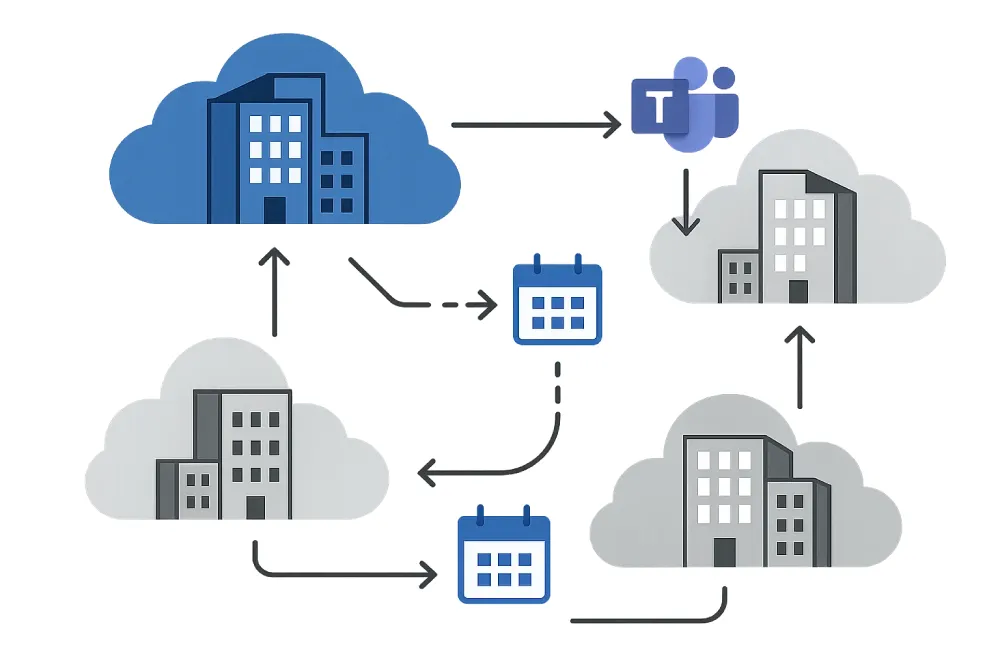
A Multitenant Organization (MTO) groups multiple Microsoft Entra ID and Microsoft 365 tenants under a common collaboration framework so they can work as if they were one entity: people search, meetings, People cards, Teams (including shared channels), and smoother access to resources.
When to choose MTO (search intent: “Is it for me?”)
- Enterprise groups with subsidiaries, brands, or regional divisions that need separate identity but seamless collaboration.
- M&A: integrate quickly without consolidating the directory or primary tenant yet.
- Compliance-driven segregation (data, regions) while keeping controlled collaboration across tenants.
- Long-term strategic partners where standardizing B2B and synchronization makes sense.
You can create/join from the Microsoft 365 Admin Center or via Microsoft Graph. When an invite is accepted, Entra sets baseline relationships (cross-tenant access) and adds a synchronization configuration (MTO_Sync_<TenantID>) you’ll later activate with your own jobs and rules.
When not to choose MTO (search intent: “Alternatives”)
- If the end goal is a single tenant with no separation going forward → consider a tenant-to-tenant migration (e.g., cross-tenant mailbox migration).
- If you only need occasional calendar federation → Exchange organization relationships (how-to: create relationship).
- If you need centralized, immutable compliance and archiving → evaluate a full consolidation strategy.
1) Requirements, roles, and licensing
Technical prerequisites
- Tenants with verified domains and a stable primary domain.
- Consistent UPN and email address conventions (avoid collisions).
- Modern auth, MFA, and Conditional Access enabled as a baseline.
- Naming review (display names for the MTO and member tenants).
Minimum roles per task
- Governance/Security: Security Administrator / Conditional Access Administrator.
- Identity: Hybrid Identity Administrator / User Administrator.
- Apps/Graph: Cloud Application Administrator / Application Administrator.
- Exchange (calendar): Exchange Admin for organization relationships.
Licensing (high level)
Cross-tenant synchronization and access policies require advanced Entra ID capabilities. Verify P1/P2 needs depending on governance, provisioning, and protection.
2) Methodology: governance, security, and phases
We recommend a phased methodology with a Zero Trust mindset and minimum end-user friction.
Phases
- Design: scope, architecture, RACI, risks, MTO vs consolidation decisions.
- Initial setup: create MTO, invite tenants, default restrictive posture.
- Pilot: limited sync (control group), minimal Free/Busy, and 1–2 shared channels.
- End-to-end: People Search, Teams, SharePoint, internal/SaaS apps, L1 support.
- Scale-up: MTO templates, automation, monitoring, and runbooks.
Security best practices
- Cross-tenant access “deny by default” and explicit partners.
- Sensitivity labels (Purview) and DLP per tenant; share only what’s needed.
- Quarterly review of partners, rules, and Access Reviews.
3) Configure an MTO in the Admin Center
Path: Settings → Org settings → Multitenant collaboration.
Step-by-step (no scripts)
- Create MTO: name, description, and designate the owner tenant.
- Invite tenants: add their IDs and set a display name.
- Enable key options: allow sync, auto-redemption, and visible labels.
- Send instructions so each tenant can join.
- After joins, verify
MTO_Sync_<TenantID>appears in Entra.
From the same panel you can change roles (owner/member), enable Free/Busy, notifications, and review each tenant’s status.
4) Configuration with Microsoft Graph (PowerShell/API)
The programmatic route is ideal for large environments and repeatable deployments (infra as code).
# Requires Microsoft.Graph PowerShell SDK

# 1) Create/enable the MTO with name/description (owner = your tenant)
Connect-MgGraph -Scopes "Organization.Read.All","Directory.ReadWrite.All"
$body = @{ displayName = "Contoso Group"; description = "Corporate MTO" }
Invoke-MgGraphRequest -Method PUT `
  -Uri "https://graph.microsoft.com/v1.0/tenantRelationships/multiTenantOrganization" `
  -Body $body

# 2) Add member tenants (they remain 'pending' until they join)
$memberTenantId = "11111111-2222-3333-4444-555555555555"
New-MgTenantRelationshipMultiTenantOrganizationTenant -TenantId $memberTenantId -DisplayName "Fabrikam"

# 3) List members and status (owner/member; pending/active/removed)
Get-MgTenantRelationshipMultiTenantOrganizationTenant |
Select-Object TenantId,DisplayName,Role,State# In the joining tenant, after being added as 'pending'
Connect-MgGraph -Scopes "Directory.ReadWrite.All","Policy.ReadWrite.CrossTenantAccess"
# Send join request; may take up to ~2h to complete
Update-MgTenantRelationshipMultiTenantOrganizationJoinRequestPUT https://graph.microsoft.com/v1.0/policies/crossTenantAccessPolicy/partners/{sourceTenantId}/identitySynchronization
Content-Type: application/json
{
"userSyncInbound": { "isSyncAllowed": true }
}5) Cross-tenant user synchronization (Entra ID)
Cross-tenant synchronization automates the B2B user lifecycle (provisioning, update, deprovisioning) so they’re discoverable and can collaborate across Microsoft and third-party apps. You can configure it from Entra or via Graph; both use the same underlying service.
5.1 Essential steps (Microsoft Graph PowerShell)
- Target: create cross-tenant partner and allow
userSyncInbound = true. - Source: enable auto-redemption and suppress outbound consent prompts.
- Provisioning: define jobs, scoping filters (who’s in), and attribute mappings.
- Validation: review Provisioning logs, GAL/People Search, and app access.
# Target: partner and inbound identity sync
$SourceTenantId = ""
$TargetTenantId = ""

Connect-MgGraph -TenantId $TargetTenantId -Scopes "Policy.Read.All","Policy.ReadWrite.CrossTenantAccess"
New-MgPolicyCrossTenantAccessPolicyPartner -BodyParameter @{ TenantId = $SourceTenantId } | Out-Null
$body = @{ userSyncInbound = @{ isSyncAllowed = $true } }
Invoke-MgGraphRequest -Method PUT `
  -Uri "https://graph.microsoft.com/v1.0/policies/crossTenantAccessPolicy/partners/$SourceTenantId/identitySynchronization" `
  -Body $body

# Source: auto-redeem invitations and suppress consent prompts
Connect-MgGraph -TenantId $SourceTenantId -Scopes "Policy.Read.All","Policy.ReadWrite.CrossTenantAccess","Application.ReadWrite.All","Directory.ReadWrite.All","AuditLog.Read.All"
New-MgPolicyCrossTenantAccessPolicyPartner -BodyParameter @{ TenantId = $TargetTenantId } | Out-Null
Update-MgPolicyCrossTenantAccessPolicyPartner `
  -CrossTenantAccessPolicyConfigurationPartnerTenantId $TargetTenantId `
  -AutomaticUserConsentSettings @{ OutboundAllowed = "True" }
5.2 Recommended attribute mapping (example)
| Source | Target | Notes |
|---|---|---|
| userPrincipalName | externalUserStateId | B2B guest reference identity |
| mail / proxyAddresses | Avoid SMTP collisions | |
| givenName / surname | givenName / surname | First/last name |
| displayName | displayName | Visible in GAL |
| department / jobTitle | department / jobTitle | Profile card |
| extensionAttributes.x | extensionAttributes.x | Tagging for scoping |
5.3 Scoping filters (practical examples)
- Include only employees with
extensionAttribute1 = "MTO-Enabled". - Exclude service/admin accounts (
userType eq 'Member' and accountEnabled eq true). - OU/group limits (if federating from AD and using group-based scoping).
5.4 What this enables in practice
- People Search and GAL across tenants (profile cards).
- Consistent access to Teams, SharePoint, and apps in the target tenant.
- Automatic deprovisioning when users stop matching the scope.
6) Cross-tenant access: B2B and B2B Direct Connect
Cross-tenant access governs standard B2B collaboration and B2B Direct Connect (e.g., Teams shared channels). Define default posture (inbound/outbound) and partner overrides. In MTO, use templates to keep policies consistent as new tenants join.
Policy example (simplified JSON)
{
  "inboundTrust": {
    "isMfaAccepted": true,
    "isCompliantDeviceAccepted": true,
    "isHybridAzureADJoinedDeviceAccepted": false
  },
  "b2bCollaborationInbound": { "isDefaultSettings": false, "applications": { "accessType": "allow" } },
  "b2bDirectConnectOutbound": { "isDefaultSettings": false, "usersAndGroups": { "accessType": "allow" } }
}- Mutuality: Direct Connect requires relationships in both directions.
- Diagnostics: use Sign-in and Audit logs to spot CA/trust denials.
7) Calendars, Free/Busy, and People Search
From the Admin Center you can enable Free/Busy within the MTO. Alternatively, create Organization Relationships in Exchange Online to share availability (limited or full details per policy).
Install-Module ExchangeOnlineManagement -Scope CurrentUser
Connect-ExchangeOnline

# Organization relationship with limited details (both tenants must configure it)
New-OrganizationRelationship -Name "Rel-Fabrikam" `
  -DomainNames "fabrikam.com" `
  -FreeBusyAccessEnabled $true -FreeBusyAccessLevel LimitedDetails
Recommended test plan
- Check Scheduling Assistant between two pilot users (different tenants).
- Create/cancel meetings and verify cross-tenant notifications.
- Validate People Search and profile cards (photo, title, department).
- Test a Teams shared channel with members from both tenants.
8) Monitoring, auditing, and KPIs
- Entra logs: Audit (policy/partner changes) and Sign-in (B2B/Direct Connect).
- Provisioning logs: runs, rules, and sync errors (mappings/attributes).
- KPIs: sync success (>99%), time to add/remove (<45 min), batch error rate (<0.5%).
Useful KQL queries
AuditLogs
| where ActivityDisplayName has "Cross-tenant"
| summarize count() by ActivityDisplayName, Result, bin(TimeGenerated, 1d)ProvisioningLogs
| where Status has "Failure"
| summarize fails = count() by TargetId, TargetDisplayName, bin(TimeGenerated, 1h)9) Pre-flight checklist and verification
Before
- Model: owner/member tenants, domains, and scope.
- Security: default restrictive posture, MFA, and Conditional Access.
- Licenses and roles in source/target.
- User comms and support plan.
During
- Create MTO (Admin Center or Graph) and add invited tenants.
- Join request from each tenant to move to
active. - Configure partners and enable
userSyncInbound; enable auto-redeem. - Provisioning: validated scoping and mappings in pilot.
- Pilot Free/Busy, People Search, and Teams (shared channel).
After
- Alerts for provisioning errors and access denials.
- Review templates, Access Reviews, and clean up stale accounts.
- Operational documentation and support runbooks.
10) Common pitfalls and how to avoid them
- Not creating provisioning jobs: the MTO config creates the container but not the effective jobs.
- Permissive default posture: define explicit partners, test, and audit.
- Free/Busy without testing: validate the scheduling assistant before scaling.
- Excessive roles: least privilege; avoid Global Admin for routine tasks.
- Email/UPN collisions: normalize domains and use prefixes/suffixes if needed.
- Ignoring the Teams experience: test shared channels and SharePoint permissions.
11) Frequently asked questions (FAQ)
How do I quickly create an MTO without scripts?
From the Admin Center (Settings → Org settings → Multitenant collaboration). Create the MTO, invite tenants, and enable key options; then each tenant must join.
What changes automatically when a tenant joins?
A cross-tenant organization relationship is added, base templates apply, and the MTO_Sync_<TenantID> sync configuration appears (no jobs yet).
Can I do everything with Graph?
Yes: create the MTO, add members, send the join request, configure partners, and enable synchronization. Ideal for automating repeatable rollouts.
How do I enable Free/Busy across tenants?
From MTO management (calendar) or by creating Organization Relationships in Exchange Online (both tenants).
What roles and licenses do I need?
Security, Hybrid Identity, and Applications roles for policies and sync. Review Entra ID P1/P2 capabilities depending on governance and provisioning.
How long does joining the MTO take?
After sending the join request, activation can take up to ~2 hours.
Does this affect my Conditional Access policies?
Yes: evaluations apply to B2B users; configure MFA/device trust in the partner policy if appropriate.
What if a user no longer matches the scope?
Provisioning disables or removes them per your configuration; validate the offboarding flow to avoid orphaned accounts.
Can I share Teams channels with multiple tenants?
Yes, via B2B Direct Connect with bidirectional partners and clear owner/member rules.
Do I need to consolidate later if I already have an MTO?
Not necessarily. MTO can be a long-term model; if you need absolute centralized compliance, evaluate consolidation.
12) Comparison: MTO vs tenant consolidation
| Criterion | MTO (multitenant) | Consolidation (single tenant) |
|---|---|---|
| Integration speed | High (weeks) | Medium/High (months) |
| Identity separation | Full by tenant | Unified |
| Centralized compliance | Per tenant (federated) | Central |
| User experience | Very good with B2B/Direct Connect | Optimal after migration |
| Initial complexity | Low/Medium | Medium/High |
13) Conclusion and next steps
A well-implemented MTO rests on three pillars: consistent configuration (templates and partners), cross-tenant synchronization with clear governance, and a validated collaboration experience (Free/Busy, People Search, Teams). If you want to accelerate with operational guides, automation, and day-one security, we can help.
Want MSAdvance to set it up with best practices?
Architecture, Graph scripts, synchronization, Free/Busy, Teams shared channels, and continuous monitoring.
14) Quick glossary
- MTO: Multitenant Organization grouping multiple tenants.
- B2B: Collaboration with invited users (Guest).
- B2B Direct Connect: Advanced collaboration (e.g., Teams shared channels) without classic Guest conversion.
- Cross-tenant access: Policies governing B2B and Direct Connect.
- Free/Busy: Cross-org calendar availability.
- Scoping filter: Rule defining which objects are provisioned in sync.