



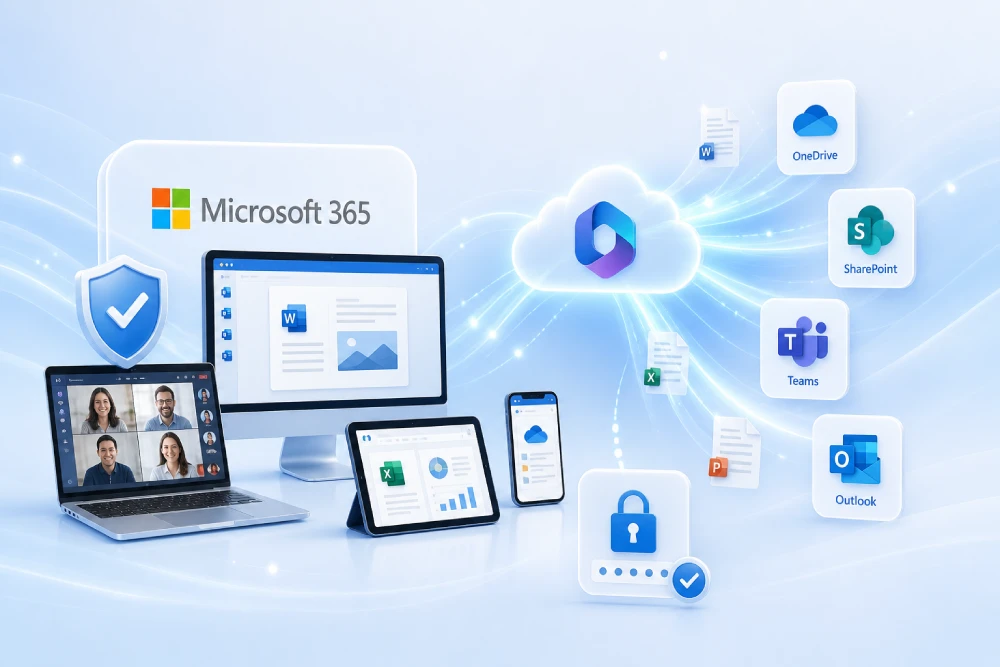
Do you want MSAdvance to help you prepare Microsoft 365 for secure remote work?
Having employees working from home, from a small branch office, from a customer site or while travelling should not mean losing control over data. With a proper Microsoft 365 for business configuration, users can work from anywhere with email, Teams, SharePoint and OneDrive, while IT maintains control over identities, devices, documents and access.
At MSAdvance, we design and implement Microsoft 365 environments for remote workers with a focus on productivity, security and adoption. It is not just about “assigning licenses”, but about leaving the company with a working model it can maintain without relying on insecure shortcuts.
- Secure Microsoft 365 configuration: identity, MFA, Conditional Access and permissions.
- Device management with Microsoft Intune: corporate laptops, mobile devices and BYOD scenarios.
- Document protection in SharePoint, OneDrive and Teams: external sharing, labels, DLP and retention.
- Microsoft 365 licensing recommendations by user profile: Business Premium, Enterprise, Frontline or mixed combinations.
- Training and adoption so users know where to store files, how to share them and how to work without putting data at risk.
Talk to a specialist View the Modern Workplace service
You may also be interested in: Microsoft 365 Security & Compliance · Software license procurement and sales
Microsoft 365 for businesses with remote workers enables people to work from anywhere with email, Teams, SharePoint, OneDrive and Office, but it must be configured securely from the start. The recommended foundation is to protect identity with MFA and Conditional Access, manage devices with Microsoft Intune, protect endpoints with Microsoft Defender and control access to documents through SharePoint, OneDrive, sensitivity labels, DLP and external sharing rules.
Quick summary: Microsoft 365 for secure remote work in 10 points
- The office is no longer the perimeter: users can connect from home, from a hotel or from an unmanaged device. Security must follow them wherever they work.
- Identity is the first line of defence: MFA, secure sign-in and Conditional Access reduce the risk of account theft.
- Not all devices are the same: a managed corporate laptop should not be treated in the same way as a personal computer or a BYOD mobile device.
- Intune is key: it allows compliance, encryption, configuration, application and selective wipe policies to be applied to managed devices.
- Defender protects the endpoint: it helps against malware, ransomware, phishing and suspicious behaviour on computers and mobile devices.
- SharePoint and OneDrive need clear rules: what is stored where, how it is shared and what happens with external links.
- Teams needs governance: without rules for teams, channels, guests and files, information becomes difficult to find.
- Security should not paralyse work: policies should adapt to risk, not block by default everything the user needs.
- Licenses matter: Business Basic or Standard may be enough for productivity, but Business Premium or Enterprise provide more security and device control.
- Adoption determines success: if users do not understand how to work securely, they will look for shortcuts: personal email, USB drives, WhatsApp or local copies.
When does a company need to strengthen Microsoft 365 for remote workers?
Not every company starts from the same point. Some already use Teams and OneDrive every day, but without clear policies. Others still depend on VPNs, shared folders and emails with attachments. In both cases, if people are working outside the office, it is advisable to review how Microsoft 365 is protected.
Clear signs that action is needed
- Users access from personal devices without a clear BYOD policy.
- Documents are shared using open links or links with no expiry date with customers and suppliers.
- The company depends too heavily on VPN to access documents or applications that could already be in Microsoft 365.
- MFA is not enabled for everyone or is only applied to certain “sensitive” profiles.
- There is no clear visibility of which devices access email, Teams, OneDrive or SharePoint.
- There are laptops without encryption, without managed antivirus or without update policies.
- Critical documents are downloaded locally without control, especially on unmanaged computers.
- Users do not know where to store each type of content: desktop, OneDrive, Teams, SharePoint, email or local folder.
A company allows remote work two days a week. Everything seems to work: email, meetings and documents. The problem appears when a salesperson loses a laptop, a supplier keeps access to an old folder or a user syncs confidential documents on a personal computer. Microsoft 365 can control these scenarios, but only if it is designed properly.
Introduction: working from anywhere without losing control
Remote work has changed the way information is protected. In the past, protecting the office network was enough. Now access happens from home networks, mobile devices, hotels, coworking spaces and small branch offices. The challenge is not only “making it work”, but making it work without exposing company information.
Microsoft 365 offers a very powerful foundation for this model: Exchange Online for email, Teams for collaboration, SharePoint and OneDrive for documents, Entra ID for identity, Intune for devices, Defender for security and Purview for data protection.
But buying licenses is not enough. A company can have Microsoft 365 and still share content poorly, allow access from insecure devices or store critical documents in the wrong places. The difference lies in the design: reasonable policies, suitable licenses, trained users and an operation that IT can maintain.
1. Methodology and governance of the Microsoft 365 environment
In practice: before enabling policies, the company needs to decide how it wants to work and what level of risk it is willing to accept.
A secure deployment of Microsoft 365 for remote workers does not start in the admin centre. It starts with business questions: who works outside the office, with which data, from which devices, with which customers and what would happen if an account or laptop were compromised.
Recommended phases
- Diagnosis: users, licenses, devices, data, external access and current configuration.
- Design: identity, device, document, Teams, sharing and compliance policies.
- Pilot: apply the model to a representative group before rolling it out to the whole company.
- Deployment: enable it in waves, with clear communication and close support.
- Adoption and improvement: review incidents, adjust policies and train key profiles.
| Activity | Responsible | Approves | Consulted | Informed |
|---|---|---|---|---|
| Access policy design | MSAdvance / IT | IT / Security | Business | Users |
| Device management with Intune | IT / MSAdvance | IT | Security | Users |
| Document governance and sharing | IT / Business | Management | Legal / Compliance | Users |
| Training and adoption | MSAdvance / HR | Management | Managers | Whole organisation |
2. Assessment: users, devices, data and real risks
In practice: you cannot properly protect what you do not know.
The assessment makes it possible to understand what is really happening. Many companies believe that “everyone works with a corporate laptop”, until they discover personal mobile devices with email, access from home computers or documents that have been shared externally for months.
2.1 Users and profiles
- Regular remote users.
- Hybrid users.
- Executives and sensitive profiles.
- External users or guests.
- Frontline or field staff.
2.2 Devices
- Corporate laptops.
- Corporate mobile devices.
- Personal BYOD devices.
- Unmanaged computers.
- Shared or kiosk devices.
2.3 Data and documents
- Documents in OneDrive.
- SharePoint sites.
- Files shared in Teams.
- Sensitive or confidential data.
- Legacy folders and local copies.
Questions worth answering
- Who can access Microsoft 365 from an unmanaged device?
- What happens if a user loses a laptop or mobile phone?
- Can an employee download an entire SharePoint library from a personal computer?
- Are confidential documents shared with anonymous links?
- Are guests in Teams and SharePoint reviewed?
- Do users know the difference between OneDrive, SharePoint and Teams?
3. Secure identity: MFA, Entra ID and Conditional Access
In practice: if someone steals a password, they should not be able to sign in as if nothing had happened.
In remote work, identity is the new perimeter. The user may be outside the office, but the access decision must be based on signals: who they are, where they are signing in from, what device they are using, what risk the session has and which resource they are trying to open.
3.1 MFA for everyone, not just administrators
Multifactor authentication is one of the measures with the best balance between impact and effort. The goal is not to annoy the user, but to prevent a stolen password from being enough to access email, Teams, OneDrive or SharePoint.
3.2 Conditional Access: allow, limit or block based on risk
Conditional Access policies make it possible to apply smarter decisions. For example:
- Allow full access from a compliant corporate device.
- Allow only limited web access from unmanaged computers.
- Block file downloads from personal devices.
- Require MFA outside known locations.
- Block legacy protocols and insecure methods.
- Apply stricter rules to administrators and critical profiles.
An employee signs in from their corporate laptop: they work normally. The same user signs in from a family member’s computer: they can view documents in the browser, but cannot download or sync them. Work is not blocked, but risk is significantly reduced.
3.3 Recommended baseline policies
- MFA for all users.
- Stronger MFA for administrators.
- Blocking legacy authentication.
- Access based on device compliance.
- Controls for risky countries or locations.
- Limited sessions for unmanaged devices.
4. Remote device management with Microsoft Intune
In practice: a laptop outside the office is still an entry point into the company.
Microsoft Intune makes it possible to manage laptops, mobile devices and tablets from the cloud. For a company with remote workers, this is essential: the device is no longer always connected to the internal network, but it must still meet minimum security requirements.
4.1 What can be controlled with Intune
- Disk encryption on corporate laptops.
- PIN, biometrics or Windows Hello to improve sign-in.
- Compliance policies: system version, antivirus, firewall, encryption, screen lock.
- Corporate applications: installation, updates and removal.
- Security configuration: Defender, firewall, browser, updates.
- Remote wipe or removal of corporate data when a device is lost or an employee leaves the company.
4.2 Compliant devices: a key part of Conditional Access
A compliant device is one that meets the rules defined by IT. For example: active encryption, antivirus running, updated system and no high risk. Conditional Access can use that status to decide whether to allow or limit access.
| Control | Practical recommendation | User impact |
|---|---|---|
| Encryption | Require encrypted disk | Low, if deployed correctly |
| Antivirus | Require Defender active and up to date | Low |
| Screen lock | Reasonable lock timeout | Medium if too aggressive |
| Updates | Require minimum system version | Medium; requires communication |
| Device risk | Block or limit if Defender detects high risk | High, but justified |
5. BYOD and personal mobile devices: how to protect data without invading the device
In practice: with BYOD, it is not always desirable to manage the whole device; very often, protecting the app and corporate data is enough.
In many companies, employees use their personal mobile phone for Outlook, Teams or the OneDrive app. Blocking everything may be unrealistic, but allowing it without control is risky.
5.1 Two common approaches
| Scenario | Recommended approach | When to use it |
|---|---|---|
| Corporate device | Full enrolment in Intune | Company-owned laptops and mobile devices |
| Personal device | App protection (MAM) | BYOD mobile devices where the aim is only to protect Outlook, Teams, OneDrive, etc. |
5.2 Useful controls on personal mobile devices
- Require PIN or biometrics to open corporate apps.
- Block copy/paste from corporate apps to personal apps.
- Prevent corporate files from being saved in personal locations.
- Wipe only company data when access is removed.
- Limit download or sync if the device is not trusted.
The company does not need to see photos, personal messages or private content to protect Outlook, Teams or OneDrive. Explaining this clearly reduces resistance and improves adoption.
6. Endpoint protection with Microsoft Defender
In practice: the remote endpoint is where many threats try to get in first.
A remote user may connect from a home network, public Wi-Fi or a poorly controlled environment. That is why the device needs protection beyond basic antivirus. Microsoft Defender helps protect computers against malware, ransomware, phishing and suspicious activity.
6.1 What should be enabled
- Managed and updated Defender Antivirus.
- Ransomware protection and attack surface reduction where applicable.
- Defender for Business or Defender for Endpoint depending on size and requirements.
- Automatic onboarding from Intune to simplify device enrolment.
- Alerts and response so IT can act if a device presents risk.
6.2 Email and phishing: not everything is on the laptop
Email remains a common attack vector. In Microsoft 365, it is advisable to review anti-phishing, Safe Links, Safe Attachments, domain spoofing and protection against malicious attachments.
For remote workers, this is especially important: they are more exposed to quick decisions, mobile devices and connections outside the office.
7. Document access: OneDrive, SharePoint and Teams
In practice: one of the biggest benefits of Microsoft 365 is moving away from local folders and email attachments.
For a company with remote workers, document access must be convenient and secure. The key is to clearly explain the role of each tool:
| Tool | Recommended use | Typical mistake |
|---|---|---|
| OneDrive | Individual work, drafts, personal company files | Using it as the definitive team repository |
| SharePoint | Department documents, processes, intranet, corporate libraries | Creating libraries without structure or owners |
| Teams | Collaborative work by team, project or channel | Using chats for important documents |
7.1 Controlling access from unmanaged devices
Microsoft 365 makes it possible to block or limit access to SharePoint and OneDrive from unmanaged devices. This is very useful for remote work: the user can check something specific from a browser, but not necessarily download or sync an entire library.
7.2 OneDrive sync with clear criteria
Sync is convenient, but it must be governed. On corporate devices it can be a major advantage; on personal computers it can be a risk if sensitive documents are downloaded.
A user opens a commercial proposal from their corporate laptop: they can edit, sync and work offline. From a personal computer: they can view it in the browser, but cannot download it. The experience remains useful, but the data does not get out of control.
9. Information protection: labels, DLP and retention
In practice: not all documents need the same level of protection.
In a company with remote work, documents move more: they are opened from home, shared with external users, viewed from mobile devices and downloaded for offline work. That is why it is advisable to classify and protect information according to its sensitivity.
9.1 Sensitivity labels
Microsoft Purview sensitivity labels make it possible to classify documents, emails, SharePoint sites, Teams teams and other collaboration spaces. For example:
- Public
- Internal
- Confidential
- Confidential — customers
- Confidential — management
A label can be purely informational or apply protection: encryption, access restrictions, visual markings or controls over external collaboration.
9.2 DLP: preventing leaks without blocking everything
Data Loss Prevention policies help identify and protect sensitive information: personal, financial or health data, contracts or regulated information. The practical recommendation is to start with warnings and auditing, measure the impact and then block only what is necessary.
9.3 Retention and lifecycle
Not everything should be kept forever. Microsoft Purview makes it possible to define policies to retain or delete content in Exchange, SharePoint, OneDrive and Teams. This helps both compliance and order: less obsolete content, less risk and better search.
10. Microsoft Teams for remote teams: meetings, channels and files
In practice: Teams should not be just chat; it should be the place where the team works with context.
For remote teams, Teams often becomes the digital office: meetings, messages, calls, files, notes and decisions. But without governance, it can also become noise.
10.1 Simple rules for Teams
- Use chats for quick conversations.
- Use channels for topics that need to remain organised.
- Store important documents in channels, not in private chats.
- Define owners for each team.
- Review guests and abandoned teams.
- Configure meetings with lobby, roles and recording depending on the type of meeting.
10.2 Secure remote meetings
In meetings with customers or external users, it is advisable to review who can present, who can record, whether a lobby is used and how documents are shared afterwards. Security should not ruin the meeting, but it should prevent anyone from joining, recording or accessing content that does not correspond to them.
Related resource: Articles about Microsoft Teams.
11. Recommended Microsoft 365 licenses for remote workers
In practice: for remote work, the license should be chosen by risk profile, not only by price.
A company can combine different Microsoft 365 licenses. Not all users need the same thing. A user who only checks email and Teams does not have the same needs as an executive, a salesperson with customer data or a systems administrator.
| Plan | When it fits | Common limitation |
|---|---|---|
| Microsoft 365 Business Basic | Light users, email, Teams, OneDrive/SharePoint and web apps | Does not provide the same level of device management and advanced security |
| Microsoft 365 Business Standard | Users who need desktop Office apps | Good productivity, but more limited security/management |
| Microsoft 365 Business Premium | SMBs that need Intune, Defender for Business and Entra ID P1 | May fall short in enterprise or advanced compliance scenarios |
| Microsoft 365 E3 | Medium/large organisations with greater control, security and compliance needs | May require add-ons for advanced security |
| Microsoft 365 E5 | Companies with high security, compliance, identity and analytics requirements | Higher cost; it should be assigned where it delivers real value |
Practical recommendation
For many small and medium-sized businesses, Microsoft 365 Business Premium is often the most balanced starting point for secure remote work, because it combines productivity, device management, advanced identity and endpoint protection. In larger organisations, the usual approach is to design a mix of E3, E5, Frontline and add-ons according to risk and profile.
MSAdvance can help you review licenses and optimise costs: Software license procurement and sales for businesses.
12. User experience: security without friction
In practice: a secure policy that nobody understands ends up creating insecure shortcuts.
Remote users want to work: open documents, join meetings, answer emails and collaborate with customers. If security is perceived as a constant obstacle, shortcuts will appear: forwarding documents to personal email, using external services or saving local copies.
Adoption best practices
- Explain why MFA is being enabled.
- Provide a clear “where to store what” guide.
- Teach users how to share documents correctly.
- Explain what happens on personal mobile devices and what the company cannot see.
- Prepare support for the first few days after enabling new policies.
- Run pilots with real users, not only with IT.
“We do not want to make your work harder. We want you to be able to work from anywhere without a lost laptop, a stolen password or a badly shared link becoming a problem for the company.”
13. Operational checklists for secure remote work
In practice: checklists turn security into something maintainable.
13.1 Identity checklist
- MFA enabled for all users.
- Stronger MFA for administrators.
- Legacy authentication blocked.
- Conditional Access policies by risk, location and device.
- Administrator accounts separated from day-to-day user accounts.
13.2 Device checklist
- Corporate laptops enrolled in Intune.
- Active disk encryption.
- Defender managed and up to date.
- Compliance policies created.
- Offboarding and remote wipe process defined.
13.3 Document checklist
- Clear SharePoint and Teams structure.
- Correct use of OneDrive for individual work.
- External sharing reviewed.
- Download blocked or limited on unmanaged devices.
- Sensitivity labels for critical documents.
- Retention policies where applicable.
13.4 Adoption checklist
- Short guide for remote users.
- Specific guide for managers.
- Support channel for questions.
- Communication before enabling restrictive policies.
- Review of incidents and subsequent adjustments.
14. KPIs to measure security, adoption and productivity
In practice: enabling policies is not enough; you need to measure whether they work and whether they create too much friction.
| Area | KPI | What it indicates |
|---|---|---|
| Identity | % of users with MFA enabled | Baseline protection coverage |
| Devices | % of compliant devices | Real level of endpoint control |
| Documents | Number of active external links | Exposure of shared information |
| Security | Critical Defender alerts | Endpoint risk and response |
| Adoption | SharePoint/OneDrive usage compared with attachments | Collaboration maturity |
| Support | Incidents caused by new policy | User friction |
15. Common risks and how to avoid them
In practice: almost all serious problems come from permissions, identity or uncontrolled devices.
| Risk | What can happen | How to mitigate it |
|---|---|---|
| Stolen password | Access to email, Teams and documents | MFA, Conditional Access, blocking legacy authentication |
| Lost laptop | Exposure of local documents | Encryption, Intune, remote wipe, Defender |
| Uncontrolled personal computer | Download or sync of sensitive information | Limited web access, download blocking, MAM |
| External links without expiry | Prolonged access to documents | Expiry, periodic review, links to specific people |
| Confused users | Use of insecure shortcuts | Short training, clear guides, initial support |
| Poorly chosen licenses | Key controls are missing or the company overpays | Review by profile and license optimisation |
16. Frequently asked questions (FAQ) about Microsoft 365 for businesses with remote workers
Is Microsoft 365 enough to work remotely in a secure way?
Yes, provided it is properly configured. Microsoft 365 offers tools for email, meetings, documents, devices, identity and security, but protection depends on applying MFA, Conditional Access, Intune, Defender, sharing policies and document governance.
Which Microsoft 365 license is suitable for remote workers?
It depends on the profile. Business Basic or Standard can cover productivity, but if device management, Conditional Access, Defender and Intune are needed, Business Premium is often a very balanced option for SMBs. In larger organisations, E3 or E5 may fit better.
What is the difference between OneDrive, SharePoint and Teams?
OneDrive is ideal for individual work and drafts. SharePoint is better for team documents, departments, processes and intranet. Teams is the collaboration layer: conversations, meetings and files associated with channels, which are actually stored in SharePoint.
Can BYOD be allowed without putting data at risk?
Yes. With Intune, app protection policies can be applied to Outlook, Teams, OneDrive and other apps without managing the whole device. This makes it possible to protect corporate data and, if needed, wipe only company information.
How can users be prevented from downloading documents on personal computers?
Access from unmanaged devices can be limited, downloads can be blocked, sync can be prevented or web-only access can be allowed. These decisions are applied with SharePoint, OneDrive, Intune and Conditional Access.
Is it mandatory to use VPN if I have Microsoft 365?
Not necessarily. Microsoft 365 is designed for secure access from the Internet. VPN may still be necessary for internal applications, but email, Teams, SharePoint and OneDrive can operate securely with well-protected identity, devices and data.
How is a lost laptop protected?
The recommended approach is for the device to be encrypted, managed by Intune, protected by Defender and subject to compliance policies. If it is lost, IT can block access, remove corporate data or wipe the device depending on the case.
How is external sharing with customers and suppliers controlled?
Sharing rules can be defined in SharePoint and OneDrive, anonymous links can be limited, specific users can be required, expiry dates can be set, guests can be reviewed and labels or DLP can be applied to sensitive documents.
Can MSAdvance help only with configuration or also with licensing?
MSAdvance can help with both areas: Microsoft 365 license procurement, security design, Intune implementation, Defender configuration, SharePoint/Teams governance and user training.
17. Official resources and external links
Official Microsoft documentation
- Zero Trust deployment plan with Microsoft 365
- Secure remote and hybrid work with Zero Trust
- Conditional Access with Microsoft Intune
- Device compliance policies in Intune
- App protection policies in Intune
- Microsoft Defender for Business
- Control access from unmanaged devices in SharePoint and OneDrive
- External sharing in SharePoint and OneDrive
- Microsoft Purview sensitivity labels
- Data Loss Prevention (DLP) in Microsoft Purview
MSAdvance services and resources
18. Conclusion and next steps
Microsoft 365 can be a great platform for businesses with remote workers, but only if it is configured with clear criteria. The key is to combine secure identity, device management, endpoint protection, document governance and a user experience that does not force people to look for shortcuts.
As next steps, it is usually advisable to:
- Review current licenses and check whether they cover Intune, Defender and Conditional Access.
- Inventory corporate and personal devices that access Microsoft 365.
- Define baseline identity, device and document policies.
- Create a clear usage guide for OneDrive, SharePoint and Teams.
- Apply the model first to a pilot group and then scale it to the rest of the organisation.
Do you want MSAdvance to design and deploy your Microsoft 365 environment for secure remote work?
We can help you with licensing, security configuration, Intune, Defender, SharePoint, OneDrive, Teams and user training. The goal: enabling your team to work from anywhere without losing control over devices, access and documents.
Contact MSAdvance View Modern Workplace
· We can also help you with Security & Compliance and Microsoft 365 licenses · All services