



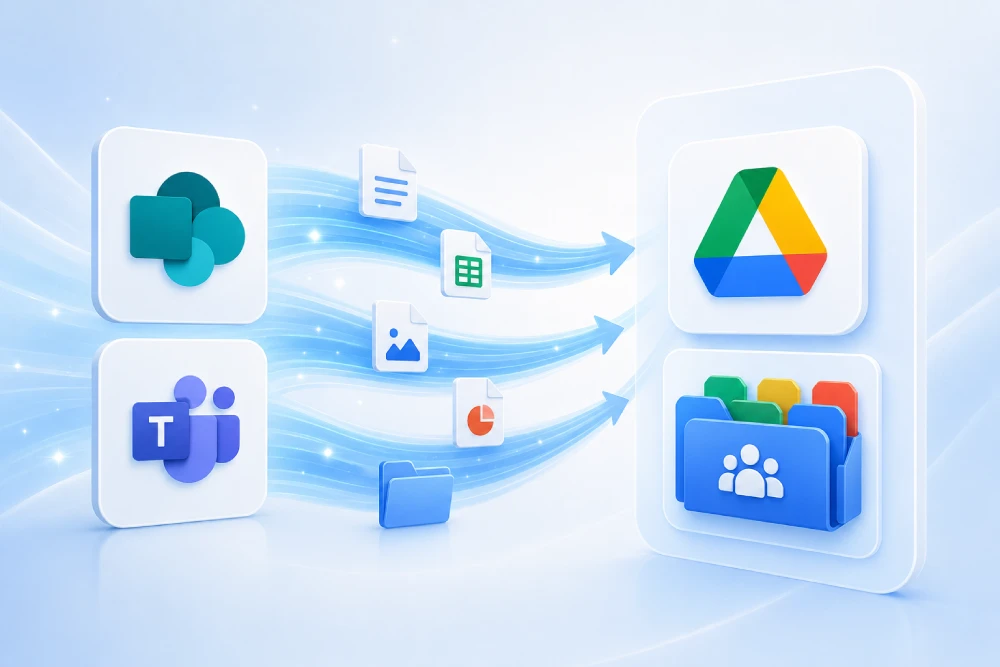
Do you want MSAdvance to handle your migration from SharePoint and Teams to Google Workspace?
Migrating SharePoint Online and Microsoft Teams to Google Drive Shared Drives is not just about moving folders. It is an information, permissions, adoption and governance project: what content is kept, how it is reorganized, who has access, which links are preserved and how to prevent users from getting lost after the change.
MSAdvance supports the process end to end: assessment, Shared Drives design, permissions mapping, migration in waves, business validation and go-live support. The goal is to ensure Google Drive does not become “just another repository”, but an organized, usable and secure environment.
- Inventory of SharePoint sites, libraries, Teams channels, permissions, shared links and critical content.
- Design of the target structure in Google Drive Shared Drives.
- Controlled migration with testing, reports, error remediation and user communications.
- Post-migration governance: permissions, external sharing, retention, cleanup and adoption.
Contact our team View the Microsoft 365 to Google Workspace migration service
A migration from SharePoint and Teams to Google Drive Shared Drives consists of moving files, folders and permissions from SharePoint Online sites — including the files used in Microsoft Teams channels — to Google Workspace Shared Drives. Google provides a native import tool from SharePoint Online to Shared Drives, but not everything migrates in the same way: lists, pages, old versions, restricted permissions, automations and Teams conversations require prior analysis and specific decisions.
Quick summary: migrate SharePoint and Teams to Google Drive in 10 points
- Teams uses SharePoint for channel files: documents uploaded to a Teams channel live in the SharePoint folder of the team, which is why they are migrated as SharePoint content.
- Teams chat files are different: files sent in chats are usually stored in the user’s OneDrive, so they are handled in a separate migration if they are in scope.
- The recommended target for team content is Shared Drives: files belong to the team or organization, not to an individual person, which avoids problems when someone leaves.
- Google’s native migration copies files, folders and some permissions: it is configured from the Admin console using a CSV of sites and identity mapping.
- Not everything is migrated automatically: SharePoint lists, pages, old versions, restricted permissions and certain links or policies require specific handling.
- The key is the assessment: before migrating, you need to know which sites are used, which content is obsolete, which permissions are critical and which links are shared externally.
- You need to redesign, not copy the chaos: one Shared Drive for every old site is not always a good idea. Sometimes it is better to consolidate, archive or split.
- Permissions should be based on groups: mapping Microsoft 365/SharePoint groups to Google Groups simplifies maintenance and reduces errors.
- Incremental migrations are useful: they allow you to copy most of the content first and then bring across recent changes before cutover.
- Adoption determines success: if users do not know where “their content” is, they will go back to downloading, forwarding and duplicating files.
When do you need to migrate SharePoint and Teams to Shared Drives?
Not every company using Google Workspace needs to leave SharePoint and Teams behind. Sometimes temporary coexistence makes sense; in other cases, the organization wants to simplify tools and centralize collaboration in Google Drive, Gmail, Calendar, Meet and Chat.
Common scenarios
- Standardization on Google Workspace: the company decides to work with Google Drive as its main repository and reduce dependency on Microsoft 365.
- Mergers or acquisitions: an organization using Google Workspace incorporates teams that previously used SharePoint and Teams.
- Tool consolidation: there are too many repositories: SharePoint, Teams, OneDrive, shared network drives and Drive. The goal is a single experience.
- Change in collaboration strategy: the organization wants to move from Teams sites and channels to a structure based on Shared Drives, Google Groups and Google Chat.
- Complexity reduction: users work better in Drive, Docs, Sheets and Slides, but still have a document history in SharePoint.
- Gradual exit from Microsoft 365: the process starts by migrating files and later addresses email, calendars, identities or applications.
In all these cases, the question should not be “how do I copy everything?”, but “what content should remain active, where should it live and who should be able to access it?”. That difference prevents huge migrations that simply move disorder from one platform to another.
Introduction: from SharePoint and Teams to Google Drive without disrupting work
SharePoint and Microsoft Teams are closely connected. When a user uploads a file to a Teams channel, that file is stored in the document library of the SharePoint site associated with the team. That is why, when we talk about migrating Teams to Google Drive, in practice we are almost always talking about migrating its files from SharePoint.
But Teams also includes chats, meetings, recordings, tabs, Planner, apps and conversations. All of that does not magically become a Shared Drive. In a well-designed migration, you separate:
- Teams channel files: usually migratable as SharePoint content.
- Files shared in chats: usually stored in OneDrive and handled as a personal file migration.
- Conversations and chats: they are not SharePoint documents; they require a different strategy if they must be retained.
- Lists, pages, automations and tabs: analyzed case by case to recreate, replace or archive them.
This guide explains how to approach the project in an organized way: assessment, Shared Drives design, tools, permissions, migration waves, validation and adoption.
1. Project methodology and governance
In practice: a migration from SharePoint and Teams to Google Drive should look more like an organized move than a massive dump.
The recommended methodology is phased. First you understand the environment, then you design the target and only then do you migrate. Skipping that sequence often ends in poorly named Shared Drives, confusing permissions, duplicate files and users asking “where is my folder?”.
Recommended phases
- Discovery: inventory of SharePoint sites, Teams teams, libraries, owners, permissions and volume.
- Design: Shared Drives structure, Google Groups, external sharing rules and naming conventions.
- Pilot: migrate a representative area, not necessarily the easiest one.
- Waves: migration by department, project or criticality.
- Cutover: controlled freeze, final delta and user communication.
- Stabilization: support, validation, permissions remediation and progressive decommissioning of the source.
| Activity | Responsible | Accountable | Consulted | Informed |
|---|---|---|---|---|
| Assessment and inventory | MSAdvance / IT | IT | Business | Management |
| Shared Drives design | MSAdvance | Business / IT | Security | Key users |
| Identity and group mapping | IT / MSAdvance | IT | HR / Security | Owners |
| Technical migration | MSAdvance | IT | Area owners | Users |
| Functional validation | Business | Area leads | MSAdvance | IT |
| Adoption and communications | MSAdvance / Internal communications | Management | IT / Business | Entire organization |
2. Assessment: inventory, real usage and dependencies
In practice: the assessment separates critical content, useful content, obsolete content and content that should not be migrated.
The assessment is the most important part of the project. It is not just about counting gigabytes. You need to understand which sites are used, who maintains them, what permissions they have, which libraries are critical and which content depends on Teams.
2.1 What to inventory in SharePoint
- Team sites, communication sites, subsites and site collections.
- Document libraries, folders, volume, number of files and file types.
- Real owners, not just technical administrators.
- Inherited permissions, unique permissions and external sharing.
- Lists, pages, web parts, flows, Power Apps or integrations.
- Files with download blocking, retention, labels or legal requirements.
2.2 What to inventory in Teams
- Active, inactive and duplicate teams.
- Standard, private and shared channels.
- Files by channel, which usually live in SharePoint.
- Tabs linked to libraries, Planner, OneNote, Power BI or other applications.
- Business-critical channels: operations, sales, support, finance, projects.
2.3 Useful classification for decision-making
| Content type | Recommended decision | Example |
|---|---|---|
| Critical and active | Migrate with priority, validate with the business and review permissions | Live project documentation, contracts, operational manuals |
| Useful but rarely used | Migrate in later waves or archive in a dedicated Shared Drive | Project history, closed documentation |
| Obsolete | Archive or exclude | Old versions, duplicates, test folders |
| With legal requirements | Handle with legal/compliance before moving | Content under retention, investigations, evidence |
3. Designing Shared Drives in Google Drive
In practice: the target design determines whether Google Drive will be easy to use or will repeat SharePoint’s disorder.
Google Drive Shared Drives are designed for team content. Unlike “My Drive”, files belong to the team or organization, not to a specific individual. This makes them ideal for migrating SharePoint libraries and Teams channel files.
3.1 Common structure models
- By department: Finance, Operations, HR, Marketing, Management.
- By process: Contracts, Quality, Support, Tenders, Suppliers.
- By project: one Shared Drive for large or long-running projects.
- By client: useful for consulting firms, law firms, engineering companies or professional services.
- By historical archive: read-only Shared Drives for content that must be retained.
3.2 Not every SharePoint site should become a Shared Drive
Copying the old structure without thinking usually creates too many Shared Drives. It is worth deciding:
- Which sites should be consolidated into a single Shared Drive.
- Which libraries should become folders.
- Which Teams teams are no longer active and can be archived.
- Which sensitive content deserves a separate Shared Drive with stricter rules.
A department may have five old SharePoint sites: “Finance”, “New Finance”, “Invoices”, “Accounting” and “Budgets”. Migrating them as five Shared Drives can perpetuate the chaos. In many cases, it is better to create a single “Finance” Shared Drive and organize content inside it by folders and permissions.
5. Migration tools: Google native tool, Google Workspace Migrate and third-party tools
In practice: the tool is selected based on scope, volume, permissions and validation requirements, not just price.
5.1 Google native tool: Data Import from SharePoint Online
Google provides a native option in the Admin console to import files from SharePoint Online to Google Workspace. It allows you to work with a CSV of SharePoint sites, a destination in a Shared Drive and a mapping of users and groups.
It is an interesting option for well-scoped migrations, with a clear structure, permissions that are not excessively complex and a need for basic progress reports.
5.2 Google Workspace Migrate
For larger scenarios or those requiring more technical control, Google Workspace Migrate can provide more flexibility: configuration templates, migration nodes, testing, rules and advanced options.
5.3 Third-party tools
In complex projects, it may make sense to use specialized tools such as BitTitan, Cloudiway, CloudFuze, Quest or others, especially when you need:
- More control over versions, metadata or filters.
- Migrations with many batches and detailed reporting.
- Specific structure transformations.
- Advanced handling of permissions or links.
- Mixed scenarios with OneDrive, SharePoint, Teams and Google Drive.
| Option | Advantages | Limitations | When to use |
|---|---|---|---|
| Google Data Import | Native, integrated into Admin console, designed for SharePoint Online to Drive | Defined scope; does not cover the full SharePoint/Teams experience | Document migrations with a clear structure |
| Google Workspace Migrate | More technical control, templates and broad scenarios | Requires more preparation and technical expertise | Large environments or many migration waves |
| Third-party tools | Flexibility, reporting, advanced options | Additional cost and compatibility validation | Complex projects or special requirements |
6. Identities, groups and permissions
In practice: a file migration without good identity mapping ends in access tickets.
SharePoint and Google Drive have different permissions models. That is why, before migrating, you need to build an identity map: which Microsoft 365 user or group corresponds to which Google Workspace user or group.
6.1 Key decisions
- Do primary email addresses match between Microsoft 365 and Google Workspace?
- Will SharePoint/Microsoft 365 groups be mapped to Google Groups?
- Will owners, members and visitors be recreated as equivalent levels in Drive?
- What will be done with external users?
- Which inherited permissions should be simplified before migrating?
6.2 Practical recommendation
Whenever possible, it is better to work with Google Groups instead of person-to-person permissions. That way, when someone changes department or leaves the company, access is maintained through the group and does not remain hidden across hundreds of files.
| Source in SharePoint | Typical target in Google Drive | Comment |
|---|---|---|
| Owners | Manager or Content manager | Should be limited to real responsible owners |
| Members | Contributor or Content manager | Depends on whether they should move and delete content |
| Visitors | Viewer | For read-only access |
| Custom permissions | Reviewed equivalence | There is not always a perfect translation |
| External users | External user / visitor sharing / exclusion | Must be validated with security and the business |
7. Prepare Google Workspace before migrating
In practice: the target must be ready before moving data; improvising Shared Drives during the migration is a bad sign.
7.1 Basic preparation
- Enable Google Drive and Docs for the users involved.
- Create the required users and groups.
- Create the target Shared Drives.
- Assign responsible Managers or Content managers.
- Configure external sharing rules.
- Define storage limits if the organization uses them.
- Enable DLP, Vault or retention rules if applicable.
7.2 Recommended naming convention
Clear naming helps users and support teams. Examples:
- DEP – Finance
- DEP – HR – Confidential
- PROJ – Client – ProjectName
- ARCH – Closed projects
7.3 Security from the beginning
Before migrating, it is worth deciding whether Shared Drives will allow:
- Sharing with external users.
- Public links or internal-only links.
- Download, print and copy for readers.
- Moving content outside the organization.
- Folders shared with non-members of the Shared Drive.
8. Prepare Microsoft 365: SharePoint, Teams and OneDrive
In practice: the cleaner the source is, the fewer incidents there will be in Google Drive.
8.1 Pre-migration cleanup
- Delete test or duplicate sites.
- Archive inactive Teams teams.
- Reduce excessively deep paths.
- Identify files that are too large or problematic formats.
- Locate content with unique or restricted permissions.
- Review external links and content shared with clients or suppliers.
8.2 Gradual freeze
In the final phases, it is recommended to limit changes in the source to avoid differences between SharePoint and Drive. It is not always necessary to block everything; it may be enough to freeze critical areas, notify users and run an incremental migration before cutover.
8.3 What to do with Teams
For each Teams team, you need to decide:
- Whether its files are migrated to an existing or new Shared Drive.
- Whether its channels become folders.
- Whether conversation evidence needs to be retained.
- Whether the team is disabled, archived or left in read-only mode during the transition.
10. Migrate Microsoft Teams files to Shared Drives
In practice: migrating Teams to Drive means migrating its files and redesigning collaboration; not copying Teams into Google.
10.1 How Teams translates into Google Workspace
| Microsoft Teams | Google Workspace | Typical decision |
|---|---|---|
| Team | Shared Drive or Google Space | Shared Drive for documents; Space for conversation |
| Standard channel | Folder inside Shared Drive | Useful if the channel represented a work topic |
| Channel files | Files in Drive | Migrated from SharePoint |
| 1:1 or group chat | Google Chat / legal archive | Does not become a Shared Drive |
| Tabs | Shortcuts, Google Docs, Sheets, Sites, AppSheet | Recreate what remains useful |
10.2 Recommendation by team type
- Active project team: migrate files to the project Shared Drive and create a Google Space for communication.
- Departmental team: consolidate files in the department Shared Drive.
- Inactive team: archive in a historical Shared Drive with read-only permissions.
- Sensitive team: migrate to a separate Shared Drive with stricter access rules.
“The Teams channel does not open in Google Drive.” What is migrated are the files. The conversation can move to Google Chat, but the structure must be explained: where the documents are, where people communicate now and who to ask for access.
11. What is not migrated automatically and how to handle it
In practice: success depends as much on what you migrate as on what you decide not to migrate.
| Item | Common issue | Recommended handling |
|---|---|---|
| SharePoint lists | They are not simple files | Convert to Sheets, AppSheet, database or recreate the process |
| SharePoint pages | They are not equivalent to Drive folders | Recreate in Google Sites or archive as PDF/HTML if applicable |
| Old versions | The native tool may import only the current version | Define whether history is needed and use an alternative method |
| Restricted permissions | They do not always have a direct equivalent | Redesign permissions by groups or isolate in a Shared Drive |
| Files with download blocking | They may not migrate or may lose behavior | Review with security and compliance |
| Teams conversations | They are not SharePoint files | Legal export, archive or separate project |
| Automations | Power Automate is not copied to Drive | Redesign with Apps Script, AppSheet or equivalent workflows |
In many projects, this section becomes the list of “business decisions”. Not everything has to be solved with a migration tool. Sometimes the right approach is to archive, simplify or redesign.
12. Incremental migrations, freeze and cutover
In practice: incremental migrations reduce the cutover window and create room for validation.
The most stable strategy is usually:
- Pre-migration: move most of the content while users continue working in the source.
- Validation: review structure, permissions and errors by wave.
- Freeze: limit changes in SharePoint/Teams for the content in the wave.
- Delta: migrate new or updated changes.
- Cutover: communicate the new destination and leave the source in read-only mode if appropriate.
What the cutover plan should include
- Freeze date and time by area.
- Who validates each Shared Drive.
- Support channel for incidents.
- Clear instructions: “from now on, work here”.
- Rollback plan or temporary access to the source if a critical incident appears.
13. Security, compliance and retention
In practice: a document migration is also a data protection project.
Before migrating sensitive content, you need to review retention obligations, legal holds, DLP, classification and external sharing. Google states that data import is a productivity feature and that the organization remains responsible for meeting its legal and compliance obligations.
Important decisions
- Which content must be retained in the source as evidence.
- What should be backed up before migrating.
- Which Shared Drives will be governed by Vault rules.
- Which DLP applies to files with personal, financial or confidential data.
- Whether external users are allowed in sensitive Shared Drives.
- How to audit permission changes and downloads.
Best practices
- Create separate Shared Drives for sensitive content.
- Use groups, not individual users, for primary permissions.
- Limit Managers to genuinely responsible people.
- Configure external sharing rules before migrating.
- Review reports of failed files or unapplied permissions.
14. Performance, limits and scalability
In practice: volume is not measured only in GB; number of files, permissions, folder depth and errors matter.
Factors that affect performance
- Number of SharePoint sites and libraries.
- Total number of files and folders.
- Path depth.
- Number of unique permissions.
- Large files.
- External users and shared links.
- API and processing limitations.
Limits worth reviewing
- Daily upload and copy limits in Google Drive.
- Maximum file size supported by the chosen tool.
- Number of members and groups per Shared Drive.
- Maximum folder depth.
- Number of Shared Drives visible or manageable per user.
A large project should be designed in batches. Migrating “everything at once” makes it harder to identify errors, complicates validation and increases impact if something goes wrong.
15. User adoption and communications
In practice: the migration ends when the user can work well in Google Drive, not when the tool says “completed”.
What users need to know
- Where the content from their old team or site is now located.
- Which Shared Drive they should use for each process.
- How to request access.
- How to share securely with external users.
- Which content remains historical or read-only.
- What to do if a file or link is missing.
Clear messages to reduce support
“The files from the former ‘Operations’ Teams team are now in the ‘DEP – Operations’ Shared Drive. From cutover onward, new documents must be created there. The SharePoint site will remain temporarily available for consultation only.”
The best migrations include short sessions by role: general users, Shared Drive owners, managers, internal support and teams handling sensitive information.
Do you want to know whether your SharePoint and Teams environment can be migrated to Google Drive without surprises?
MSAdvance can perform an assessment of your SharePoint sites and Teams teams, estimate volume and complexity, identify non-migratable content and propose a clear Shared Drives structure.
Request an assessment View the Microsoft 365 to Google Workspace service
16. Operational checklists
16.1 Before migrating
- Inventory SharePoint sites, libraries and Teams teams.
- Classify content: migrate, archive, exclude or redesign.
- Shared Drives created and named correctly.
- Google Groups created and mapped.
- External sharing rules defined.
- Google Workspace users and licenses available.
- Administrator permissions in Microsoft and Google confirmed.
- Pilot selected and approved by the business.
16.2 During migration
- Monitor migrated, skipped and failed files.
- Review errors by batch; do not wait until the end.
- Validate permissions in the target.
- Document decisions about non-migrated content.
- Run access tests with real users.
16.3 After migrating
- Run a delta if applicable.
- Communicate the new destination to users.
- Leave SharePoint/Teams in read-only mode if appropriate.
- Fix critical links or publish shortcuts.
- Review external permissions.
- Collect incidents and adjust guides.
17. KPIs and business validation
In practice: migrating files is not enough; you need to prove that the team can work.
| Area | Test | Success criterion |
|---|---|---|
| Content | File comparison by batch | No critical gaps |
| Permissions | Key users access only what they should | Correct access |
| External users | Validation of sharing with partners | Access maintained or redefined |
| Business | Users complete real tasks | No operational blockers |
| Support | Incidents after cutover | Below the agreed threshold |
| Adoption | Use of Shared Drives versus source | Active use in the target |
18. Common risks and mitigations
In practice: the most expensive problems usually come from permissions, expectations and unevaluated content.
| Risk | Impact | Mitigation |
|---|---|---|
| Migrating without cleaning up | Google Drive starts off disorganized | Classify content before moving it |
| Poor permissions mapping | Users have no access or excessive access | Identity map and role-based testing |
| Confusing Teams with SharePoint | Impossible migrations are promised | Separate files, chats, tabs and apps |
| Not reviewing non-migratable content | Loss of lists, pages or versions | Specific plan for lists, pages and versions |
| Broken shared links | Users and external parties lose access | Communication, redirects and validation of critical links |
| Lack of communication | Users keep using SharePoint or download copies | Guides, short sessions and initial support |
| Not considering compliance | Legal risk or incomplete audit trail | Review with legal and backup before migrating sensitive content |
19. Frequently asked questions about migrating SharePoint and Teams to Google Shared Drives
Can SharePoint Online be migrated to Google Drive Shared Drives?
Yes. Google provides an import tool to copy files from SharePoint Online to Google Workspace, including files, folders and certain permissions. The migration must be prepared with a CSV of sites, target Shared Drives and user and group mapping.
Can Microsoft Teams files be migrated to Google Drive?
Yes, Teams channel files are usually stored in SharePoint and migrated as SharePoint content. Files sent in chats are usually stored in OneDrive and require a separate migration if they are in scope.
Are Teams conversations migrated to Shared Drives?
Not as part of a document migration to Drive. Teams conversations are not SharePoint files. If they must be retained for legal or audit reasons, a specific chat export, archive or migration strategy must be defined.
Are permissions preserved?
In many cases, user and group permissions can be mapped, but there is not always a perfect equivalence between SharePoint and Google Drive. That is why it is crucial to create Google Groups, review unique permissions and validate access with real users.
Are old file versions migrated?
It depends on the tool and configuration. Google’s native import focuses on current content and does not always preserve full version history. If historical versioning is mandatory, it must be handled as a specific requirement.
What happens to SharePoint lists and pages?
They should not be treated as simple folders. Lists may require conversion to Google Sheets, AppSheet or another solution. Pages can be recreated in Google Sites or archived, depending on their usefulness.
How long does a migration from SharePoint and Teams to Google Drive take?
It depends on volume, number of files, amount of permissions, external links, batch size and business validation. The recommended approach is to work in waves and run a pilot before migrating critical areas.
Do Office files need to be converted to Google Docs, Sheets or Slides?
Not always. Many files can remain in their original format. Whether to convert or not depends on the way users work, compatibility, macros, templates and collaborative editing requirements.
Can MSAdvance handle the entire project?
Yes. MSAdvance can perform the assessment, design the Shared Drives structure, prepare Google Workspace, execute the migration, validate permissions and support users during adoption.
20. Official resources and external links
- Google Workspace Admin Help — Import files from a SharePoint Online account
- Google Workspace Admin Help — What’s imported from SharePoint Online?
- Google Workspace Admin Help — Run a delta import for SharePoint Online
- Google Workspace Admin Help — Set up shared drives
- Google Workspace Admin Help — Manage shared drives as an admin
- Google Workspace Admin Help — Manage external sharing
- Google Workspace Learning Center — Shared drive limits
- Microsoft Support — File storage in Microsoft Teams
Related MSAdvance services: Microsoft 365 to Google Workspace migration · Microsoft 365 migration · All services.
21. Conclusion and next steps
Migrating SharePoint and Teams to Google Drive Shared Drives can be a great opportunity to simplify collaboration, reduce duplicate repositories and improve the user experience. But it only works well when done with method: honest assessment, clear target structure, permissions mapping, testing, deltas and support.
As next steps, it is worth:
- Inventorying SharePoint sites and Teams teams.
- Classifying content: migrate, archive, exclude or redesign.
- Designing Shared Drives by area, process or project.
- Creating Google Groups and sharing rules.
- Running a pilot with a real area.
Do you want to migrate SharePoint and Teams to Google Drive without losing control?
MSAdvance can help you design and execute the complete migration: assessment, Shared Drives structure, permissions mapping, migration in waves, validation and user support.
Contact MSAdvance View the Google Workspace migration service
