Migrate from Google Workspace to Microsoft 365: Mail, Drive & Calendars (Practical Guide 2025)
Want MSAdvance to handle your Google → Microsoft 365 migration?
We support you end to end: assessment, coexistence plan, technical migration (mail/files/calendars), security, and role-based adoption. No surprises and no data loss.
Introduction: why so many companies move from Google Workspace to Microsoft 365
Many organizations execute a Google Workspace to Office 365 migration to consolidate security, productivity, and data governance in a single ecosystem. Microsoft 365 brings identity, email, collaboration, meetings, devices, and compliance under one admin layer (Microsoft Entra ID—formerly Azure AD—, Microsoft Purview, Intune, Defender), reducing operational complexity and total cost of ownership.
For end users, the value proposition (Outlook, Teams, OneDrive/SharePoint, Loop) offers real-time collaboration with advanced controls and centralized telemetry. For IT, unified policies (MFA, Conditional Access, DLP, eDiscovery) and end-to-end traceability simplify audits and incident response. For context and trends, see the Gartner Newsroom and the Microsoft 365 Blog.
This guide helps you migrate mail, Drive, and calendars from Google Workspace to Microsoft 365 with a practical focus: what moves, recommended tools, limits, and how to minimize business impact.
1. Migrate mail from Google Workspace to Microsoft 365 (Gmail → Exchange Online)
The usual priority is to migrate Google Workspace mail to Microsoft 365 while ensuring continuity (DNS, rules, delegations), compliance (retention, audit), and a smooth Outlook experience via Autodiscover.
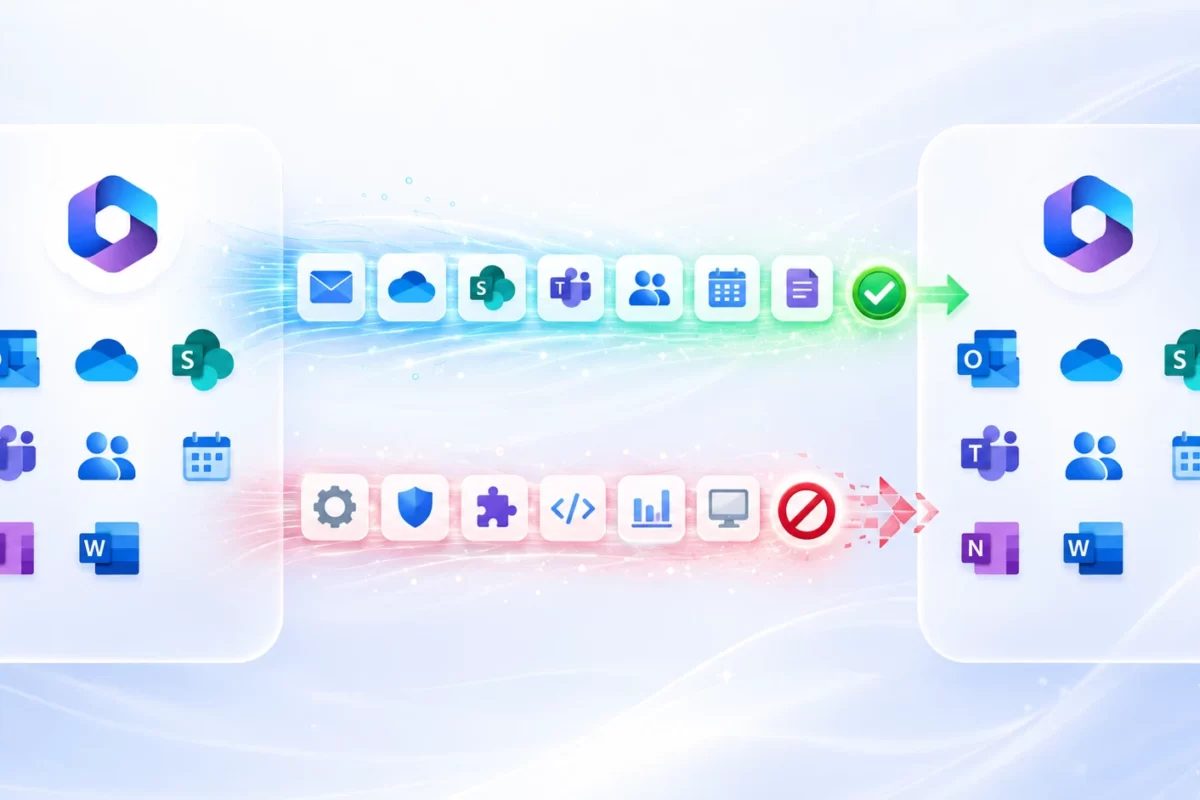
1.1 What can be migrated (mailboxes, labels, attachments)
- User and shared mailboxes: messages, attachments, folder structure, and Gmail “labels.” Important: Gmail labels map to folders or categories in Outlook depending on the tool; it isn’t always a 1:1 match.
- Special items: drafts, sent, archived, and trash; it’s best to clean up noise at source before migrating.
- Delegations and permissions: prepare runbooks/operational guides to recreate them after cutover (send as, full access, shared mailboxes).
- Rules and signatures: export user rules where possible and standardize signatures via destination-side policies.
- Retention and eDiscovery: align Google Vault with Microsoft Purview before migrating to preserve the chain of custody.
1.2 Recommended tools (updated table)
| Method / Tool | Pros | Limitations | When to use |
|---|---|---|---|
| Native (EAC IMAP / GWMME —Google Workspace Migration for Microsoft Exchange— / Data migrations) | Low cost, built-in | Basic reporting, limited mappings | Simple topologies and moderate volumes |
| BitTitan MigrationWiz | Templates, retries, dashboards | Per-workload licensing | Multi-wave, multi-stage, heterogeneous scenarios |
| Quest On Demand Migration | Granular control, auditing | Higher initial complexity | Regulated and multi-domain environments |
Recommendation: keep incremental syncs running until 24–48 hours before cutover and perform a final sync right before switching MX records. After the change, validate Autodiscover/Autodiscover v2 for Outlook profile creation, SPF (Microsoft include), re-sign DKIM for the destination domain, and ramp DMARC gradually (p=none→quarantine→reject).
If you want a wave-based plan with KPIs and user support, see: Microsoft 365 Migrations – MSAdvance.
2. Migrate files from Google Drive to OneDrive and SharePoint
The second pillar is migrating Google Drive to OneDrive (personal content) and to SharePoint (team content). The keys are permissions, versions, and format conversion (Docs/Sheets/Slides → Office) without breaking workflows.
2.1 Key differences between Drive and OneDrive/SharePoint
- Structure: Google My Drive and Shared Drives vs. Microsoft OneDrive (personal) and SharePoint (team sites) integrated with Microsoft 365 Groups and Teams.
- Permissions: file/folder ACLs in Google; in Microsoft, controlled inheritance, Microsoft 365 groups, and sharing links with policy control.
- Collaboration: “Live” Google Docs require a decision: convert to Office, export to PDF for historical records, or keep Google format read-only temporarily while the transition completes.
2.2 What carries over (permissions, shared links, versions)
- Content and versions: modern tools preserve versions; validate size limits and path depth.
- Internal permissions: typically remapped (users/groups). External sharing should be re-certified post go-live.
- Shared links: do not transfer; regenerate them in OneDrive/SharePoint under the new policies.
- Metadata and comments: owner, dates, and some metadata are preserved; comments and @mentions vary by tool.
2.3 Common challenges and technical limits
- Google Docs conversion: validate critical templates and complex Sheets formulas; define exceptions (PDF) for historical archives.
- Long paths and invalid characters: normalize names and reduce depth to comply with path length limits.
- Size and blocked types: account for file size limits and unsupported extensions in OneDrive/SharePoint.
- Throttling: both Google and Microsoft enforce throttling per user/app; plan off-peak windows and monitor batches.
- Orphaned Shared Drives: assign owners and set up an access re-certification plan.
Official tool: SharePoint Migration Tool (SPMT).
3. Migrate calendars and contacts from Google Workspace to Outlook/Exchange
Migrating Google calendars to Outlook and personal contacts preserves continuity for meetings and communications. Align rooms, delegations, and shared calendars to avoid “orphaned” appointments.
3.1 Google Calendar → Outlook (what data is preserved)
- Events, attendees, and descriptions: retained; review the reassignment of rooms and resources to the Microsoft directory (bookings, capacities).
- Recurring series: migrated with their rules; pay attention to exceptions and very old series.
- Sharing: recreate permissions (“view availability,” “view details,” “edit”) in Outlook/Exchange.
- Rooms & calendars pilot: include a dedicated pilot to test room/resource mapping and avoid booking conflicts.
3.2 Contacts and tasks: what to move and how
- Personal contacts: export/import or use tools that map fields, photos, and notes.
- Corporate contacts (GAL): manage in Microsoft Entra ID/Exchange to avoid duplicates.
- Tasks: consider importing to To Do/Planner; review dependencies on Keep or Gmail flows.
Reference: Google Workspace Admin Help.
4. Pre-migration checklist for a successful move
For a safe Google Workspace to Microsoft 365 migration, verify these items before moving data:
- Workload assessment: users/aliases/groups, shared mailboxes, mail and file volumes, critical calendars, domains, and apps that depend on Gmail/Drive.
- Target architecture: Teams/SharePoint structure (naming, owners, sensitivity), OneDrive provisioning, and access policies.
- Baseline security: MFA, Conditional Access, blocking legacy POP/IMAP, anti-phishing, and initial DLP.
- Representative pilot: business profiles, power users, leadership, and sensitive areas; add a rooms/calendars pilot.
- Coexistence & DNS: routing, temporary aliases/forwards; end-to-end testing and a cutover runbook for MX change.
- Communication & adoption: role-based quick guides, enablement sessions, comms calendar, and support channel.
- Backups & rollback: source-side retention, snapshots, and a documented return plan.
- KPIs & monitoring: % migrated within window, incidents per user, broken links, MTTR, post-migration satisfaction, and OneDrive/Teams usage.
Reinforce adoption with our Modern Workplace approach (training, templates, and department kits).
5. Common mistakes when migrating from Google Workspace to Microsoft 365
Not reviewing Drive permissions before moving
Historic permissions and public links in Google aren’t 1:1 equivalents. Audit, clean up, and plan for access re-certification after go-live.
Not planning temporary coexistence
Without a coexistence design (mail/calendar), you’ll get bounces, failed invites, and confusion. Rehearse mail routing, Autodiscover, and agree on invite norms.
Underestimating user training
Outlook, OneDrive/SharePoint, and Teams change daily habits. Invest in cheat sheets, short videos, and first-week support sessions.
Not aligning retention/compliance before moving
Harmonize Google Vault with Microsoft Purview (retention, eDiscovery) to avoid legal gaps during transit.
6. Alternatives to a full migration (temporary coexistence)
Google Workspace and Microsoft 365 coexistence is useful in progressive integrations or subsidiaries moving at their own pace. Clear rules minimize friction:
- Mail: controlled dual routing, temporary aliases/forwards; validate SPF/DKIM/DMARC and Autodiscover on both ends.
- Calendar: standard invitations (ICS), publishing key calendars, and room coordination until consolidation.
- Collaboration: B2B guests in Teams/SharePoint, expiring links, and periodic re-certifications.
- Identity: user/group mapping in Microsoft Entra ID and consistent policies to avoid gaps.
7. Conclusion: plan well to avoid data loss and productivity dips
Moving from Google to Microsoft 365 is a lever to raise security and efficiency. Success rests on an honest assessment, solid coexistence, the right tools per workload (mail/files/calendars), and guided adoption. With meaningful pilots, measurable waves, and security controls from day one, go-live becomes predictable.
Want MSAdvance to do it for you?
We handle the plan, execution, and support: mail (Gmail→Exchange), files (Drive→OneDrive/SharePoint), calendars/contacts, and security.
Talk to a consultant Microsoft 365 Migrations
We can also help with Modern Workplace and the rest of our Services.
8. Frequently asked questions about migrating from Google Workspace to Microsoft 365 (FAQ)
Can contacts be migrated too?
Yes. Personal contacts can be exported/imported or migrated with tools. Corporate contacts should be managed in the destination tenant’s GAL (Microsoft Entra ID/Exchange).
How long does a Google → Microsoft 365 migration take?
It depends on volumes, bandwidth, throttling, and business windows. A common pattern is a pilot + 2–4 waves and a short MX cutover.
What happens to shared permissions in Drive?
They are remapped where possible, but public links and external sharing must be recreated and re-certified in OneDrive/SharePoint.
Is a no-downtime migration possible?
You can minimize disruption with pre-syncs and a planned MX switch; validate Autodiscover, SPF, DKIM, and DMARC after cutover.
Are Gmail labels preserved?
Labels map to folders or categories in Outlook depending on the tool; an exact 1:1 equivalence isn’t guaranteed.
How are Google Docs/Sheets/Slides converted?
Options: convert to DOCX/XLSX/PPTX, export to PDF for historical records, or keep Google format read-only temporarily while completing the transition.
Can I migrate by department or country?
Yes. Waves reduce risk and make communication and support easier.
What about Google Meet and recordings?
They can be exported and stored in OneDrive/SharePoint; going forward, Teams will centralize meetings and recordings.
How do I manage calendar coexistence?
Use standard invitations and published/shared calendars; run a rooms pilot to validate resource mappings.
Which day-1 security controls should be enabled?
MFA, Conditional Access, blocking legacy protocols, anti-phishing, and basic DLP with Microsoft Purview.
Can shared mailboxes and delegations be migrated?
Yes, by planning their window and verifying delegations and permissions after cutover.
How do I prepare the domain (MX) change?
Lower TTL 48–72 hours beforehand, verify SPF, enable DKIM in the destination, ramp DMARC gradually, and check Autodiscover/Autodiscover v2 in Outlook.
Do I need third-party tools?
For simple scenarios, the native path often suffices. In complex flows, BitTitan/Quest provide advanced reporting and mappings.
What KPIs and monitoring should I track?
% migrated within window, incidents per user, broken links, MTTR, satisfaction (NPS), and OneDrive/Teams usage. Monitor throttling and batch queues.
How do I ensure compliance in transit?
Align Google Vault with Microsoft Purview (retention, eDiscovery) and document holds and audit logs.
Can Google Chat/Spaces be migrated to Teams?
Not natively; typically, critical content is exported and collaboration restarts in Teams with defined governance.
Can I run Google and Microsoft side by side indefinitely?
Coexistence is possible, but complexity grows. Set a consolidation date to simplify governance and support.
What is the minimum recommended training?
Outlook (search, rules, calendars), OneDrive/SharePoint (sync and secure sharing), and Teams (meetings, channels, files).