



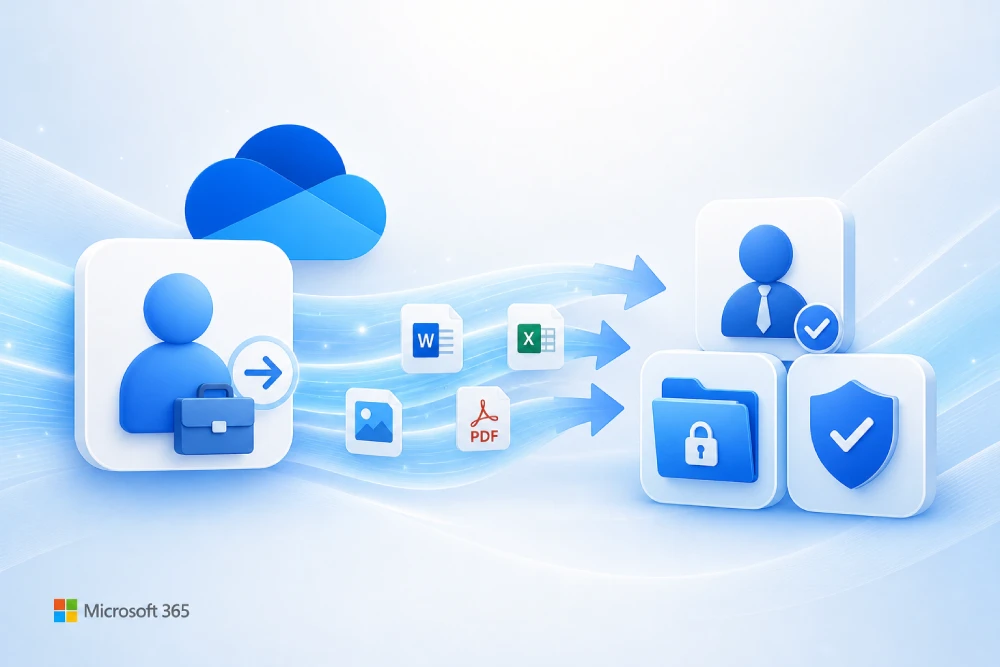
Do you want MSAdvance to help you protect the files of employees who leave the company?
When someone leaves, the issue is usually not just disabling their account. The real problem appears when part of the company’s knowledge is stored in their OneDrive: contracts, proposals, quotes, project documentation, reports, templates, presentations, or files shared with customers.
At MSAdvance, we help design and implement a Microsoft 365 offboarding process so that every departure is secure, orderly, and traceable: access blocked, files reviewed, critical information moved to SharePoint, permissions corrected, and retention aligned with the business.
- Review of OneDrive, SharePoint, Teams, and Exchange before deleting accounts.
- Design of a Microsoft 365 user offboarding process with a checklist for IT, HR, and managers.
- Configuration of retention, delegated access, audit, labels, and Microsoft Purview policies.
Contact our team View the Modern Workplace service
If you also need retention, DLP, audit, or eDiscovery: view Microsoft 365 Security & Compliance.
When an employee leaves and had important files in OneDrive, the recommended approach is not to delete their account without first reviewing the content. First, you should block access, revoke sessions, assign temporary access to the manager or IT, identify critical files, and move them to a corporate location, usually a SharePoint library or a Microsoft Teams team. Then, permissions, shared links, retention, and account deletion or preservation are adjusted according to the company policy.
Quick summary: what to do with the OneDrive of an employee who leaves the company
- Do not delete the account in a hurry: first block sign-in and revoke sessions to protect the company without losing administrative access.
- Identify what information is critical: not everything in OneDrive is worth keeping, but customer, project, contract, or process documents should be reviewed.
- Grant temporary access to the right person: usually the manager, a department lead, or IT, with controlled permissions and traceability.
- Move corporate content to SharePoint: OneDrive is a personal work area; team documents should end up in SharePoint or Teams.
- Review shared links: many important files are shared with colleagues, customers, or suppliers. When moving them, it may be necessary to share them again correctly.
- Configure retention: Microsoft 365 retains the OneDrive of deleted users for a configurable period, but relying only on the default value is not advisable.
- Do not use unlicensed accounts as an eternal archive: unlicensed OneDrive accounts have specific rules and may enter an archived state.
- Document the process: every departure should follow a clear checklist to avoid improvisation, data loss, and improper access.
- Define document governance: if important documents live in OneDrive, the employee departure is not the real problem; the company lacks a clear document structure.
Why does this happen with OneDrive?
It happens because OneDrive is convenient. Very convenient. The user creates a document, shares it through Teams or Outlook, edits it with colleagues, and the work gets done. The problem appears when that document stops being “personal” and becomes, without anyone formally deciding it, a key company document.
In many organizations, OneDrive ends up accumulating information that should be in SharePoint Online: customer documentation, recurring reports, sales proposals, templates, quality documents, project deliverables, or files shared with suppliers.
Signs that OneDrive is being used incorrectly
- Users look for documents by asking “who had it?” instead of going to a corporate library.
- A customer has access to files hosted in a specific person’s OneDrive.
- The team depends on links sent by chat or email.
- Someone leaves and the manager does not know where the important documents are.
- There are several versions of the same file in OneDrive, Teams, and email.
In reality, the employee departure only makes a previous problem visible: lack of document governance in Microsoft 365.
Introduction: OneDrive should not be the company’s final document archive
OneDrive is excellent for individual work: drafts, documents in preparation, personal work notes, and files that are not yet ready for the team. But it should not be the place where the organization’s critical documentation lives.
When a file already belongs to a process, a customer, a department, or a project, the right approach is usually to move it to a shared and governed location: a SharePoint library, a team site, or a Microsoft Teams channel.
That is why the question is not only “how do I recover the OneDrive of an employee who left?”. The more important question is: how do I prevent important information from depending on specific individuals.
This guide is designed for IT, administration, HR, leadership, and managers who want a clear Microsoft 365 user offboarding process, to protect important documents and reduce the risk of information loss.
1. First steps when the employee leaves
In practice: first protect the account, then review the information, and only at the end decide what to delete, move, or keep.
When someone leaves the company, many organizations rush: they remove the license, delete the account, and then try to recover the files. That order is dangerous. The safest approach is to follow a simple sequence.
Recommended order
- Block access: prevent the account from signing in.
- Revoke sessions: cut active tokens on devices and browsers.
- Change or invalidate authentication methods: especially if there is a risk of conflict or an unfriendly departure.
- Temporarily keep the account: do not delete it until OneDrive, Outlook, Teams, and permissions have been reviewed.
- Assign an owner: manager, department lead, or IT.
- Review and classify files: what should be moved, archived, or deleted.
- Move corporate content: usually to SharePoint or Teams.
- Delete or keep the account according to policy: once the information has been secured.
A sales representative leaves and had open proposals, price lists, presentations, and documents shared with customers in OneDrive. If the account is deleted without review, the team may lose access precisely when it needs to continue those opportunities. With an orderly process, the account is blocked, OneDrive is reviewed, sales content is moved to SharePoint, and documents are shared again from a corporate location.
2. Block access without losing information
In practice: blocking access does not mean deleting. They are different actions and should not be mixed.
IT’s first goal is to protect the company. If the person should no longer have access, sign-in is blocked and sessions are revoked. But that does not mean deleting their OneDrive at that moment.
Recommended actions
- Block sign-in from the Microsoft 365 admin center or Entra ID.
- Revoke active sessions to cut off access that is already signed in.
- Retire devices or apply actions with Intune if corporate devices were involved.
- Review forwarding rules and delegated access in Exchange Online.
- Temporarily keep the account if there is still pending document review.
In an amicable departure, it may seem enough to remove the license and move on. In a sensitive departure, it is advisable to add audit review, external access review, device checks, and recent activity review.
If you do not know whether there are critical files, do not delete the account yet. Block access, preserve the content, and review it with the manager before making final decisions.
3. How to grant access to a former employee’s OneDrive
In practice: access should be temporary, justified, and granted to the right person.
Microsoft allows access to a former user’s OneDrive content to be granted to another employee with the appropriate permissions. This can be done manually from administration tools or in a more structured way through automatic delegation.
Common options
| Option | When to use it | Risk if used incorrectly |
|---|---|---|
| Grant temporary access to the manager | When the manager knows the work and can decide what should be kept. | They may move or share content without proper criteria if they do not receive instructions. |
| Grant access to IT | When inventory, copying, or review with traceability is needed. | IT may not know which documents have business value. |
| Automatic delegation | When a repeatable process is required after deleting users. | If the manager field is incorrect, access may not reach the right person. |
| eDiscovery / Purview | When there is an investigation, audit, legal hold, or need for formal search. | It does not replace an orderly document migration for operational continuity. |
Best practices when granting access
- Define who approves access: HR, legal, leadership, or the manager depending on the case.
- Record the reason, grant date, and responsible person.
- Avoid indefinite permissions: access should be removed when the review is complete.
- Do not turn the former employee’s OneDrive into a permanent archive.
In small companies, the manager usually reviews the content. In larger or regulated organizations, it is better for IT and legal to define a more controlled flow.
4. Inventory: how to know which files are important
In practice: the goal is not to copy everything. The goal is to separate useful, personal, duplicated, sensitive, and obsolete information.
The most common mistake is to dump the employee’s entire OneDrive into a folder called “Former user backup”. It seems fast, but in reality it only postpones the problem. Afterwards, nobody knows what is inside, who should use it, or what can be deleted.
How to classify content
Keep and move
- Customer documents.
- Active projects.
- Contracts and quotes.
- Official templates.
- Recurring reports.
Review first
- Drafts without context.
- Files shared externally.
- Documents with sensitive data.
- Very old folders.
- Duplicates from Teams or SharePoint.
Do not migrate without a reason
- Non-corporate personal files.
- Old local copies.
- Temporary downloads.
- Duplicate documents.
- Material with no operational value.
Questions that help the manager
- Which projects or customers was this person responsible for?
- Which documents does the team need to keep working?
- Are there files shared with customers or suppliers?
- Which documentation should move to a SharePoint site?
- Is there sensitive information that should be handled with legal or compliance?
If nobody knows what a file is for, do not automatically turn it into “corporate documentation”. Archive it temporarily, review it with the business, and avoid filling SharePoint with content that has no owner.
5. Where to move files: OneDrive, SharePoint, or Teams
In practice: documents that belong to the business should live in business spaces, not in another person’s OneDrive.
A bad solution is to move the former employee’s entire OneDrive to the manager’s OneDrive. That may work as a temporary measure, but not as a final solution. If a document belongs to a team, a customer, or a process, it should live in SharePoint or Teams.
| Content type | Recommended destination | Why |
|---|---|---|
| Personal work drafts | New owner’s OneDrive, only temporarily | Useful for reviewing, cleaning up, and deciding the final destination. |
| Project documents | SharePoint or the project’s Teams channel | The team keeps access even when people change. |
| Contracts, proposals, customer documentation | SharePoint library with permissions and versioning | Enables control, audit, search, and document governance. |
| Templates or procedures | Corporate SharePoint site | Avoids duplicates and helps everyone use the correct version. |
| Sensitive information | Controlled library with labels, permissions, and retention | Reduces legal and data leakage risks. |
Why SharePoint is usually the right destination
- It has site or library owners; it does not depend on one person.
- It supports versioning, metadata, search, and access control.
- It integrates with Teams so users do not have to “leave” their way of working.
- It makes retention policies, DLP, audit, and sensitivity labels easier to apply.
Related service: Modern Workplace with Microsoft 365, Teams, and SharePoint.
6. Permissions, shared links, and external collaboration
In practice: moving files is not enough. You must review who had access and who should continue to have it.
One of the most delicate points is sharing. An important file may be shared with colleagues, customers, suppliers, or external accounts. When that file is moved to SharePoint, the old links may no longer be the right way to access it.
What to review
- Internal links: colleagues who used a link to the former employee’s OneDrive.
- External links: customers or suppliers with access to documents hosted in that person’s OneDrive.
- Direct permissions: users with manual access to specific files or folders.
- Anonymous sharing: “anyone with the link” links if they are allowed in the organization.
- Embedded files: links in Teams, emails, SharePoint pages, or Power BI.
Practical recommendation
- Move the file to the appropriate corporate library.
- Apply permissions by group, not user by user.
- Generate new links from SharePoint if the document must remain shared.
- Communicate the change to those who depended on those links.
- Remove external access that no longer has a reason to exist.
A proposal file was shared from a sales representative’s OneDrive with several customer contacts. When the sales representative leaves, the team copies the file to SharePoint but does not review the links. Result: the customer keeps using an old link or loses access. The correct solution is to move the document, issue the link again from SharePoint, and keep traceability of who accesses it.
7. OneDrive retention: how long it is kept and how to configure it
In practice: OneDrive does not disappear immediately when a user is deleted, but relying on the default value is a bad idea.
When a user is deleted, Microsoft 365 keeps their OneDrive for the period configured in the SharePoint admin center. The default OneDrive retention period is 30 days, and it can be configured from 30 to 3650 days.
What matters
- The retention period starts when the user account is deleted.
- During that period, other users may continue to access shared content.
- An administrator can restore or access the OneDrive while it is still within the retention process.
- The configuration should be reviewed before problematic departures happen, not afterwards.
How to define a sensible policy
Not every company needs to retain OneDrive for as long as possible. The reasonable approach is to decide based on the type of organization:
- Small business: moderate retention and a good review checklist may be enough.
- Company with long projects: it is advisable to extend retention and move key documentation to SharePoint.
- Regulated sector: retention should be aligned with legal, audit, retention, and eDiscovery requirements.
- Organization with high turnover: automation and recurring review are needed to avoid accumulating orphaned OneDrives.
OneDrive retention does not replace good document management. It works as a safety net, but important documents should be moved to corporate spaces with a clear owner.
8. What happens if you remove the license but do not delete the account
In practice: removing a license is not an archiving strategy. Microsoft handles unlicensed OneDrive accounts in a specific way.
Some companies try to save costs by removing the user’s license and leaving the account “just in case”. This may seem convenient, but it is not a good long-term archiving strategy.
What you should keep in mind
- An unlicensed OneDrive account can enter an archived state according to Microsoft rules.
- Unlicensed OneDrive accounts are automatically archived after 93 days of license removal.
- Administrators can see unlicensed OneDrive accounts through administrative tools.
- Access to the content may require additional administrative actions and, depending on the case, costs associated with archiving or reactivation.
- Retention policies, eDiscovery, and holds continue to be honored.
The practical recommendation is not to use unlicensed OneDrive as an indefinite storage location. If content must be preserved for business purposes, move it to SharePoint. If it must be preserved for legal reasons, govern it with Microsoft Purview.
Remove licenses from dozens of former users and leave all their OneDrives “just in case”. At first it seems cheap; later, nobody knows what is there, what can be deleted, who can access it, or what cost or effort will be required to recover content.
9. Microsoft Purview: retention, eDiscovery, and compliance
In practice: if there are legal requirements, audits, or sensitive data, copying files to a folder is not enough.
In some cases, an employee departure may have legal or compliance implications: internal investigations, litigation, audits, financial documentation, personal data, or confidential information.
When Purview comes into play
- When information must be retained for a specific period.
- When there is an investigation or legal request.
- When documents contain personal, financial, or confidential data.
- When the company must prove who accessed, shared, or modified documents.
- When sensitivity labels or DLP must be applied.
What it provides
- Retention: retain or delete information according to rules.
- eDiscovery: search for and preserve relevant content.
- Audit: review user activity and access.
- Sensitivity labels: classify and protect critical information.
- DLP: reduce leakage of sensitive information.
Related service: Microsoft 365 Security & Compliance.
10. Automating offboarding in Microsoft 365
In practice: if every departure is managed manually, sooner or later there will be data loss or improperly closed access.
Employee offboarding should be a repeatable process. You do not need to start with a huge automation project. It is enough to define a clear flow and automate the parts that fail most often.
What can be automated
- Create a task for IT when HR marks a departure.
- Block access at the right time.
- Notify the manager to review OneDrive.
- Create a temporary review folder in SharePoint.
- Record approval for moving or deleting documents.
- Generate reminders before the end of the retention period.
Recommended flow
- HR notifies the departure.
- IT blocks access and revokes sessions.
- The manager receives a request to review documentation.
- IT grants temporary access to OneDrive.
- The manager classifies content: keep, move, delete, or review with legal.
- Corporate documents are moved to SharePoint.
- Temporary permissions are removed and the account is closed according to policy.
Power Automate can help, but it does not replace judgment. First define the process with people, responsibilities, and decisions; then automate.
11. Common cases and what to do in each one
11.1 The employee leaves in a planned way
This is the best scenario. There is time to review content while the person is still available, identify active projects, and move documents before the last day.
- Ask the employee to document key locations.
- Move team files to SharePoint before blocking access.
- Review links shared with customers or suppliers.
- Validate with the manager that no critical information remains in OneDrive.
11.2 The employee has already left and nobody reviewed OneDrive
In this case, you need to act quickly and in an orderly way. If the account still exists, block access and grant controlled review. If it has already been deleted, check whether the OneDrive is still within the retention period or whether it must be restored.
- Confirm the account status.
- Identify the OneDrive URL.
- Grant temporary access to the responsible person.
- Copy critical content to SharePoint.
- Remove temporary access when finished.
11.3 The employee had documents shared with customers
This case requires care. Moving files is not enough; you must review the links and the customer experience.
- Inventory active external links.
- Move documents to a controlled library.
- Create new links from SharePoint.
- Communicate the change to the customer if necessary.
- Remove old access that should no longer remain active.
11.4 There is suspicion of information leakage
This should not be treated as a normal departure. It is advisable to preserve evidence, review audit logs, and coordinate with legal or compliance.
- Do not delete data impulsively.
- Preserve relevant content.
- Review sharing and download activity.
- Use eDiscovery or audit if applicable.
- Limit the review to authorized people.
11.5 The OneDrive is full of mixed personal and corporate documents
This is more common than it seems. The solution is not to copy everything, but to classify. If there are doubts, define a temporary review area and decide with the business.
Do you want to check whether your company is prepared for an employee departure without losing documents?
MSAdvance can perform a OneDrive, SharePoint, and Microsoft 365 assessment to detect risks: critical files in OneDrive, external links, unlicensed accounts, lack of retention, absence of an offboarding process, or poorly delegated permissions.
Request a OneDrive and offboarding review View Security & Compliance
12. Operational checklists for IT, HR, and managers
In practice: the best offboarding process is the one anyone on the team can follow without improvising.
12.1 Checklist for IT
- Block sign-in.
- Revoke active sessions.
- Review MFA and authentication methods.
- Temporarily keep the account if review is pending.
- Grant temporary access to the manager or authorized owner.
- Review external links and anonymous sharing.
- Confirm OneDrive retention configuration.
- Remove temporary permissions when the review is closed.
12.2 Checklist for HR
- Notify the departure with enough notice whenever possible.
- Confirm the manager or review owner.
- Indicate whether the departure requires sensitive handling.
- Coordinate with legal if there is litigation, conflict, or investigation.
- Record process closure.
12.3 Checklist for the manager or department owner
- Identify key projects, customers, and documents.
- Review the main OneDrive folders.
- Separate corporate content from content with no operational value.
- Indicate the correct destination: SharePoint, Teams, archive, or deletion.
- Validate that the team can continue working without depending on the former account.
12.4 Closure checklist
- Critical documents moved to SharePoint or Teams.
- External links reviewed.
- Temporary permissions removed.
- Account deleted or preserved according to policy.
- Retention and compliance reviewed.
13. Common mistakes and how to avoid them
In practice: almost all problems repeat themselves: deleting too early, copying without criteria, or leaving permissions open.
| Mistake | What it causes | How to avoid it |
|---|---|---|
| Deleting the account without reviewing OneDrive | Loss of access, urgent incidents, and last-minute recovery. | Block access first; review and move afterwards. |
| Moving everything to the manager’s OneDrive | The problem is transferred to another person. | Use SharePoint for corporate documents. |
| Not reviewing external links | Customers or suppliers lose access or retain improper access. | Reissue links from corporate locations. |
| Not having the manager configured | Automatic delegation may not reach anyone useful. | Keep user attributes and owners up to date. |
| Using unlicensed accounts as an archive | Inaccessible content, costs, or more complex recovery. | Archive with Purview or move to SharePoint. |
| Not applying retention | Legal risk or loss of information too early. | Define a retention policy by type of information. |
14. Useful scripts and commands
In practice: commands help standardize the process, but they must be used within an approved workflow.
14.1 Configure OneDrive retention for deleted users
Conceptual example to review or set OneDrive retention for deleted users from SharePoint Online PowerShell.
Connect-SPOService -Url https://contoso-admin.sharepoint.com

# View current configuration
Get-SPOTenant | Select-Object OrphanedPersonalSitesRetentionPeriod

# Set retention period (example: replace <days> with the value defined by policy)
Set-SPOTenant -OrphanedPersonalSitesRetentionPeriod <days>
14.2 Grant temporary administrative access to a OneDrive
Conceptual example to grant an authorized owner access as site collection administrator of the OneDrive.
Connect-SPOService -Url https://contoso-admin.sharepoint.com

$OneDriveUrl = "https://contoso-my.sharepoint.com/personal/user_contoso_com"
$Owner = "manager@contoso.com"

Set-SPOUser -Site $OneDriveUrl -LoginName $Owner -IsSiteCollectionAdmin $true
14.3 Remove temporary access when finished
Set-SPOUser -Site $OneDriveUrl -LoginName $Owner -IsSiteCollectionAdmin $falseDo not turn these commands into an uncontrolled shortcut. They should be part of a process with approval, logging, and later review.
15. Frequently asked questions about OneDrive when an employee leaves
What happens to an employee’s OneDrive when their account is deleted?
The OneDrive is retained for the period configured in SharePoint. During that time, administrators can access or restore content depending on permissions and configuration. After the retention process, the content may be permanently deleted if it is not protected by retention policies, eDiscovery, or other controls.
Is it better to delete the account or remove the license?
It depends on the objective. If you want to correctly close the user lifecycle, deletion starts the OneDrive retention process. Removing the license without deleting the account should not be used as a permanent archiving strategy, because unlicensed OneDrive accounts have specific handling and may enter an archived state.
Can I give the employee’s manager access to their OneDrive?
Yes, as long as you have the appropriate administrative permissions. Automatic delegation can also be configured so that the manager or a secondary owner receives access when the user is deleted, if the organization has configured it correctly.
Should I copy all the employee’s files to SharePoint?
Not necessarily. The recommended approach is to classify: keep and move only what has corporate value. Copying everything usually creates huge ownerless folders, duplicates, and search problems.
What should I do if files were shared with customers?
You should review those links, move the documents to a corporate location such as SharePoint, create new links from that location, and remove old access that no longer applies.
Can OneDrive serve as the company’s document archive?
It is not ideal. OneDrive is designed as a personal work area. For corporate documentation, projects, customers, contracts, or processes, SharePoint or Teams are recommended, with governance, permissions, versioning, and retention.
What happens if there is sensitive data or an internal investigation?
It is advisable to coordinate with legal, compliance, and IT. In those cases, it may be necessary to use Microsoft Purview, eDiscovery, retention, audit, or legal hold before moving or deleting content.
How do I prevent this from happening again?
By defining a clear policy: what goes in OneDrive, what goes in SharePoint, how files are shared, how user offboarding is managed, and who reviews the information before accounts are deleted.
16. Official resources and external links
- Microsoft Learn — Remove a former employee
- Microsoft Learn — Give another employee access to OneDrive and Outlook data
- Microsoft Learn — OneDrive retention and deletion
- Microsoft Learn — Set the OneDrive retention for deleted users
- Microsoft Learn — Restore a deleted OneDrive
- Microsoft Learn — Manage unlicensed OneDrive user accounts
- Microsoft Learn — Retention for SharePoint and OneDrive
- Microsoft Learn — eDiscovery in Microsoft Purview
Related MSAdvance services
17. Conclusion and next steps
When an employee leaves and had important files in OneDrive, the solution is not to rush in, copy everything, and close the account. The correct solution is to protect access, review with clear criteria, move corporate content to SharePoint or Teams, adjust permissions, and apply retention according to the company policy.
An employee departure is a maturity test for Microsoft 365. If the company depends on one person’s OneDrive to keep working, the document model must be corrected. OneDrive should be a personal work area; SharePoint and Teams should be the place where shared and governed information lives.
Recommended next steps
- Review the OneDrive retention configuration for deleted users.
- Define who receives access when an employee leaves.
- Create an offboarding checklist for IT, HR, and managers.
- Move critical documentation from OneDrive to SharePoint.
- Review external links and collaboration permissions.
- Apply Microsoft Purview if there is sensitive, legal, or regulated information.
Do you want MSAdvance to help you organize OneDrive, SharePoint, and your employee offboarding process?
We can review your Microsoft 365 environment, detect risks, and design a practical process so that no employee departure puts important files, customers, or projects at risk.
Contact MSAdvance View Modern Workplace
· You may also be interested in: Security & Compliance · Microsoft 365 Migration · All services