
'/%3E%3Cpath%20fill='%23b2b2b2'%20d='M241%20382q0%2016%2017%2026%2017%2011%2042%2011t42-11q16-11%2017-26V269H241'/%3E%3Cpath%20fill='%239f7e00'%20d='M241%20379q0%2014%208%2023%209%209%2021%209%2014%200%2021-9%209-9%209-23V269h-59'/%3E%3Cpath%20d='M241%20339v-70h59v110q0%2014-9%2023l-6%205v-68h-15v72q-8%200-14-4v-68zm59%2040c0%2022%2015%2032%2029%2032%2021%200%2030-18%2030-32v-40h-59'/%3E%3Cpath%20fill='%239f7e00'%20d='M266%20277v5h2v12h-3v-5h2v-5h-9v5h2v5h-4v9h3v18h-5v10h34v-10h-5v-18h3v-9h-4v-5h2v-5h-9v5h2v5h-3v-12h2v-5zm42%20101q0%2010%206%2017%206%206%2015%207%2010-1%2016-7%206-7%206-17v-29h-43'/%3E%3Ccircle%20fill='%230044ad'%20cx='329.5'%20cy='372'%20r='6'/%3E%3Cellipse%20fill='%230044ad'%20cx='300'%20cy='340'%20rx='16'%20ry='21'/%3E%3C/svg%3E)


Do you want MSAdvance to handle your migration from Zoho to Microsoft 365?
Migrating from Zoho to Microsoft 365 is not just about changing email platforms. In many companies it means moving Zoho Mail to Exchange Online, calendars to Outlook, contacts, files from Zoho WorkDrive to OneDrive or SharePoint, users, domains, security and the way teams collaborate.
At MSAdvance, we design and execute the Zoho to Microsoft 365 migration end to end, with a clear plan to minimize downtime, avoid data loss and support users throughout the change.
- Assessment of the Zoho environment: email, calendars, contacts, files, domains, users and dependencies.
- Migration from Zoho Mail to Microsoft 365 / Outlook using IMAP, PST or other tools depending on the scenario.
- Domain cutover plan with MX, SPF, DKIM and DMARC so email flows correctly into Exchange Online.
- File migration from Zoho WorkDrive to OneDrive, SharePoint or Teams, with a well-designed structure and permission model.
- Adoption support so users can start working with Outlook, Teams, OneDrive and SharePoint without friction.
Contact our team View our Microsoft 365 migration service
If the main focus is email, you can also view our IMAP to Microsoft 365 migration service.
Migrating Zoho to Microsoft 365 means moving email from Zoho Mail to Exchange Online, calendars to Outlook, contacts, files from Zoho WorkDrive to OneDrive or SharePoint, and preparing the domain so email is delivered through Microsoft 365. The most common route for email is an IMAP migration, but IMAP only moves email messages and mail folders; calendars, contacts, rules, signatures, files and permissions require specific handling. The best strategy is to run an assessment, migrate in waves, pre-stage data before cutover, change DNS in a controlled window and support users after the switch.
Quick summary: Zoho to Microsoft 365 migration in 10 points
- What is usually migrated: Zoho Mail, calendars, contacts, Zoho WorkDrive files, groups, aliases, domains and, in some cases, data from Zoho CRM, Zoho Projects or Zoho Desk.
- Email is usually migrated via IMAP: Microsoft allows IMAP mailbox migrations to Exchange Online, but users, CSV files, credentials, endpoints and batches must be prepared.
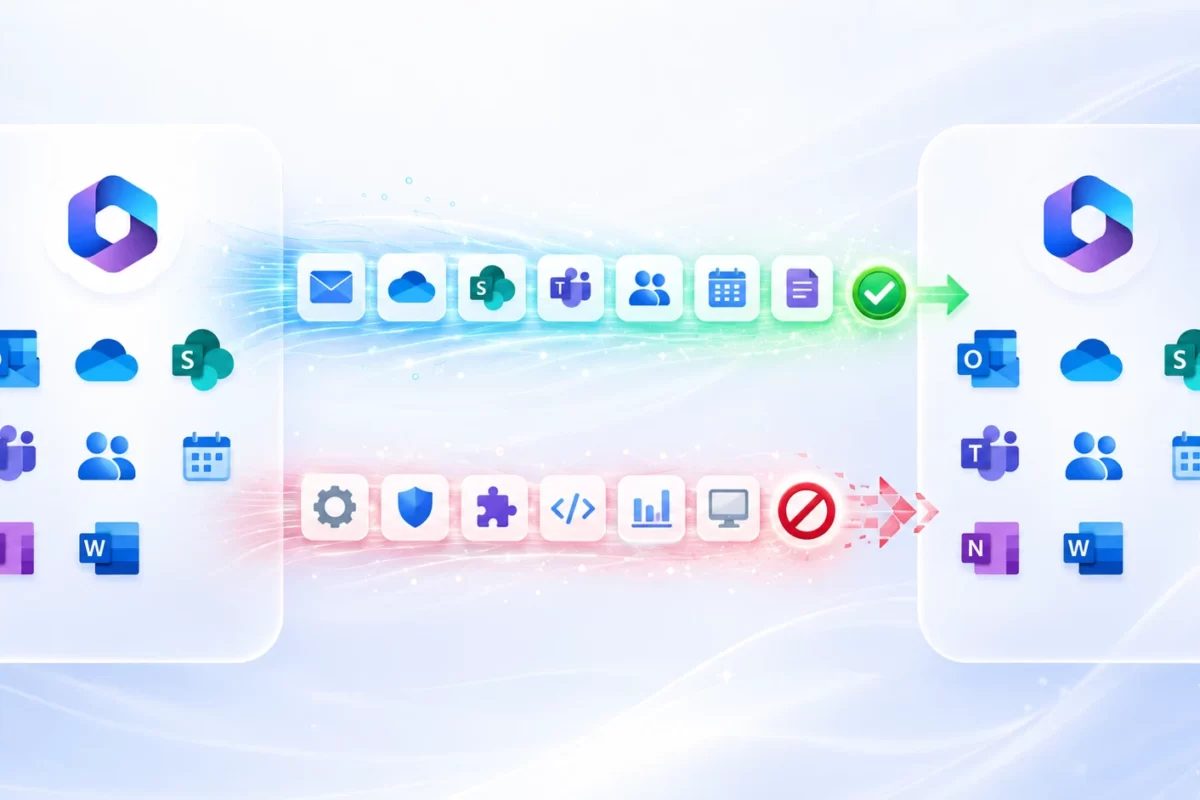
- IMAP does not migrate everything: it does not migrate contacts, calendars, tasks, rules, signatures, permissions or advanced personal settings.
- Calendars and contacts are handled separately: Zoho Calendar can export calendars in ICS format, and contacts are usually handled through CSV or Outlook, depending on the case.
- WorkDrive requires design: it is not enough to download folders and upload them; you should decide what goes to OneDrive, what goes to SharePoint and what becomes a Teams workspace.
- The domain is the critical moment: Microsoft 365 must be prepared, the domain verified, users created, TTL lowered if applicable and MX/SPF/DKIM/DMARC changed in a controlled window.
- Security improves significantly if the change is used well: MFA, Conditional Access, Defender for Office 365 and basic Purview policies can be enabled from the start.
- Users should experience order, not chaos: Outlook, Teams, OneDrive and SharePoint change working habits; good communication reduces tickets and resistance.
- It is best to work in waves: pilot, key users, departments, final cutover and stabilization.
- A partner prevents improvisation: especially when there are many mailboxes, shared files, multiple domains, critical users or compliance requirements.
When does it make sense to migrate from Zoho to Microsoft 365?
Zoho can work well in many organizations, especially when the goal is a lightweight and cost-effective suite. The problem appears when the business starts needing deeper integration with Office, Teams, SharePoint, advanced security, managed devices or compliance. At that point, many companies begin considering a migration from Zoho to Microsoft 365.
Common scenarios
- The company already works with Word, Excel and PowerPoint: it wants to avoid constant switching between tools and centralize productivity in Microsoft 365.
- Email needs more security and control: Exchange Online, Defender for Office 365, MFA, Conditional Access and auditing provide stronger governance.
- Teams is going to become the collaboration hub: meetings, chats, channels, files and calls in a single experience.
- Files are scattered: Zoho WorkDrive, email attachments, local folders and shared links without a clear structure.
- There is growth or reorganization: new offices, mergers, hybrid teams, more users or the need for a more scalable platform.
- Device management is required: Intune, Defender and compliance policies for laptops, mobile devices and remote access.
- Compliance requirements exist: retention, eDiscovery, DLP, information classification or audits.
A company starts with Zoho Mail and Zoho WorkDrive because it is simple and quick. Over time, the sales team lives in Outlook, management wants Teams for meetings, operations asks for SharePoint for documentation, and security needs MFA and device control. At that point, the migration is no longer just technical: it is a platform decision.
Introduction: migrating Zoho is not just moving email
When someone says “we want to migrate Zoho to Microsoft 365,” they usually mean email. But in practice there are often more layers: calendars, contacts, files, aliases, groups, permissions, domains, devices, integrations and working habits.
The visible part for users will be Outlook, Teams, OneDrive and SharePoint. The invisible part —but the one that determines whether the project succeeds— is the design: what is migrated, what is rebuilt, what is archived, when the domain is changed and how the change is communicated.
This guide explains an orderly way to execute a Zoho Mail to Microsoft 365 migration and, where applicable, also move files from Zoho WorkDrive and data from other Zoho applications. It is written for IT managers, leadership teams and organizations that want to avoid improvisation.
1. Project methodology and governance
In practice: a Zoho to Microsoft 365 migration must have an owner, timeline, scope, stakeholders and a communication plan. Otherwise, it becomes a collection of disconnected tasks.
The recommended methodology is to work in phases. First, review the current environment; then prepare Microsoft 365, run a pilot migration, execute migration waves and finally perform the domain cutover. After cutover, open a stabilization phase to resolve questions and adjust configurations.
Recommended phases
- Assessment: inventory of users, mailboxes, calendars, contacts, domains, aliases, groups, WorkDrive and Zoho applications.
- Target design: Microsoft 365, Exchange Online, Teams, OneDrive, SharePoint, licenses, security and document structure.
- Pilot: migration of a small but representative group, with real users and real use cases.
- Pre-stage: initial migration of email and files before the final change to reduce downtime.
- Cutover: MX and DNS changes, validation of inbound/outbound mail, Outlook, mobile devices and Teams.
- Stabilization: user support, incident review, permission adjustments and gradual retirement of Zoho.
| Activity | Responsible | Accountable | Consulted | Informed |
|---|---|---|---|---|
| Zoho assessment | MSAdvance / IT | IT | Business | Management |
| Microsoft 365 design | MSAdvance | IT | Security | Key users |
| Email migration | MSAdvance | IT | Pilot users | Business |
| File migration | MSAdvance / IT | Business | Area owners | Users |
| DNS cutover | IT / MSAdvance | IT | DNS provider | Management |
| Adoption and support | MSAdvance / IT | Business | Champions | Users |
2. Assessment: Zoho inventory and dependencies
In practice: the assessment answers three questions: what exists in Zoho, what can be moved to Microsoft 365 and what should be rebuilt in a better way.
Before creating migration batches or changing DNS records, you should understand the starting point. Zoho is usually made up of several components: Zoho Mail, Zoho Calendar, Zoho Contacts, WorkDrive and, sometimes, Zoho CRM, Zoho Projects, Zoho Desk or other applications.
2.1 Email and domains
- Active and inactive mailboxes.
- Aliases, groups, lists and shared mailboxes.
- Mailbox size and approximate number of items.
- Current domains, MX, SPF, DKIM and DMARC records.
- Users with Outlook clients, mobile devices or connected applications.
2.2 Calendars and contacts
- Personal and shared calendars.
- Recurring events and meetings with external users.
- Personal contacts and shared contacts.
- Need to preserve historical calendars.
2.3 Files and applications
- Zoho WorkDrive: personal folders, Team Folders and permissions.
- Links shared with customers or suppliers.
- Critical documents, templates and contracts.
- Zoho CRM, Desk, Projects, Forms or other connected apps.
A good assessment also identifies sensitive users: management, finance, customer support, sales, operations or any team that cannot afford several hours without email. These users are migrated with tighter control, close support and prior testing.
3. Scope: what can be migrated and what should be rebuilt
In practice: not everything that exists in Zoho is “moved” in the same way. Some things are migrated, others are exported/imported, and others are better rebuilt in Microsoft 365.
| Source in Zoho | Target in Microsoft 365 | Common method | Notes |
|---|---|---|---|
| Zoho Mail | Exchange Online / Outlook | IMAP, PST or specialized tool | IMAP moves email and folders, but not contacts, calendars or rules. |
| Zoho Calendar | Outlook Calendar | ICS export and import | Shared calendars, recurrences and external meetings must be validated. |
| Zoho Contacts | Outlook / Exchange Online | CSV, Outlook or tools | It is advisable to clean duplicates and map fields before importing. |
| Zoho WorkDrive | OneDrive, SharePoint, Teams | Download/export, staging and controlled upload | Permissions and links must be redesigned; copying “as is” without review is not recommended. |
| Zoho CRM | Dynamics 365, Dataverse, SharePoint, Power BI or another target | CSV/API export and dedicated project | This is not part of an IMAP migration; it requires functional analysis. |
| Zoho Projects / Desk | Planner, Teams, Lists, Dynamics, Power Platform | Export and process redesign | It is recommended to review which processes still make sense before migrating them. |
Migrating Zoho to Microsoft 365 should not mean “copy everything somewhere else.” It is an opportunity to clean up: remove old users, archive mailboxes that are no longer used, clean duplicate contacts and design a SharePoint structure that makes sense.
4. Recommended Microsoft 365 licenses after leaving Zoho
In practice: the right license depends on whether the user only needs email, works with Office every day, needs advanced security or has devices that must be managed.
Migrating from Zoho is usually a good time to review licensing. Not all users need the same plan. Some profiles only need email and Teams; others need desktop apps, advanced security, managed devices or compliance.
| Profile | Typical plan | When it fits |
|---|---|---|
| Light user | Business Basic or equivalent | Email, Teams, OneDrive/SharePoint and web apps. |
| Office user | Business Standard | Needs desktop Outlook, Word, Excel and PowerPoint. |
| User with security requirements | Business Premium | Includes device management, advanced security and access policies. |
| Mid-sized or regulated company | Enterprise E3/E5 | Advanced compliance, security, auditing or scalability needs. |
MSAdvance can help you choose the right mix and avoid two common mistakes: buying licenses that are too basic and later fall short, or buying advanced licenses for users who do not need them.
Related service: software license procurement and sales for businesses.
5. Identity, users, groups and baseline security
In practice: before migrating data, users, licenses, domains and access rules must be prepared in Microsoft 365.
Identity is the foundation of Microsoft 365. If users, groups and domains are not properly prepared, the migration becomes more complex: access errors, wrongly assigned aliases, Outlook connection problems, incorrect permissions or users receiving mail in the wrong place.
Recommended preparation
- Create users in Microsoft 365 with the correct UPN and email address.
- Assign licenses before migration.
- Verify corporate domains in Microsoft 365.
- Prepare security groups and distribution lists.
- Define MFA and access policies from the beginning.
- Plan separate and protected administrator accounts.
What if there is on-premises Active Directory?
If the organization already has on-premises Active Directory, it is worth reviewing whether synchronization with Microsoft Entra ID will be used. In that case, migration from Zoho is not only an email migration: identity, attributes, UPNs, groups and policies must also be coordinated.
6. Migrate Zoho Mail to Exchange Online / Outlook
In practice: migrating Zoho Mail to Microsoft 365 is usually done via IMAP, but it is important to understand its limits so you do not promise what IMAP cannot move.
The most common path to migrate Zoho Mail to Microsoft 365 is to use IMAP. Microsoft allows mailbox migrations from IMAP-compatible email systems into Exchange Online. Zoho Mail also provides IMAP access, so it is a reasonable route to move messages and folders.
What IMAP migrates
- Email messages.
- Mail folders accessible through IMAP.
- Basic folder structure, depending on the source and tool.
What IMAP does not migrate
- Contacts.
- Calendars.
- Tasks.
- Mail rules.
- Signatures.
- Delegated permissions.
- Personal Outlook settings.
Common technical steps
- Enable or validate IMAP in Zoho Mail: confirm that users are allowed to access IMAP.
- Create users in Microsoft 365: each target mailbox must exist and be licensed.
- Prepare the migration CSV: target address, source user and credentials or access mechanism.
- Create the IMAP endpoint in the Exchange admin center: IMAP server, port, security and credentials.
- Create the migration batch: included users, synchronization start and error review.
- Run the pre-stage: move most of the email before the final change.
- Cut over DNS: change MX so new mail enters through Microsoft 365.
- Validate and close: review mailboxes, folders, sending, receiving, mobile devices and Outlook.
EmailAddress,UserName,Password
ana.perez@company.com,ana.perez@company.com,TemporaryPassword
juan.garcia@company.com,juan.garcia@company.com,TemporaryPasswordEmail arrives in Microsoft 365, but the user asks about their contacts, calendars, signatures or rules. It is not that the migration “failed”; it is that IMAP does not move those elements. That is why this must be explained upfront and handled as a separate part of the project.
7. Migrate Zoho calendars and contacts to Outlook
In practice: calendars and contacts are small in volume, but very important to users. If they are forgotten, they generate more noise than many large mailboxes.
7.1 Migrate calendars from Zoho to Outlook
Zoho Calendar allows calendars to be exported in ICS format. Outlook can import calendars from ICS files. This method is useful for personal calendars or simple shared calendars, although recurring events, meetings with external users and delegated calendars should be reviewed.
- Export the calendar from Zoho Calendar in ICS format.
- Import the ICS file into Outlook or Outlook on the web, depending on the scenario.
- Validate important events, recurrences and future meetings.
- Inform users if they need to recreate some meetings to avoid organizer-related issues.
7.2 Migrate contacts from Zoho to Microsoft 365
Contacts are usually exported and imported using CSV or specific tools. Before importing them, it is advisable to clean duplicates, review fields and decide whether they are personal contacts, shared contacts or a corporate address book.
- Personal contacts: they can be imported into Outlook for each user.
- Shared contacts: you should define whether they will be organization contacts, lists, groups or a corporate address book.
- Customers and leads: if they come from Zoho CRM, they should not be mixed with personal contacts without analysis.
If contacts come from Zoho CRM, do not treat them as a simple Outlook address book. There may be sales pipeline data, activity history, owners, tags, custom fields and communication consent. That requires a dedicated business data project.
8. Migrate Zoho WorkDrive to OneDrive, SharePoint and Teams
In practice: the question is not “how do I upload the files,” but “where should each type of information live in Microsoft 365?”
Zoho WorkDrive may contain personal folders, team folders, files shared with external users and critical documentation. In Microsoft 365, that information may end up in different places:
- OneDrive: personal files for each user.
- SharePoint: documentation for areas, departments, projects and processes.
- Teams: collaborative work by teams and channels, with files stored in SharePoint.
How to approach file migration
- Inventory WorkDrive: Team Folders, owners, volume, permissions and external links.
- Classify content: personal, departmental, project-based, historical, sensitive or external.
- Design the target: OneDrive, SharePoint or Teams depending on the type of use.
- Export or download content: Zoho WorkDrive allows files and folders to be downloaded; in larger cases, automation or staging is recommended.
- Upload to Microsoft 365: use OneDrive/SharePoint, Migration Manager, scripts or tools depending on the volume.
- Validate permissions: do not assume source permissions translate exactly into the target.
- Recreate necessary external links: especially when customers or suppliers access documentation.
A Zoho WorkDrive folder called “Customers” may look like just another folder. But inside there are quotes, contracts, invoices, proposals, external permissions and sensitive documents. Migrating it without review can create a chaotic SharePoint from day one. The right approach is to redesign: sites by area, libraries by process and permissions by groups.
Related service: Modern Workplace Microsoft 365.
9. Zoho CRM, Projects, Desk and other apps: what to do with business data
In practice: not all of Zoho is migrated directly to Microsoft 365. Some applications require a functional decision, not just a technical one.
Many companies do not use only Zoho Mail. They use Zoho CRM, Zoho Projects, Zoho Desk, Zoho Forms, Zoho Books or other components. Here it is important to separate productivity migration (email, files, calendars) from business process migration.
Common options
- Temporarily keep some Zoho apps: if they still provide value and do not block the email migration.
- Export data to CSV or API: to analyze it, preserve it or move it to another platform.
- Migrate to Dynamics 365: if Zoho CRM is being replaced by a Microsoft CRM solution.
- Rebuild processes with Power Platform: Power Apps, Power Automate, Dataverse, Lists and SharePoint.
- Analyze data with Power BI: if the goal is analytics and reporting.
Do not mix email migration with CRM migration. They can be coordinated, but they carry different risks. Email affects every user’s day-to-day work; CRM affects the sales process, customer data, reporting and sales team adoption.
10. Domain cutover: MX, SPF, DKIM and DMARC
In practice: the MX change is the visible moment of the project. If it is well prepared, users barely notice the cutover; if it is improvised, bounces, delays and urgent calls appear.
For Microsoft 365 to receive mail for the corporate domain, the domain must be verified and the required DNS records must be added. Microsoft recommends creating users and mailboxes before updating the MX record to maintain email continuity.
Common records
- MX: routes inbound mail to Exchange Online Protection.
- SPF: indicates which servers are authorized to send mail on behalf of the domain.
- DKIM: cryptographically signs messages to improve authentication.
- DMARC: defines how to handle messages that fail SPF/DKIM and helps reduce spoofing.
- Autodiscover: makes Outlook configuration easier.
# MX to Microsoft 365
MX @ 0 company-com.mail.protection.outlook.com

# SPF
TXT @ "v=spf1 include:spf.protection.outlook.com -all"

# DKIM (example; Microsoft generates the specific values)
CNAME selector1._domainkey selector1-company-com._domainkey.company.onmicrosoft.com
CNAME selector2._domainkey selector2-company-com._domainkey.company.onmicrosoft.com

# DMARC
TXT _dmarc "v=DMARC1; p=none; rua=mailto:dmarc@company.com"
Cutover best practices
- Prepare and verify the domain before cutover day.
- Create users and licenses before changing MX.
- Run send/receive tests with pilot mailboxes.
- Communicate a clear change window.
- Review bounces, queues and delivery during the first hours.
- Do not remove Zoho immediately: keep it as a reference during stabilization.
Do you want to know how much effort your Zoho to Microsoft 365 migration will require?
MSAdvance can perform a short assessment to review users, mailboxes, WorkDrive, domains, DNS, licenses and risks. The result is a clear roadmap: what is migrated, what is rebuilt and how the cutover is executed.
11. Security and compliance in Microsoft 365 after migration
In practice: leaving Zoho and moving into Microsoft 365 is an opportunity to improve security, not just to change mailboxes.
Microsoft 365 allows broader controls over identity, email, devices and data. You do not need to enable everything on day one, but you should start with a secure baseline.
Recommended minimum baseline
- MFA for all users: especially administrators and users with access to sensitive information.
- Conditional Access: rules by location, device, risk or user type.
- Defender for Office 365: protection against phishing, malicious links and suspicious attachments.
- Auditing: visibility into access, changes and activity.
- Purview: retention, sensitivity labels, DLP and eDiscovery where applicable.
- Block legacy protocols: reduce POP/IMAP/legacy SMTP when they are no longer needed.
Security must be accompanied by training. If users do not understand how to share files, how to identify phishing or how to use MFA, they will look for shortcuts. And shortcuts are often the source of incidents.
Related service: Microsoft 365 security and compliance.
12. Adoption: how to prepare users for Outlook, Teams and OneDrive
In practice: a migration that succeeds technically can still feel bad if users do not know what to do on Monday morning.
Moving from Zoho to Microsoft 365 changes habits. Users stop opening Zoho Mail and start working with Outlook. Files are no longer in WorkDrive, but in OneDrive, SharePoint or Teams. Meetings may move to Teams. And mobile devices must be configured again.
What to communicate before the change
- When the migration will take place.
- What will change and what will not change.
- How to sign in to Microsoft 365.
- How to access Outlook, Teams, OneDrive and SharePoint.
- What will happen to calendars, contacts and files.
- Where to ask for help if something does not work.
Short guides that reduce incidents
- “First sign-in to Microsoft 365.”
- “How to open Outlook and check my email.”
- “Where my files are.”
- “How to share a document from OneDrive or SharePoint.”
- “How to set up Teams for meetings.”
- “How to use MFA without getting locked out.”
Do not send a huge manual. A brief communication before the change, a visual guide on cutover day and close support during the first few days work better.
13. Migration tools and methods: native, IMAP, PST and third-party
In practice: the best tool depends on the scope. Migrating 10 Zoho Mail mailboxes is not the same as moving email, WorkDrive, calendars, CRM and critical users.
| Method | Advantages | Limitations | When to use |
|---|---|---|---|
| Native IMAP to Exchange Online | Supported, direct for email, low cost. | Does not migrate calendars, contacts, rules or tasks. | Standard email mailboxes with no special requirements. |
| PST | Useful for specific cases, historical data or complex mailboxes. | More manual, requires control and traceability. | VIP users, local archives or special needs. |
| Third-party tools | More reporting, automation and options for calendars/contacts. | Additional cost and prior configuration. | Mid-sized/large projects or scenarios with little room for error. |
| File export/import | Flexible for WorkDrive. | Permissions and links must be rebuilt. | Personal files or team folders with prior review. |
| Dedicated project for Zoho CRM/Desk/Projects | Allows processes and data to be redesigned. | It is not an email migration; it requires functional analysis. | When Zoho contains critical business information. |
14. Operational checklists: before, during and after
In practice: a simple checklist prevents the most expensive mistakes: unlicensed users, MX changed too early, forgotten calendars or ownerless files.
14.1 Before migrating
- Zoho user and mailbox inventory completed.
- IMAP validated with test users.
- Users created in Microsoft 365.
- Licenses assigned.
- Domain verified in Microsoft 365.
- Calendars and contacts reviewed.
- WorkDrive inventoried and classified.
- Communication plan prepared.
- Pilot users selected.
- Rollback plan documented.
14.2 During migration
- Run email migration batches.
- Review credential or folder errors.
- Validate pilot mailboxes in Outlook.
- Import calendars and contacts according to scope.
- Migrate files by areas or priorities.
- Communicate progress to the business.
14.3 After cutover
- Change MX to Microsoft 365.
- Validate SPF, DKIM and DMARC.
- Reconfigure mobile devices and Outlook clients.
- Review inbound and outbound delivery.
- Support critical users.
- Review OneDrive, SharePoint and Teams permissions.
- Define when Zoho can be safely retired.
15. KPIs and acceptance testing
In practice: a migration does not end when “the data has been copied”; it ends when users can work without being blocked.
| Area | Test | Success criterion |
|---|---|---|
| Send and receive | Inbound and outbound mail working in Exchange Online. | |
| Mailboxes | Migrated folders | Users validate essential historical email. |
| Calendar | Key events | Important calendars imported and reviewed. |
| Contacts | Personal contacts | Contacts accessible from Outlook. |
| Files | Access to documentation | Users find priority files in OneDrive/SharePoint/Teams. |
| DNS | MX, SPF, DKIM, DMARC | Email authentication working correctly. |
| Support | Post-cutover tickets | Incidents within the agreed threshold. |
Tests should be performed with real users. It is not enough for IT to open Outlook. Normal tasks must be checked: replying to a customer, searching for historical email, opening a shared file, joining a meeting and sending a document from OneDrive.
16. Common risks and how to avoid them
In practice: almost every major problem can be anticipated if it is reviewed before cutover.
| Risk | Impact | How to mitigate it |
|---|---|---|
| Believing that IMAP migrates calendars and contacts | Frustrated users after the change | Handle calendars/contacts as a separate phase. |
| Changing MX before preparing users | Lost email or failed deliveries | Create users and mailboxes before the DNS change. |
| Not reviewing WorkDrive | Disorganized SharePoint from day one | Classify files and design the target before migrating. |
| Forgetting mobile devices and Outlook | Users without access on cutover day | Configuration guide and close support. |
| Not validating SPF/DKIM/DMARC | Delivery and reputation problems | Configure email authentication from the start. |
| Underestimating critical users | Impact on management, sales or support | Pilot, dedicated support and prior validation. |
| Retiring Zoho too early | Loss of reference or non-migrated data | Maintain controlled access during stabilization. |
17. Frequently asked questions about migrating Zoho to Microsoft 365
Can Zoho Mail be migrated to Microsoft 365?
Yes. The most common approach is to migrate Zoho Mail to Exchange Online using IMAP, as long as IMAP access is available and correctly configured. PST or specialized tools can also be used in more complex cases.
Does IMAP migrate all Zoho content?
No. IMAP migrates email messages and mail folders. It does not migrate contacts, calendars, tasks, rules, signatures or permissions. Those elements must be handled separately.
How are Zoho calendars migrated to Outlook?
They are usually exported from Zoho Calendar in ICS format and imported into Outlook. Recurring meetings, shared calendars and future meetings with external users should be reviewed.
What happens to Zoho contacts?
Contacts are usually exported and imported through CSV or Outlook. Before migrating them, it is advisable to clean duplicates and decide whether they are personal contacts, shared contacts or CRM data.
Can Zoho WorkDrive be migrated to OneDrive or SharePoint?
Yes, but it should be done with design. Personal files usually go to OneDrive; team, project or departmental documents usually go to SharePoint or Teams. Permissions and external links must be reviewed.
How long does a Zoho to Microsoft 365 migration take?
It depends on the number of users, mailbox size, file volume, credential quality, synchronization speed and calendar/contact complexity. The recommended approach is to pre-stage data and cut over the domain in a controlled window.
Is there any email loss during the change?
If planned properly, there should be no email loss. Zoho continues receiving mail until cutover, migration is performed in batches, MX is changed to Microsoft 365 and a validation window is maintained.
Can I keep using Zoho CRM after migrating email?
Yes, it is possible to keep Zoho CRM while email and collaboration move to Microsoft 365. A later migration to Dynamics 365 or Power Platform can also be considered if it makes sense for the business.
Which Microsoft 365 license do I need?
It depends on the profile. Light users may fit basic plans; office users usually need desktop apps; teams with security requirements or managed devices usually fit better in plans with advanced security.
Can MSAdvance handle the entire migration?
Yes. MSAdvance can perform the assessment, design, email migration, file migration, DNS configuration, security, adoption and post-cutover support.
18. Official resources and external links
Official Microsoft documentation
- Migrate other types of IMAP mailboxes to Microsoft 365 or Office 365
- What you need to know about migrating IMAP mailboxes to Microsoft 365 or Office 365
- Add DNS records to connect your domain to Microsoft 365
- Migration Manager for content migration to Microsoft 365
- Import and export Outlook email, contacts, and calendar
- Import calendars into Outlook
- Set up SPF in Microsoft 365 to help prevent spoofing
- Set up DMARC for outbound mail from Microsoft 365
Official Zoho documentation
- Zoho Mail IMAP and SMTP configuration
- Zoho Mail account export and backup
- Export calendars from Zoho Calendar
- Download files and folders from Zoho WorkDrive
Related MSAdvance services
19. Conclusion and next steps
A well-executed Zoho to Microsoft 365 migration is not improvised. It relies on a clear inventory, a realistic email strategy, an orderly file design, carefully managed DNS configuration and strong communication with users.
Email is usually the first step, but the real value appears when the organization starts working better with Outlook, Teams, OneDrive, SharePoint and the security capabilities of Microsoft 365.
Recommended next steps
- Prepare an inventory of users, mailboxes, domains and WorkDrive.
- Define what is migrated and what is archived.
- Choose Microsoft 365 licenses by user profile.
- Run a pilot with real users.
- Plan domain cutover and internal communication.
Do you want MSAdvance to handle your Zoho to Microsoft 365 migration?
We design the plan, migrate email and files, configure Microsoft 365, protect the domain and support users throughout the change.
Contact MSAdvance View our Microsoft 365 migration service
We can also help you with Modern Workplace, security and compliance and Microsoft 365 licenses.