


Do you want MSAdvance to review your Microsoft 365 licenses and identify real savings without putting security at risk?
Many companies pay more than necessary for Microsoft 365 without realizing it. It is not always because they “bought the wrong thing”; it often happens because of fast growth, poorly closed onboarding and offboarding processes, users with plans above what they need, duplicate licenses or add-ons nobody uses.
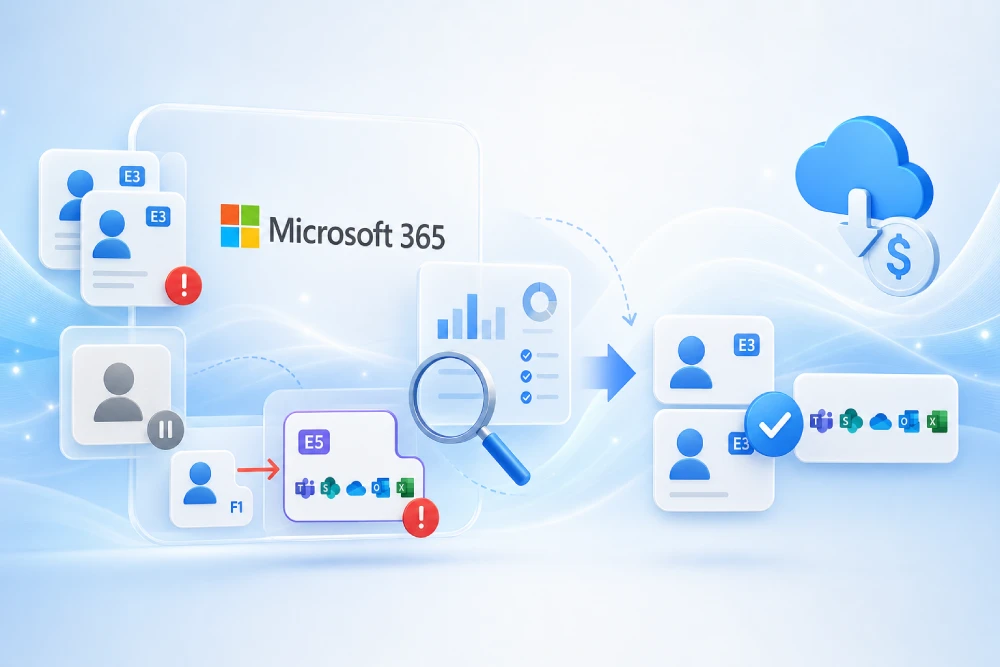
At MSAdvance we perform a Microsoft 365 licensing assessment to identify savings, organize assignments and leave behind a sustainable model. The goal is not to cut for the sake of cutting, but to pay for what delivers value and protect critical capabilities: security, compliance, devices, email, Teams, SharePoint, Copilot and identity.
- Microsoft 365 license audit: purchased, assigned, unassigned, overlapping and underused licenses.
- Inactive user detection: accounts with no real usage, incomplete offboarding, forgotten mailboxes and licenses retained unnecessarily.
- Smart reassignment: Business Basic, Standard, Premium, Enterprise, Frontline, Copilot and add-ons based on user profile.
- Safe savings plan: recommendations with financial, technical and risk impact before touching anything.
Request a license review See license procurement and sales
You may also be interested in: Microsoft 365 Consulting · Microsoft 365 Security & Compliance · Modern Workplace
To know if you are overpaying for Microsoft 365, review three signals: licenses assigned to inactive users, duplicate or overlapping plans and users with plans above what they actually use. The safest way to optimize costs is to cross-check license inventory, usage reports, sign-in activity, job profiles and security requirements. This makes it possible to reduce spend without removing critical capabilities such as MFA, Intune, Defender, Purview or Copilot from the people who do need them.
Quick summary: how to detect Microsoft 365 overspend in 10 points
- Unassigned licenses: you pay for them, but nobody is using them. They are the first easy savings opportunity.
- Inactive users: accounts that do not access Exchange, Teams, OneDrive, SharePoint, Office or Copilot, but still consume a license.
- Poorly closed leavers: employees who are no longer with the company, but still keep a license, mailbox, OneDrive or access to data.
- Oversized plans: users with Microsoft 365 E5, Business Premium or Copilot who only use email and basic Teams.
- Overlapping licenses: users with two products that cover similar capabilities, for example duplicated security, identity or compliance.
- Forgotten add-ons: Power BI, Project, Visio, Audio Conferencing, Copilot, Defender or Purview assigned with no real usage.
- Poor profile segmentation: not everyone needs the same plan. Leadership, IT, frontline, administrative staff, sales teams and external users have different needs.
- Manual assignment without governance: urgent onboarding, exceptions and changes made “by hand” end up creating chaos and hidden cost.
- No periodic review: if nobody reviews licenses from time to time, spend grows by itself.
- Savings without risk: optimization does not mean removing security; it means paying for the right plan for each person.
When should you review Microsoft 365 licenses?
The short answer: before renewal, after a growth phase and whenever teams change significantly. The real answer: when nobody can explain anymore why each user has the license they have.
A Microsoft 365 license audit is not just a financial review. It is also a security, governance and productivity review. A user with an excessive license generates cost; a user with an insufficient license can generate risk.
Situations where savings almost always appear
- Fast growth: licenses are purchased “just in case” and then nobody cleans them up.
- Employee turnover: employees who leave, contractors whose project has ended, interns, temporary workers or test accounts.
- Mergers or reorganizations: tenants, departments and different licensing criteria get mixed together.
- Security rollout: advanced plans are assigned to many users, but not all of them use those capabilities.
- Copilot deployment: licenses are assigned to users without enough readiness, data or usage habits.
- Decentralized purchasing: each area requests licenses without a global view of cost and usage.
- Automatic renewals: existing subscriptions are renewed without questioning whether they still make sense.
A company has users with Business Premium, some Defender add-ons, Power BI Pro licenses and Copilot assigned to profiles that barely use desktop Office. Nobody did it “wrong” on purpose: the company simply kept buying based on needs as they appeared. Savings emerge when real usage, job role and security requirements are cross-checked.
Introduction: why many companies overpay for Microsoft 365 without realizing it
Microsoft 365 is a huge platform. Email, Teams, OneDrive, SharePoint, Office, security, devices, compliance, Power Platform, Power BI, Copilot… Everything can be licensed in many ways. That is flexible, but it can also become a maze.
The problem is usually not a single expensive license, but the sum of small inefficiencies: an inactive user here, an unused Copilot license there, an E5 for someone who only needs email, an offboarding process that was not closed properly, an add-on nobody remembers requesting.
This guide explains how to detect those cases and how to build a practical Microsoft 365 license optimization model: save where possible, maintain security where needed and prevent the problem from silently growing again.
1. Methodology to audit Microsoft 365 licenses without breaking anything
In practice: measure first, decide next and change last. Removing licenses without analysis can cost more than leaving them in place.
The temptation is to go into the admin center, sort by licenses and start removing them. That is not advisable. First you need to understand what each user does, what data they have, which security requirements apply and what impact a change would have.
Recommended phases
- Inventory: purchased, assigned and available licenses, by group, by user and by product.
- Real usage: activity in Exchange, Teams, OneDrive, SharePoint, Office, Power BI, Copilot and other services.
- Segmentation: classify users by profile: leadership, office, frontline, IT, external users, service accounts, pending leavers.
- Risk: identify licenses that cannot be removed without affecting security, compliance or data access.
- Change plan: apply adjustments in small batches, validate and document.
- Continuous governance: leave rules in place for joiners, leavers, role changes and periodic reviews.
| Activity | Responsible | Approves | Consulted | Informed |
|---|---|---|---|---|
| Inventory and usage data | IT / MSAdvance | IT | Finance | Leadership |
| Profile classification | Business | Leadership | IT / HR | Affected users |
| Security review | Security / IT | CISO / IT | MSAdvance | Leadership |
| Savings proposal | MSAdvance | IT / Finance | Business | Leadership |
| Change execution | IT / MSAdvance | IT | Support | Key users |
2. Inventory: purchased, assigned, available and conflicting licenses
In practice: you cannot optimize what you do not know you have.
The first block of work is to create a clean snapshot of licensing: which products were purchased, how many licenses exist, how many are assigned, how many are free and how many have been assigned inconsistently.
What to review in the inventory
- Available licenses: purchased units that are not assigned.
- Assigned licenses: who consumes each plan.
- Direct assignments: licenses assigned user by user.
- Group-based assignments: licenses granted through group membership.
- Assignment errors: users without a usage location, plan conflicts or disabled services.
- Overlapping plans: for example, users with a full suite and add-ons that are already covered or do not add value.
Warning signs
- There are licenses purchased “just in case” that have been unassigned for some time.
- Users with two or more main suites assigned.
- Users with Enterprise licenses but no use of advanced features.
- Licenses assigned to shared accounts, technical accounts or guest users without justification.
An “unassigned” license is not always a mistake. It may be part of an operational buffer for new hires. The problem appears when that buffer is not defined and ends up becoming permanent cost.
3. Inactive users: how to detect them without making mistakes
In practice: a user with no activity is not always a user you can delete. First you need to understand the context.
Inactive users in Microsoft 365 are one of the clearest sources of savings, but also one of the most delicate. An account may not sign in because the person is on leave, because it is a service account, because it is used only for a shared mailbox or because it holds data under retention.
Inactivity indicators that should be cross-checked
- Last sign-in in Microsoft Entra ID.
- Exchange Online activity: sending, reading or mailbox access.
- Teams usage: chats, meetings, calls or channel activity.
- OneDrive and SharePoint activity: files viewed, edited or shared.
- Office activations: active installations of desktop applications.
- Copilot usage: real activity in enabled apps and experiences.
Recommended classification
| Type | Signal | Prudent action |
|---|---|---|
| Unclosed leaver | No activity and HR confirms departure | Apply the offboarding process, retain data where applicable and release the license |
| Temporary user | Contract or project ended | Review access, transfer data ownership and remove the license |
| Service account | Does not use apps, but runs processes | Do not remove without validating technical dependencies |
| Shared mailbox | Account with no real user | Review whether it needs a license or can work as a shared mailbox depending on the case |
| User on temporary leave | No activity, but employment relationship is still active | Define an internal policy: keep, pause or adjust the license depending on need |
Removing licenses from all users with apparent inactivity can break access, mailboxes, automations or data under retention. Good optimization is not aggressive: it is surgical.
4. Duplicate or overlapping licenses: the invisible cost
In practice: many “duplicates” are not two identical licenses, but two products that cover similar capabilities for the same user.
In Microsoft 365 you do not always pay twice for the exact same license assigned to the same user, but it is very common to pay for overlapping capabilities. For example: a suite already includes advanced security and, in addition, an add-on is assigned that adds nothing to that user’s profile.
Typical overlaps
- Full suite + security add-on: the user has a plan that already includes part of the required protection.
- Business Premium + separate Intune or Defender licenses: it is worth reviewing whether they add value or duplicate capabilities.
- Enterprise + compliance add-ons: some users need advanced Purview; others do not.
- Power BI Pro assigned by habit: users who view reports, but do not publish or share content.
- Project or Visio for occasional users: licenses assigned because of a one-off need that were never removed.
- Copilot assigned with no usage: high cost if there is no adoption, training or use case.
How to decide whether a license overlaps
- Identify which features each product provides.
- Check whether the user needs them based on role.
- Review real usage in reports.
- Validate with security and the business before removing.
- Document the change to prevent the license from being reassigned by mistake.
5. Misassigned plans: paying for E5 when another plan would have been enough
In practice: the right plan is not the cheapest or the most expensive; it is the one that covers the user’s work and risk.
One of the highest-impact areas is detecting misassigned Microsoft 365 plans. Not everyone needs desktop apps, advanced security, eDiscovery, telephony, Power BI, Copilot or premium capabilities. But you should not downgrade profiles that handle sensitive information or corporate devices either.
Practical plan matrix
| Profile | Typical usage | Risk | License to evaluate |
|---|---|---|---|
| Light user | Email, Teams, web files | Low / medium | Business Basic or equivalent plan depending on size and need |
| Office user | Desktop Office, Outlook, Teams, OneDrive | Medium | Business Standard, Business Premium or Enterprise depending on security |
| User with managed device | Hybrid work, corporate laptop, company data | Medium / high | Business Premium, Microsoft 365 E3 or option with Intune |
| IT / Security | Administration, privileged access, investigation | High | Plans with Entra, Defender, Intune and advanced capabilities |
| Leadership | Sensitive email, strategic documents, external meetings | High | Plan with advanced protection, compliance and reinforced policies |
| Frontline | Shifts, Teams, mobile, tasks | Variable | Frontline plans if they fit the use case |
| AI users | Writing, analysis, meetings, personal automation | Depends on the data | Copilot only when there is readiness, adoption and measurable usage |
Avoid a single rule such as “everyone gets the same plan”. It is convenient, but rarely efficient. Most companies need 3–5 well-defined license profiles.
6. Real usage by service: Exchange, Teams, OneDrive, SharePoint, Office and Copilot
In practice: a license only makes sense if the user uses its capabilities or if those capabilities are required for security, compliance or their role.
Microsoft 365 usage reports help detect whether a person is using the included services. The key is not to look at a single data point. One user may not use Teams, but may work heavily with Outlook; another may have Office installed but not use OneDrive; another may have Copilot assigned and never have opened it.
What to look at by service
- Exchange Online: mailbox activity, sending, reading and retention needs.
- Teams: meetings, chats, calls, channels and real collaboration.
- OneDrive: active files, sharing and synchronization.
- SharePoint: access to sites, edited documents and team collaboration.
- Office Apps: device activations and usage of desktop applications.
- Copilot: active users, adoption by app and whether the role has clear use cases.
How to interpret data without falling into traps
- A user with no recent activity may be on leave, not necessarily “unnecessary”.
- A user with low usage may need a license for compliance or security.
- A technical account may not appear as an active user, but be critical for a process.
- A user with Copilot but no usage does not always need immediate removal: they may need training or use cases.
7. Copilot and add-ons: where a lot of budget leaks away
In practice: add-on licenses are very useful when they are used; very expensive when assigned by inertia.
Add-ons are a frequent savings area. Not because they are unnecessary, but because they are often assigned to solve a specific need and then remain in place for months without review.
Add-ons worth reviewing
- Microsoft 365 Copilot: review readiness, adoption and usage by application.
- Power BI Pro / Premium Per User: differentiate creators, publishers and consumers.
- Project and Visio: validate whether usage is recurring or one-off.
- Audio Conferencing / Teams Phone: check whether the user actually calls or schedules meetings with those features.
- Defender / Purview / Entra add-ons: keep them where they deliver real security and remove overlaps.
- Power Platform: review environments, premium connectors and users with unused licenses.
Copilot: assigning licenses is not enough
Copilot needs more than a license: well-governed data, reasonable permissions, training and use cases. If it is assigned to many users without readiness, it can become underused spend.
A good practice is to separate users into three groups: clear candidates, candidates with pending training and non-priority users. This way, deployment is measurable, not based on intuition.
8. Security: where you should not cut licenses
In practice: saving money by removing critical security can cost far more than the license.
Microsoft 365 license optimization does not mean downgrading everyone to the cheapest plan. Some capabilities are essential: MFA, Conditional Access, device management, threat protection, DLP, eDiscovery, retention or auditing.
Capabilities that should be protected
- Identity: MFA, Conditional Access, protection for administrators and high-risk users.
- Devices: Intune, compliance, encryption, access policies and remote wipe.
- Email and collaboration: anti-phishing, Safe Links, Safe Attachments and malware protection.
- Sensitive information: labels, DLP, retention and eDiscovery where applicable.
- Administrators: strengthened licenses and controls for privileged accounts.
Downgrading licenses for profiles with corporate laptops and sensitive data may save on the bill, but lose device management or advanced protection. That saving can become a security and compliance risk.
If the optimization affects security, it is advisable to review the Microsoft 365 Security & Compliance service.
9. Profile-based model: which license each type of user needs
In practice: sustainable savings appear when you stop licensing by individual and start licensing by profile.
A profile-based model helps make onboarding fast, offboarding clean and role changes not dependent on human memory. Instead of deciding case by case, standard profiles are defined.
Common profiles
- Standard office profile: email, Teams, Office, OneDrive and collaboration.
- Secure profile: the above + managed device, advanced security and access controls.
- Leadership profile: reinforced security, information protection and controlled external collaboration.
- Frontline profile: lightweight tools, mobile, shifts, Teams and limited access to data.
- Analytics profile: Power BI, access to models, publishing or consumption depending on role.
- AI profile: Copilot assigned only to users with use cases and adoption.
- External profile: minimum necessary access, usually without a full license unless there is a justified need.
How to document it
Ideally, use a simple table: profile, base license, allowed add-ons, security requirements and approver. If it does not fit on one page, it is probably too complicated.
10. Group-based licensing: fewer errors and less manual work
In practice: if licenses are assigned manually, disorder comes back.
Microsoft allows licenses to be assigned to groups. This helps users receive the right license when they enter a group and lose it when they leave. It is a very effective way to reduce errors in onboarding, offboarding and role changes.
Advantages
- Fewer manual assignments.
- Faster and more consistent user onboarding.
- Automatic removal when changing groups.
- Fewer licenses forgotten on accounts that should no longer have them.
- Better traceability: it is clear why someone has a license.
Best practices
- Create groups by license profile, not by technical whim.
- Avoid mixing too many licenses in a single group.
- Document the group owner and membership criteria.
- Review assignment errors periodically.
- Do not combine manual assignment and group-based assignment without control, because it complicates the audit.
11. Offboarding: how to recover licenses without losing data
In practice: well-executed offboarding releases cost, reduces risk and preserves important information.
Much overspend comes from incomplete leaver processes. Someone leaves, the account is blocked, but the license remains assigned “just in case”. That “just in case” multiplied by many leavers becomes recurring spend.
Recommended process
- Confirm departure with HR or the business.
- Block sign-in and revoke sessions if appropriate.
- Transfer ownership of OneDrive, groups, Teams, Power BI, Power Automate or mailboxes.
- Convert mailbox to shared if applicable and review whether it needs a license.
- Apply retention or eDiscovery if there are legal obligations.
- Remove the license once data and access are controlled.
- Record evidence for internal audit.
A license should not remain assigned “because we do not know what happens if we remove it”. If you do not know, review the dependency; if there is no dependency, release it.
12. Native tools to review licenses and usage
In practice: before buying external tools, it is worth making good use of native reports.
Microsoft 365 includes several useful sources of information for license optimization. They do not replace a complete audit, but they provide a very valuable foundation.
Main sources
- Microsoft 365 admin center: active users, licenses, billing and subscriptions.
- Usage reports: activity by product and by user.
- Active user reports: which products each user uses.
- Office activation reports: activated devices and apps.
- Microsoft Entra ID: sign-ins, groups, license assignment and errors.
- Microsoft 365 Copilot reports: readiness, adoption and Copilot usage.
- Purview / audit: sensitive activity and traceability when the case requires it.
The key is to cross-check data. An isolated report can be misleading; several reports together tell a much more accurate story.
13. Useful scripts and queries for license audits
In practice: scripts help detect patterns, but they should always be reviewed before executing bulk changes.
Connect-MgGraph -Scopes "User.Read.All","Directory.Read.All"

Get-MgUser -All -Property DisplayName,UserPrincipalName,AccountEnabled,AssignedLicenses |
  Select-Object DisplayName,UserPrincipalName,AccountEnabled,
    @{Name="LicenseCount";Expression={$_.AssignedLicenses.Count}} |
Export-Csv ".\m365-users-licenses.csv" -NoTypeInformation -Encoding UTF8Get-MgUser -All -Property DisplayName,UserPrincipalName,AssignedLicenses |
Where-Object { $_.AssignedLicenses.Count -eq 0 } |
Select-Object DisplayName,UserPrincipalName |
Export-Csv ".\unlicensed-users.csv" -NoTypeInformation -Encoding UTF8UserPrincipalName,Department,ProposedProfile,CurrentLicense,RecommendedLicense,Action
anna@company.com,Finance,Secure user,Business Standard,Business Premium,Upgrade for device management
john@company.com,Sales,Standard office,E5,E3 or Business Premium,Review advanced usage
external@company.com,Project,External,E3,No license or guest access,Validate ownerNote: before removing licenses with scripts, validate dependencies for email, OneDrive, SharePoint, Power Platform, data under retention and legal requirements.
14. How to calculate savings and ROI from license optimization
In practice: savings are not calculated only by “removed licenses”, but by avoided cost and future governance.
Types of savings
- Immediate savings: unassigned licenses or inactive users.
- Savings from plan adjustment: moving users to a more suitable plan.
- Add-on savings: removing unused add-ons.
- Future savings: avoiding unnecessary new purchases by reusing released licenses.
- Operational savings: fewer incidents caused by misassigned licenses and less manual work.
| Finding | Action | Impact | Risk |
|---|---|---|---|
| Unassigned licenses | Reduce or reuse | High and fast | Low |
| Inactive users | Offboarding and removal | High | Medium if data is not reviewed |
| Oversized plans | Downgrade by profile | Medium / high | Medium |
| Copilot with no usage | Reassign or train | High | Medium if there is a business expectation |
| Unused add-ons | Remove or reassign | Medium | Low / medium |
Simple formula
Estimated savings = (removed or adjusted licenses × unit cost) - cost of change / supportIt is advisable to separate confirmed savings, probable savings and savings pending validation. That way, leadership sees a real opportunity without overpromising.
15. Practical review checklists
In practice: a good checklist prevents the review from turning into an endless conversation.
15.1 Before the review
- Export purchased, assigned and available licenses.
- Export active users, blocked users, guests and service accounts.
- Review membership in licensing groups.
- Collect HR criteria: leavers, role changes, external users and temporary users.
- Define what counts as an inactive user and what exceptions exist.
15.2 During the review
- Identify unassigned licenses.
- Detect users without activity across several services.
- Locate higher-tier plans with no use of advanced features.
- Review Copilot, Power BI, Project, Visio and other add-ons.
- Validate with security before removing critical capabilities.
15.3 After optimization
- Apply changes in batches.
- Monitor incidents.
- Document license profiles.
- Move to group-based licensing when feasible.
- Create a periodic review with IT, finance and the business.
16. KPIs to control Microsoft 365 cost
In practice: the important thing is not a one-off cleanup, but preventing cost from growing again without control.
| KPI | What it measures | Target |
|---|---|---|
| % unassigned licenses | Unused purchase | Maintain a defined buffer, not indefinite excess |
| % inactive users with a license | Cost associated with accounts that have no usage | Reduce through controlled offboarding |
| % manual assignments | Operational risk | Reduce by using groups |
| % users with plan outside profile | Misalignment between role and license | Correct in waves |
| Copilot usage per licensed user | Real AI adoption | Train, reassign or adjust deployment |
| Estimated monthly savings | Financial impact | Measure before and after |
17. Common risks and how to avoid them
In practice: poor optimization can break access, security or data. Good optimization reduces cost and improves control.
| Risk | What can happen | Mitigation |
|---|---|---|
| Removing a license without reviewing data | Loss of access to mailbox, OneDrive or apps | Offboarding process and owner validation |
| Downgrading a plan without reviewing security | Loss of Intune, Defender, Purview or Conditional Access | Security validation before changes |
| Reassigning Copilot without training | Low adoption and frustration | Adoption plan and use cases |
| Deleting technical accounts | Broken automations or integrations | Technical dependency inventory |
| Not documenting decisions | Disorder returns in a few months | Profile-based model and group-based licensing |
18. Frequently asked questions about Microsoft 365 license optimization
How do I know if I am overpaying for Microsoft 365?
By reviewing unassigned licenses, inactive users, plans above real usage, add-ons with no activity and overlaps between suites. The key is to cross-check license inventory with usage reports and user profiles.
What are duplicate licenses in Microsoft 365?
In many cases it does not mean paying twice for the exact same SKU, but having overlapping products or unnecessary assignments. For example, a suite that already covers a capability and an additional add-on that adds no value to the user.
Can I remove licenses from inactive users directly?
It is not advisable to do so without reviewing first. You need to confirm whether it is a leaver, a temporary account, a technical account, an account under retention or a user with data that must be transferred.
Which licenses are commonly misassigned?
The most common are Enterprise suites for users with basic usage, Copilot without adoption, Power BI Pro without publishing or advanced analysis, Project/Visio without recurring usage and duplicated security or compliance add-ons.
Is it safe to downgrade users?
Yes, if it is done with analysis. You must confirm that necessary capabilities are not lost, such as Intune, Defender, Purview, Conditional Access, desktop Office, online archive, retention or eDiscovery.
How often should Microsoft 365 licenses be reviewed?
It is advisable to review them on a recurring basis and especially before renewals, after organizational changes, after onboarding/offboarding campaigns and after deployments of new capabilities such as Copilot or security tools.
Can license assignment be automated?
Yes. Group-based assignment helps apply licenses consistently by profile. When a user enters or leaves the group, the license is assigned or removed according to the configuration.
Can MSAdvance sell licenses and also optimize existing ones?
Yes. MSAdvance can supply Microsoft 365 licenses and help review the current environment to adjust plans, release unused licenses and define a sustainable governance model.
19. Official resources and external links
Official Microsoft documentation
- Microsoft 365 admin center usage reports overview
- Active Users report — Microsoft 365 admin center
- Assign or unassign licenses for users
- Group-based licensing in Microsoft Entra ID
- Microsoft 365 Copilot usage report
- Microsoft 365 Copilot readiness report
- Microsoft 365 and Office 365 plan options
- Microsoft 365 Business plans and pricing
- Microsoft 365 Enterprise plans and pricing
MSAdvance resources and services
20. Conclusion and next steps
Overpaying for Microsoft 365 rarely happens because of one single bad decision. It is usually the result of small accumulations: unassigned licenses, inactive users, incomplete offboarding, forgotten add-ons, oversized plans and lack of periodic review.
The good news is that it can be corrected without putting operations at risk. With a clear inventory, usage reports, license profiles and group-based governance, Microsoft 365 becomes a much more controlled investment.
Recommended next steps
- Export purchased, assigned and available licenses.
- Detect inactive users by cross-checking several reports.
- Classify users by profile and real need.
- Review add-ons and Copilot with adoption metrics.
- Define changes in waves and validate with IT, security and the business.
Do you want MSAdvance to review your Microsoft 365 and show you where you are overpaying?
We perform a practical assessment of licenses, inactive users, misassigned plans, Copilot, add-ons and savings opportunities. You receive clear, prioritized and actionable recommendations.
Contact MSAdvance See licensing service
· We can also help you with security and compliance, Modern Workplace and Microsoft 365 consulting.