



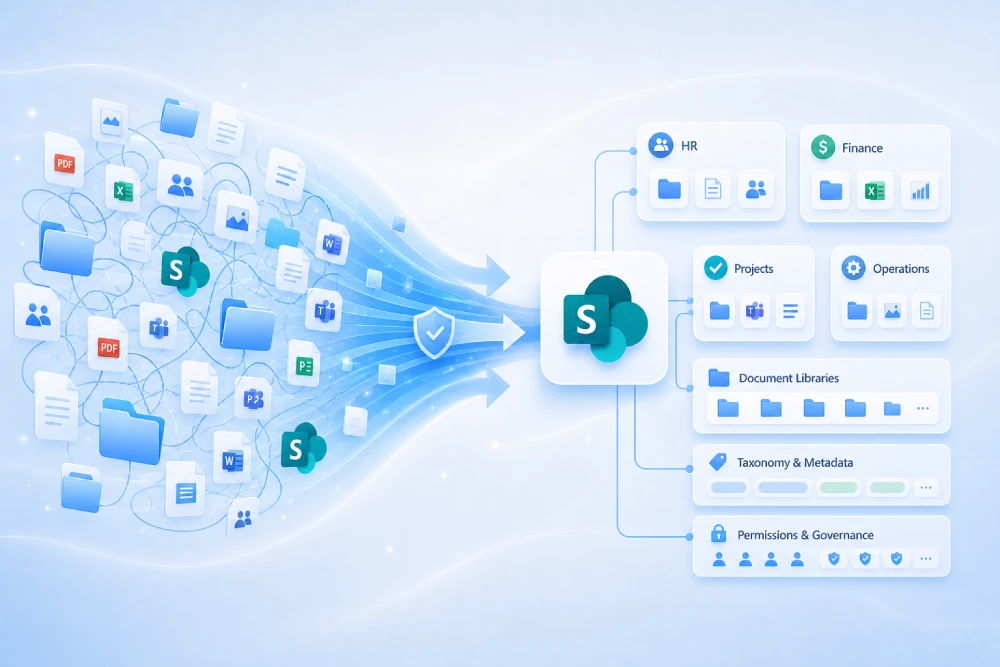
Has your SharePoint grown without structure and now nobody knows where the information is?
When a company grows quickly, SharePoint often grows with it… but not always in an orderly way. Duplicate sites appear, libraries have no owner, permissions are inherited indefinitely, folders become endless, obsolete files pile up, and teams go back to email because “nothing can be found in SharePoint”.
At MSAdvance, we help companies organize SharePoint Online with a practical strategy: information architecture, governance, permissions, document management, security, automation, and adoption. The goal is not to create more rules, but to make SharePoint useful, secure, and easy to use again.
- Assessment of sites, libraries, permissions, owners, external sharing, and obsolete content.
- Design of a new SharePoint structure: hubs, sites, libraries, navigation, and search.
- Simple governance plan: who creates sites, who maintains them, what gets archived, and how content is shared.
- User enablement so the new way of working is truly adopted.
To organize SharePoint when the company has grown too fast, the first step is to inventory sites, documents, permissions, and owners. Then, you need to define a clear information architecture: hubs, sites by department or project, meaningful libraries, simple navigation, permission rules, and a lifecycle to archive obsolete content. The key is not moving folders from one site to another, but creating a working model the company can maintain without always depending on IT.
Quick summary: how to organize SharePoint in a company that has grown too fast
- The symptom is not “SharePoint is not working”: the problem is usually a lack of structure, owners, and usage rules.
- Before reorganizing, you need to inventory: active sites, abandoned sites, critical libraries, permissions, guests, flows, and duplicate content.
- Not everything belongs in SharePoint: personal documents work better in OneDrive; team work belongs in SharePoint; conversation belongs in Teams.
- Hubs help create order: they allow you to group sites by areas, departments, business lines, or operating units.
- Libraries must have a purpose: “Contracts”, “Templates”, “Projects”, or “Quality” works better than one huge library with endless folders.
- Permissions should be simplified: too many exceptions eventually create risk and support tickets.
- Search improves with structure: clear names, useful metadata, and updated content help more than “training users to search better”.
- Governance must be lightweight: a few rules, clearly communicated and easy to follow.
- Cleanup does not end when the new structure is published: you need lifecycle management, owner reviews, and periodic archiving.
- A specialized partner accelerates the process: it helps separate the technical side from the organizational side and prevents the project from becoming just “folder cleanup”.
Introduction: why SharePoint becomes messy when the company grows
SharePoint Online is one of the most important components of Microsoft 365. It is used to create sites, manage documents, publish internal information, collaborate on projects, and protect data. But it is also a very flexible tool, and that flexibility can turn into disorder if every team uses it in its own way.
When an organization grows quickly, many decisions are made “just to get by”: a new site is created, a folder is shared, permission inheritance is broken, a library is copied, documents are uploaded without review. None of this seems serious on its own. The problem appears when it is repeated for months.
Organizing SharePoint does not mean deleting everything and starting from scratch. It means understanding what exists, what is used, what is unnecessary, and what structure the company needs to work better. It also means talking to the business: IT can create sites, but it does not always know which document is official, which process is critical, or which permissions make sense.
This guide is designed for companies that feel SharePoint has “become too big for them” and want to regain control without slowing down daily work.
1. Methodology to organize SharePoint without stopping the business
In practice: organizing SharePoint works best in phases: first understand, then design, then migrate/reorganize, and finally support users.
The most common mistake is to start by moving documents. It seems like the fastest option, but it is usually the least effective. If the structure is not defined first, the disorder simply changes location.
Recommended phases
- Assessment: review sites, libraries, permissions, owners, real usage, guests, and automations.
- Design: define the information architecture: hubs, sites, navigation, libraries, metadata, and access rules.
- Pilot: apply the new model in a specific area to validate whether it works with real users.
- Wave-based reorganization: move, archive, or clean up content in a controlled way, without interrupting the business.
- Adoption: explain to each role how to work in the new structure.
- Continuous operation: periodically review owners, inactive sites, external sharing, and obsolete content.
| Activity | Responsible | Accountable | Consulted | Informed |
|---|---|---|---|---|
| Site and permissions assessment | MSAdvance / IT | IT | Security | Business |
| Information architecture design | MSAdvance | IT / Management | Area managers | Users |
| Content classification | Business | Area owner | IT / Compliance | Users |
| Permissions and external sharing model | IT / Security | Management / Compliance | MSAdvance | Business |
| Adoption and training | MSAdvance / Business | Management | IT | Users |
The key is not to treat the project as a “technical cleanup”, but as an improvement in the way people work. SharePoint is organized with technology, yes, but above all with business decisions.
2. Assessment: inventory of sites, documents, permissions, and owners
In practice: you cannot organize what you do not know. The assessment helps separate what is critical, what is useful, what is duplicated, and what should no longer be active.
Before changing the structure, it is worth building a real picture of the environment. This does not mean manually reviewing every document one by one, but combining technical analysis, interviews with owners, and review of critical cases.
2.1 What the inventory should include
Sites
- Active and inactive sites.
- Sites connected to Teams.
- Communication and intranet sites.
- Owners and administrators.
- Date of last activity or real usage.
Documents
- Critical libraries.
- Deep folders.
- Duplicates.
- Obsolete documents.
- Templates and official documents.
Security
- Inherited and broken permissions.
- External users and guests.
- Shared links.
- Sensitive information.
- Retention or DLP policies.
2.2 Questions that help prioritize
- Which sites does the business use every day?
- Which documentation is official and which is only historical?
- Which content has legal, contractual, or privacy risk?
- Which sites were created for projects that have already ended?
- Which libraries generate the most access incidents?
- Which documents are shared with customers, suppliers, or partners?
If the assessment uncovers hundreds of sites, do not try to solve them all at once. Classify them by criticality: critical, useful, uncertain, and archive candidates. This turns chaos into a list of decisions.
3. Information architecture: how to design the new structure
In practice: information architecture answers three questions: where each thing lives, how it is found, and who maintains it.
Information architecture is the backbone of SharePoint. If it is well designed, users understand the structure almost without explanation. If it is poorly designed, it does not matter how much training is delivered: people will keep asking where each document is.
3.1 Principles for a structure that scales
- Organize by business, not by pure org chart: departments change; key processes and content usually last longer.
- Separate communication from collaboration: an intranet should not be mixed with internal working libraries.
- Avoid “catch-all” sites: if a site is used for everything, it will soon be useful for nothing.
- Use clear names: “Finance – Procedures” is better than “FIN Docs v2”.
- Design for search: names, metadata, and updated content help SharePoint return better results.
3.2 Recommended high-level model
| Type of space | Recommended use | Example |
|---|---|---|
| Home site / intranet | Corporate communication, news, main access points. | Corporate home, news, links to tools. |
| Hub by area or function | Group related sites under common navigation. | Operations, Finance, People, Sales. |
| Team site | Collaborative work for a stable area or team. | Marketing Team, IT, Support. |
| Project site | Temporary work with a clear start, end, and owners. | ERP project, CRM implementation, new office opening. |
| Critical document site | Official content with version control, approval, or retention. | Contracts, quality, compliance, technical documentation. |
This model does not need to be complex. In fact, the faster the company has grown, the more important it is for the new structure to be easy to explain on a single page.
4. Hubs and sites: how to group areas, departments, and projects
In practice: hubs help SharePoint stop being a collection of isolated sites and become an organized network.
Hub sites allow related sites to be grouped and provide navigation, visual identity, and aggregated content. For companies that have grown quickly, hubs are a very useful way to create order without putting everything into a single giant site.
4.1 When to create a hub
A hub makes sense when several sites share context, audience, or navigation. For example:
- People hub: HR, training, onboarding, benefits, internal policies.
- Operations hub: processes, quality, maintenance, production, logistics.
- Sales hub: sales, marketing, customers, proposals, commercial materials.
- Projects hub: methodology, templates, active projects, and archive of closed projects.
4.2 What not to do with hubs
- Do not create a hub for every small team.
- Do not use hubs to hide permission problems.
- Do not create huge navigation that nobody reads.
- Do not turn the hub into a “decorative portal” with no useful content.
A company with several locations can create an “Operations” hub and associate sites for maintenance, quality, technical documentation, and logistics. Each area maintains its own content, but users find everything from common navigation. This reduces the feeling that “each location works in its own SharePoint”.
5. Document libraries: fewer folders, more context
In practice: organizing SharePoint does not mean copying the old file server. It means designing libraries that represent how the company works.
Many companies migrate to SharePoint by carrying over the logic of the file server: folders inside folders, long names, duplicate documents, and manual versions. SharePoint can work that way, but it is not the best way to take advantage of it.
5.1 How to decide libraries
A library should exist because it groups documents with the same purpose, not because “there used to be a folder”. Examples of useful libraries:
- Contracts: documents with controlled access, metadata, expiration dates, and retention.
- Corporate templates: official versions of reusable documents.
- Procedures: published, reviewed, and approved content.
- Projects: project documentation with a repeatable structure.
- Technical documentation: manuals, drawings, specifications, evidence.
5.2 Folders vs metadata
You do not need to eliminate all folders. The issue is not relying only on them. A reasonable combination usually works better:
- Folders to separate large blocks that are easy to understand.
- Metadata to classify by document type, status, area, customer, project, or confidentiality level.
- Views so each user sees the information the way they need it.
5.3 Versioning and approval
In critical libraries, it is advisable to enable versioning and, where applicable, content approval. This helps avoid the classic “final_final_good_last.docx” and makes it possible to know which version is official.
Related MSAdvance reading: SharePoint as a Document Management System: complete guide.
6. Permissions and external sharing: security without blocking teams
In practice: the best permissions model is the one that protects information and, at the same time, is easy to maintain.
When a company grows quickly, permissions often grow by exception: “give this person access”, “break permissions on this folder”, “share this link with the supplier”. At first, it works. Later, nobody understands who can see what.
6.1 Simple rules for internal permissions
- Use groups whenever possible: avoid assigning permissions user by user.
- Keep few levels: owners, members, and visitors are usually enough for many cases.
- Avoid breaking inheritance without a reason: every exception is a future incident.
- Define business owners: IT administers the platform, but the business decides who should access the content.
6.2 Controlled external sharing
SharePoint allows collaboration with customers, suppliers, and partners, but external sharing must have clear rules:
- Which sites can be shared with external users.
- Which domains are allowed or restricted.
- When links expire.
- Who can invite external users.
- How often guest access is reviewed.
Do not use the same site for sensitive internal documentation and external collaboration. It is better to create spaces prepared for external collaboration, with limited permissions and scoped content.
7. SharePoint governance: simple rules that people actually follow
In practice: governance does not mean bureaucracy. It means preventing SharePoint from returning to chaos after it has been cleaned up.
SharePoint governance must answer very specific questions:
- Who can create sites?
- What types of sites exist?
- Which naming conventions are used?
- How many owners must a site have?
- What happens when a project ends?
- When is content archived or deleted?
- How are permissions and guests reviewed?
7.1 Minimum viable governance model
| Decision | Recommended rule | Why it matters |
|---|---|---|
| Site creation | Request through a form or defined process. | Avoids duplicate sites with no purpose. |
| Owners | At least two owners per site. | Reduces orphaned sites. |
| Naming | Clear format by area, project, or function. | Improves search and support. |
| Lifecycle | Periodic review of inactive sites. | Prevents accumulation of obsolete content. |
| External users | Review guests and shared links. | Reduces accidental exposure. |
Governance should be documented briefly. A two-page SharePoint usage guide can be more effective than a long manual that nobody reads.
8. Content cleanup: what to keep, archive, or delete
In practice: SharePoint cleanup is not about deleting without criteria, but about making decisions on the value and risk of information.
A company that has grown quickly usually accumulates all kinds of content: active documents, old versions, closed projects, drafts, duplicate files, temporary exports, evidence, contracts, and materials nobody dares to touch.
8.1 Simple classification
- Keep active: content used in current processes.
- Reorganize: useful content that is in the wrong location.
- Archive: historical content that must be kept for reference or compliance.
- Delete: duplicates, obsolete drafts, or content with no value and no retention obligation.
- Review with legal/compliance: contracts, personal data, regulated documentation, or evidence.
8.2 How to prevent cleanup from getting blocked
The blockage appears when nobody wants to decide what gets deleted. To avoid this, it is useful to create rules by content type and request validation only when there is risk or impact.
Management does not need to review every old file from a closed project. But it is advisable for them to validate the rule: “closed projects are archived in an archive site, with access only for owners, and are reviewed according to the retention policy”.
9. Search and navigation: make information appear without asking
In practice: if search does not help, users go back to email, private chat, or asking someone else for the document.
Many companies try to solve the search problem by training users. But if sites are poorly named, documents are duplicated, and navigation has no logic, the user is not the problem.
9.1 What improves search in SharePoint
- Clear site and library names.
- Documents with understandable titles.
- Useful metadata in critical libraries.
- Obsolete content archived or removed.
- Navigation based on frequent tasks.
- Entry pages for areas or roles.
9.2 Task-oriented navigation
Navigation should not only reflect the org chart. It should respond to what people are trying to do:
- Find a template.
- Consult a procedure.
- Access project documents.
- Share information with a supplier.
- Publish internal news.
- Request document approval.
Simple navigation, with a few well-chosen options, usually works better than huge menus that try to cover everything.
10. SharePoint, Teams, and OneDrive: where each thing belongs
In practice: part of SharePoint disorder comes from the fact that nobody explained the difference between SharePoint, Teams, and OneDrive.
In Microsoft 365, SharePoint, Teams, and OneDrive are connected. That is an advantage, but it also creates confusion. Many users do not know that files in a Teams channel live in SharePoint, or that files shared from a chat are usually stored in OneDrive.
| Tool | Recommended use | Example |
|---|---|---|
| OneDrive | Personal work, drafts, own documents before sharing them. | A proposal draft before bringing it to the team. |
| Teams | Conversation, coordination, and day-to-day work by teams or projects. | Project channel with meetings, messages, and files. |
| SharePoint | Shared documents, intranet, document management, processes, and publishing. | Contract library, procedures, or official templates. |
Easy rule for users
- “If it is mine and not ready yet, OneDrive”.
- “If a team works on it, Teams/SharePoint”.
- “If it is official, recurring, or must be found later, SharePoint”.
11. Automation with Power Automate: organizing processes, not just documents
In practice: once SharePoint is organized, approvals, reviews, and notifications can be automated without creating more chaos.
Many companies use SharePoint as a document repository, but do not take advantage of its ability to support processes. When the structure is clear, automation becomes much easier.
Processes that usually add value
- Document approval: policies, contracts, procedures, proposals.
- Periodic review: reminders to update documents before they become obsolete.
- Internal publishing: news, announcements, or official documentation.
- Internal requests: onboarding, purchases, access, equipment, or incidents.
- Automatic archiving: moving content when a project changes status.
Related MSAdvance reading: How to eliminate manual processes with SharePoint + Power Platform.
Do not automate a process that is not clear yet. First simplify the process; then automate it.
12. Security and compliance with Microsoft Purview
In practice: organizing SharePoint also means protecting important information and reducing accidental exposure.
When SharePoint grows without structure, risk increases: sensitive documents in the wrong sites, old external links, overly broad permissions, information with no retention, and content that should be classified.
Recommended controls
- Sensitivity labels: help classify and protect documents according to their level of confidentiality.
- Retention: defines which content must be kept, for how long, and when it can be deleted.
- DLP: reduces the risk of sharing sensitive information outside the organization.
- Auditing: makes it possible to review access, changes, sharing, and relevant activity.
- Guest review: prevents external collaborators from keeping access indefinitely.
Related MSAdvance service: Microsoft 365 Security & Compliance.
13. Migrate, move, or reorganize: what to do with existing information
In practice: you do not always need to migrate everything. Sometimes it is enough to archive, relocate, or redesign critical libraries.
If SharePoint is disorganized, part of the project may involve internal migration: moving documents from old sites to a new structure. But not everything should be moved.
Common options
- Move: active content that is in the wrong location.
- Archive: closed projects or historical documentation.
- Leave in place with limited access: when moving it adds little value and usage is low.
- Delete: duplicates, drafts, and content with no retention obligation.
- Recreate: when the old structure is so poor that it is better to build a new library.
Tools and approach
In simple cases, reorganization can be done from SharePoint using controlled moves. In larger scenarios, it is advisable to use migration tools, scripts, or wave-based processes with business validation.
The important thing is not only to move data, but to ensure that links, permissions, versions, and owners remain under control.
Do you want to know what is failing in your SharePoint and how to organize it without stopping operations?
MSAdvance can perform a SharePoint assessment to review sites, permissions, libraries, hubs, obsolete content, external sharing, and automation opportunities. The result is a clear and prioritized roadmap.
14. Adoption: how to get people to use the new structure
In practice: SharePoint is not truly organized until users know how to use it and understand why it has been organized that way.
Many reorganizations fail because they are communicated too late. One day, the user enters and discovers that “everything has changed”. Even if the new design is better, the natural reaction is resistance.
What to communicate
- Why SharePoint is being reorganized.
- What changes and what does not change.
- Where to find important documents.
- What goes in OneDrive, Teams, or SharePoint.
- How to request a new site.
- How to share securely with external users.
- Who to contact if something does not appear.
Formats that work
- Short “Where do I save what?” guide.
- Short videos by role or area.
- Practical sessions with real cases.
- Support channel during the change.
- Department owners or champions.
Do not train everyone in the same way. A site owner needs to know how to manage permissions and lifecycle. A general user needs to know how to find, save, and share correctly.
15. KPIs to measure whether SharePoint is better organized
In practice: if it is not measured, SharePoint can return to disorder without anyone noticing until it is too late.
| Area | KPI | What it indicates |
|---|---|---|
| Governance | % of sites with assigned owner | Whether there is clear accountability. |
| Lifecycle | Inactive sites reviewed | Whether accumulation of abandoned spaces is being prevented. |
| Security | External links reviewed | Whether sharing is under control. |
| Adoption | Usage of critical sites | Whether the new structure is being used. |
| Productivity | Incidents caused by “I cannot find the document” | Whether search and navigation are improving. |
| Document quality | Critical libraries with versioning and owner | Whether important documentation is under control. |
16. Common mistakes when reorganizing SharePoint
In practice: many reorganization projects fail not because of a lack of technology, but because they try to solve too quickly a problem that is also organizational.
| Mistake | What happens | How to avoid it |
|---|---|---|
| Moving folders without redesigning | The disorder changes location. | Design the architecture before moving content. |
| Not involving the business | IT organizes technically, but the result does not fit real work. | Validate the structure with area owners. |
| Creating too many hubs | Navigation becomes confusing. | Create hubs only when they group sites meaningfully. |
| Overusing unique permissions | Difficult maintenance and exposure risk. | Use groups and minimize exceptions. |
| Not archiving content | Search fills up with old results. | Define lifecycle and archiving. |
| Not training owners | The structure deteriorates over time. | Create specific guides and sessions for owners. |
| Not reviewing external users | Old guests and links remain active. | Periodic review of external sharing. |
17. Operational checklists to organize SharePoint
17.1 Before reorganizing
- Inventory of sites and owners.
- Identification of critical and inactive sites.
- Review of main libraries.
- Map of permissions and external sharing.
- List of associated processes or automations.
- Initial content classification: active, archive, duplicate, uncertain.
- Validation with business owners.
17.2 During reorganization
- Create target structure: hubs, sites, libraries, and navigation.
- Test with a pilot area.
- Move critical content with permission control.
- Validate links, versions, and access.
- Communicate changes to affected users.
- Record incidents and adjust the model.
17.3 After reorganizing
- Review usage of sites and libraries.
- Confirm owners for each site.
- Audit external sharing.
- Archive inactive sites.
- Review metadata and navigation.
- Update user guides.
- Measure KPIs and improve continuously.
18. Frequently asked questions about how to organize SharePoint
Where should you start if SharePoint is completely disorganized?
Start with an assessment: inventory of sites, owners, permissions, libraries, real usage, and external sharing. Then classify sites by criticality and define a target architecture. Do not start moving documents without knowing what structure you want to achieve.
Should old SharePoint sites be deleted?
Not directly. First, you need to review whether they contain active, historical, legal, or regulatory information. Some sites can be deleted, others should be archived, and others must be migrated to a new structure.
What is the difference between a hub and a site in SharePoint?
A site is a specific content or collaboration space. A hub groups several related sites and provides common navigation, context, and a more coherent experience. Hubs help create order when there are many areas, departments, or projects.
Is it better to use folders or metadata in SharePoint?
It depends on the case. Folders are useful for separating large blocks that are easy to understand, but metadata allows filtering, views, and improved search. In many companies, a simple combination of both works better.
How can you prevent duplicate sites from appearing again?
Define a site request process, templates by type of space, naming rules, and mandatory owners. It is also advisable to periodically review inactive or ownerless sites.
What should be done with inherited and broken permissions?
The recommended approach is to simplify. Whenever possible, use groups and avoid unique permissions on folders or documents. When an exception is necessary, it should be documented and have an owner.
How is external collaboration controlled in SharePoint?
By defining which sites allow external users, which users can invite them, which domains are allowed, when links expire, and how guests are reviewed. For sensitive content, additional controls such as labels, DLP, or more restrictive permissions should be applied.
Can MSAdvance help reorganize SharePoint without migrating everything?
Yes. In many cases, a full migration is not required, but rather an assessment, structure redesign, cleanup, governance, and user enablement. When content does need to be moved, it can be done in phases and with business validation.
Can SharePoint be used as a real document management system?
Yes, as long as it is properly designed: purposeful libraries, clear permissions, versioning, useful metadata, retention, search, and approval flows where applicable. If it is used only as a “cloud folder”, much of its value is wasted.
19. Official resources and recommended links
Official Microsoft resources
- SharePoint information architecture
- Planning your SharePoint hub sites
- SharePoint governance overview
- External sharing in SharePoint and OneDrive
- SharePoint limits
- Sensitivity labels for SharePoint and OneDrive files
- Retention for SharePoint and OneDrive
- Migrate file shares to SharePoint and OneDrive
MSAdvance resources and services
20. Conclusion and next steps to organize SharePoint
When a company grows quickly, SharePoint usually reflects that growth: many sites, many ways of working, and little time to organize. But disorder is not corrected with a one-off cleanup. It is corrected with clear architecture, simple governance, well-designed permissions, lifecycle management, and adoption.
When done properly, organizing SharePoint has a direct business impact: less time searching for documents, fewer access incidents, fewer duplicates, lower risk of sharing sensitive information, and more trust in the platform.
Recommended next steps
- Perform an assessment of sites, libraries, permissions, and owners.
- Define a target architecture with hubs, sites, and libraries.
- Create minimum governance and lifecycle rules.
- Apply a pilot in a representative area.
- Reorganize in phases and support users.
- Measure adoption, search, permissions, and inactive sites.
Do you want MSAdvance to help you organize SharePoint and turn it into a useful, secure, and easy-to-maintain platform?
We can help you with assessment, information architecture, governance, document reorganization, Purview, automation, and adoption.
Contact MSAdvance View Modern Workplace
We can also help you with Security & Compliance and the full ecosystem of Microsoft 365 and Azure services.