
'/%3E%3Cpath%20fill='%23b2b2b2'%20d='M241%20382q0%2016%2017%2026%2017%2011%2042%2011t42-11q16-11%2017-26V269H241'/%3E%3Cpath%20fill='%239f7e00'%20d='M241%20379q0%2014%208%2023%209%209%2021%209%2014%200%2021-9%209-9%209-23V269h-59'/%3E%3Cpath%20d='M241%20339v-70h59v110q0%2014-9%2023l-6%205v-68h-15v72q-8%200-14-4v-68zm59%2040c0%2022%2015%2032%2029%2032%2021%200%2030-18%2030-32v-40h-59'/%3E%3Cpath%20fill='%239f7e00'%20d='M266%20277v5h2v12h-3v-5h2v-5h-9v5h2v5h-4v9h3v18h-5v10h34v-10h-5v-18h3v-9h-4v-5h2v-5h-9v5h2v5h-3v-12h2v-5zm42%20101q0%2010%206%2017%206%206%2015%207%2010-1%2016-7%206-7%206-17v-29h-43'/%3E%3Ccircle%20fill='%230044ad'%20cx='329.5'%20cy='372'%20r='6'/%3E%3Cellipse%20fill='%230044ad'%20cx='300'%20cy='340'%20rx='16'%20ry='21'/%3E%3C/svg%3E)

Want MSAdvance to review your Microsoft 365 shared mailboxes and help you optimize licensing, security, and permissions?
Shared mailboxes in Microsoft 365 are one of those features that seem simple until problems start to appear: lost emails, incorrectly assigned permissions, overloaded customer service mailboxes, licensing doubts, users replying from the wrong place, or folders that nobody knows who deleted.
At MSAdvance, we help organize the use of Exchange Online and Microsoft 365 with a practical approach: we review which mailboxes exist, who has access, which ones need a license, what risks exist, and how to improve operations without making things harder for the team.
- Inventory of Microsoft 365 shared mailboxes, permissions, delegations, and real usage.
- Review of required licenses: 50 GB, archiving, retention, eDiscovery, Defender, and compliance.
- Security best practices: sign-in block, groups, auditing, least privilege, and governance.
- Cleanup plan, documentation, and support for IT and users.
Contact our team View the Modern Workplace Microsoft 365 service
If your goal is to optimize costs, you can also review: license procurement and management · Microsoft 365 security and compliance.
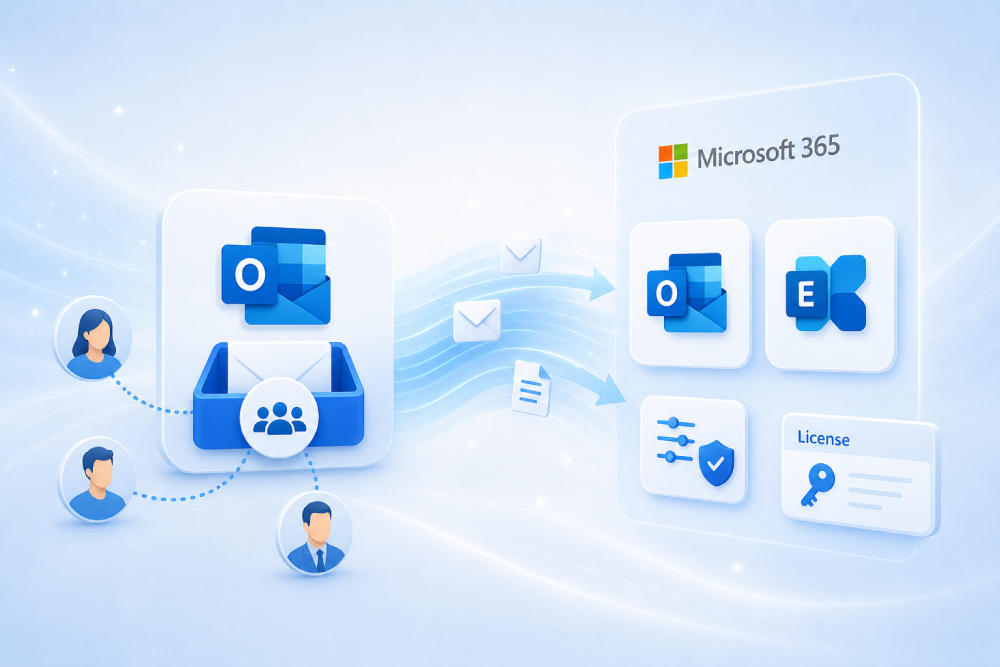
A shared mailbox in Microsoft 365 is an Exchange Online mailbox used by multiple people to manage a common address, such as info@company.com, support@company.com, or billing@company.com. It usually does not need its own license if it does not exceed the free storage limit and does not use advanced features. It may need a license if it exceeds the allowed unlicensed size, if it requires online archiving, litigation hold, advanced eDiscovery, advanced retention, Microsoft Defender for Office 365, or other security and compliance capabilities.
Quick summary: shared mailboxes in Microsoft 365 in 10 points
- They are used for common addresses: info@, support@, admin@, hr@, purchasing@, reception@, or any email address managed by several people.
- They are not personal accounts: users should not sign in directly with the shared mailbox account. Access should be provided through delegated users.
- Users do need a license: each person who accesses the shared mailbox must have their own Exchange Online license.
- The shared mailbox may not need a license: if it stays within standard limits and does not use advanced features.
- It may need a license: if it exceeds unlicensed storage, requires online archive, litigation hold, advanced eDiscovery, Defender, or premium Purview features.
- Key permissions: Full Access allows the user to open and manage the mailbox; Send As allows sending as the mailbox; Send on Behalf shows that the user is sending on behalf of the mailbox.
- It is not advisable to assign person-to-person permissions without control: it is better to use groups when the team grows or changes frequently.
- It does not replace a ticketing tool: for support with SLAs, queues, metrics, and advanced traceability, it is better to consider a specialized solution.
- It should be reviewed periodically: owners, permissions, size, usage, forwarding, rules, archiving, retention, and external access.
- When properly governed, it saves costs and avoids risks: good design reduces unnecessary licenses, improves security, and prevents shared email from becoming a blind spot.
When should you use a shared mailbox?
A Microsoft 365 shared mailbox works very well when several people need to handle the same email address and maintain visibility over what comes in and what gets answered. It is a simple solution, familiar to users, and very useful for small or mid-sized teams.
Common scenarios
- General enquiries: info@company.com, contact@company.com, or hello@company.com.
- Simple support or helpdesk: support@company.com, incidents@company.com, or helpdesk@company.com.
- Administration and billing: admin@company.com, invoices@company.com, or collections@company.com.
- Human Resources: hr@company.com, recruitment@company.com, or training@company.com.
- Reception or front desk: reception@company.com, bookings@company.com, or visitors@company.com.
- Project teams: projectX@company.com when there is a common communication channel with suppliers or customers.
The key is for the mailbox to have a clear purpose. If it is created “just in case”, without an owner or usage rules, it ends up becoming a drawer where everyone looks, nobody answers, and nobody takes responsibility.
A mailbox such as invoices@company.com can work very well if there are responsible users, clear folders, and a review process. But if 12 people access it, move emails, create personal rules, and nobody knows who should reply, the problem is not Microsoft 365: the problem is the lack of governance.
Introduction: why shared mailboxes become disorganized so quickly
Shared mailboxes are easy to create, and that is precisely why many organizations end up having too many of them. At first, they solve a clear need: “we need a common address for support”, “several people need to see invoices”, “we want reception to reply from the same account”.
The problem appears when no one defines how they should be used. Who can send? Who can delete? What happens if an email has already been handled? Should folders be used? Can messages be forwarded externally? Do messages need to be preserved for legal reasons? Does that mailbox need a license?
This guide aims to answer those questions in a practical way. It is designed for IT managers, Microsoft 365 administrators, operations leaders, and companies that want to optimize shared mailboxes in Exchange Online, reduce risks, and buy only the licenses they actually need.
1. What a shared mailbox in Microsoft 365 is
In practice: it is a common mailbox accessed by several users with their own accounts, not a shared account with a password.
A shared mailbox is an Exchange Online mailbox designed so that several people can read and reply to emails from a common address. Unlike a regular account, it is not designed for someone to sign in directly with a username and password.
Main characteristics
- Common address: for example, support@company.com or info@company.com.
- Delegated access: users access it with their own Microsoft 365 account.
- Shared email and calendar: it can contain messages, folders, calendar, and contacts.
- Separate permissions: opening the mailbox does not mean the user can send from it; sending permissions must be assigned separately.
- No operational password: the associated account should remain blocked for sign-in.
This difference is important: a shared mailbox should not become “everyone’s account”. Sharing a password among several people makes it impossible to know who did what, reduces security, and breaks auditing best practices.
2. When a shared mailbox needs a license
In practice: a shared mailbox may not need its own license, but there are very specific cases where it does.
This is the most common question: do shared mailboxes need a license in Microsoft 365? The correct answer is: it depends on how they are used.
2.1 When it usually does NOT need its own license
A shared mailbox usually does not need its own license when:
- It is within the storage limit allowed without a license.
- It does not use extended online archiving.
- It is not on litigation hold.
- It does not need advanced Defender, Purview, eDiscovery Premium, or advanced retention features.
- The users who access it do have their own Exchange Online licenses.
The shared mailbox may be unlicensed, but the users who access it must be licensed. Access should happen through each user’s personal corporate account.
2.2 When it DOES need a license
A shared mailbox needs a license if it falls into any of these scenarios:
- It needs more storage than the unlicensed limit allows.
- It requires online archive or auto-expanding archive.
- It must be placed on litigation hold for legal or regulatory reasons.
- It needs advanced capabilities from Microsoft Defender for Office 365, Microsoft Purview eDiscovery Premium, or advanced compliance policies.
- It is used for advanced retention or compliance and the applied feature requires a license.
2.3 Quick decision table
| Situation | License needed? | Practical comment |
|---|---|---|
| Small shared mailbox, basic use, licensed internal users | Normally no | Typical scenario for info@, support@, or admin@. |
| The mailbox exceeds the unlicensed size limit | Yes | Requires the appropriate license to increase quota. |
| Needs online archive or auto-expanding archive | Yes | Common in billing, legal, or historical support mailboxes. |
| Must be preserved under litigation hold | Yes | Important in environments with legal or audit requirements. |
| Uses Defender for Office 365 or advanced Purview capabilities | May require one | Depends on the feature applied and the plan purchased. |
| Used as an account with a shared password | Not recommended | The design should be corrected: delegated access and blocked account. |
If you want to optimize costs, the recommended approach is to review all shared mailboxes, detect which ones are close to the limit, which ones have advanced features, and which ones have a license assigned without a real need.
MSAdvance can help you review licensing through our software license procurement and management service for businesses.
3. Permissions: Full Access, Send As, and Send on Behalf
In practice: opening the mailbox does not mean you can send from it. The right permissions must be assigned.
Many problems with shared mailboxes come from confusing permissions. In Exchange Online, there are three concepts that are important to understand properly.
| Permission | What it allows | Example | Typical mistake |
|---|---|---|---|
| Full Access | Open the mailbox; read, move, create, and modify items. | A user can open support@ and manage folders. | Assuming it also allows sending. It does not do so by itself. |
| Send As | Send as if the message were sent by the shared mailbox. | The recipient sees that support@company.com is writing. | Assigning it to too many people without control. |
| Send on Behalf | Send on behalf of the mailbox, showing the user who sends. | “Anna on behalf of Support”. | Using it when the business expects mail to appear only as support@. |
Practical recommendation
- Use Full Access only for those who truly need to manage the mailbox.
- Use Send As when a common customer service, administration, or support identity is desired.
- Use Send on Behalf when transparency about who is replying is appropriate.
- Review permissions periodically, especially when employees or roles change.
In a mailbox such as purchasing@company.com, it may make sense for the whole team to have read access, but for only two responsible users to be able to send as the mailbox. This avoids duplicate replies and reduces the risk of mistakes.
4. Best practices for creating and managing shared mailboxes
In practice: a shared mailbox should have a purpose, an owner, reviewed permissions, and usage rules.
4.1 Before creating one: ask whether it is really needed
Not everything requires a shared mailbox. Before creating one, it is worth answering:
- Is it a common address that several people need to manage?
- Is it necessary to reply from that address?
- Is a shared calendar required?
- Is a centralized history needed?
- Are there retention or audit requirements?
4.2 Clear names and aliases
A good name helps users, IT, and support. Avoid mailboxes such as “general2”, “test”, “team mail”, or “new department”. It is better to use descriptive names:
- support@company.com — Customer support.
- invoices@company.com — Supplier invoice reception.
- hr@company.com — General people-related enquiries.
4.3 Business owner
Every shared mailbox should have a business owner, not just a technical administrator. The owner decides who should have access, what rules apply, how long information is retained, and when the mailbox is no longer needed.
4.4 Permissions by group, not by accumulating users
In small mailboxes, it may seem convenient to grant access user by user. But when the team grows, this becomes difficult to maintain. The recommended approach is to use groups when the mailbox has several users or high turnover.
4.5 Document the expected use
You do not need a huge manual. A short guide is enough:
- Who handles the mailbox.
- Who can send as the mailbox.
- Which folders are used.
- How an email is marked as handled.
- What to do with sensitive emails or complaints.
5. Security: sign-in block, MFA, auditing, and risk
In practice: the shared mailbox should not have a password that “everyone knows”.
5.1 Block sign-in for the shared mailbox
A shared mailbox has an associated account, but it is not designed for users to sign in directly with it. The best practice is to keep sign-in blocked and grant access through delegation.
This allows you to:
- Avoid shared passwords.
- Improve traceability: each user acts with their own identity.
- Apply security controls to real users.
- Reduce risk when employees leave or teams change.
5.2 MFA and Conditional Access
Since users access the mailbox with their personal corporate accounts, they should be protected with MFA and, where applicable, Conditional Access. The shared mailbox should not become a “shortcut” to bypass identity controls.
5.3 Auditing and traceability
In critical mailboxes, it is advisable to review auditing, permissions, and sending events. This is especially important for mailboxes such as:
- invoices@company.com
- legal@company.com
- hr@company.com
- executive@company.com
- support@company.com
If you want to strengthen this area, review our Microsoft 365 security and compliance service.
6. Compliance: retention, archiving, eDiscovery, and Purview
In practice: if the shared mailbox contains sensitive or legal information, it must be treated as a data asset.
Many shared mailboxes start as an operational tool and end up storing important information: contracts, invoices, personal data, complaints, employee documentation, or customer communications. At that point, it is no longer enough for it to “work”. Compliance must be considered.
6.1 Retention
Retention policies help preserve or delete information according to defined rules. In shared mailboxes, it is worth reviewing whether content must be retained for legal, tax, contractual, or audit reasons.
6.2 Online archiving
When the mailbox grows significantly, online archiving can help separate historical content from the primary mailbox. But it should not be used as an “infinite storage area without governance”. If archiving is enabled, it is advisable to define:
- What is moved to the archive.
- When it is moved.
- Who can access it.
- Which license is needed.
6.3 eDiscovery and litigation hold
If the mailbox may be involved in investigations, litigation, or audits, eDiscovery, retention, and litigation hold capabilities must be reviewed. In these scenarios, the shared mailbox may require a specific license.
Do not wait for a legal request before reviewing critical shared mailboxes. It is better to identify in advance which mailboxes have legal or regulatory value and apply the right treatment to them.
7. Limits, size, and performance: what to monitor
In practice: if the shared mailbox grows too much or too many people use it, it stops being a simple solution.
7.1 Mailbox size
An unlicensed shared mailbox has a storage limit. If it approaches that limit, problems can begin to appear: it may stop sending, stop receiving properly, or generate recurring incidents.
7.2 Too many users
Microsoft indicates that a shared mailbox is designed for a limited number of simultaneous users. If too many people use it at the same time, connection failures, duplicates, or poor user experience may appear. In that case, it is worth considering another solution.
7.3 Signs that the mailbox is becoming too small
- The mailbox is approaching the storage limit.
- Too many people have access.
- Many rules and folders are used without a clear structure.
- There are conflicts about who should reply.
- Metrics, SLAs, or ticket assignment are needed.
- There is sensitive content without retention or classification.
When these signs appear, “adding a license” is not always enough. Sometimes the right answer is to redesign the process: Microsoft 365 group, ticketing tool, mailbox by area, automation, or archive.
8. Shared mailbox vs Microsoft 365 group vs distribution list vs ticketing tool
In practice: do not use shared mailboxes for everything. Each tool solves a different problem.
| Option | When to use it | Advantages | Limitations |
|---|---|---|---|
| Shared mailbox | Several people manage a common address and reply from it. | Simple, familiar, integrated with Outlook. | Not ideal for large teams, SLAs, tickets, or fine-grained delete control. |
| Microsoft 365 group | Team collaboration with shared email, calendar, files, and conversation. | Better for broader teams and modern collaboration. | Does not always fit when a classic common sending identity is needed. |
| Distribution list | Sending the same email to several people. | Very simple for broadcast communication. | No common mailbox and no centralized history. |
| Ticketing tool | Support with statuses, owners, SLAs, metrics, and escalation. | Traceability and professional operations. | Requires implementation, process, and adoption. |
A good rule: if you only need to receive and reply to emails in a shared way, a shared mailbox may be enough. If you need to measure, assign, escalate, and report, you probably need something more.
9. Recommended use cases and cases to avoid
9.1 Good use cases
- General corporate email: info@ or contact@ with a small number of responsible users.
- Billing mailbox: reception and classification of invoices.
- Reception service: visitors, bookings, suppliers, and general communications.
- Small support team: as long as there are no advanced ticketing requirements.
- Project communication: when a temporary common identity is needed.
9.2 Cases to avoid
- Using it as a shared account with a password.
- Adding too many people without an owner.
- Using it as historical archive without licensing or retention.
- Using it for support with SLAs and metrics without a ticketing tool.
- Using it for sensitive content without classification or reviewed permissions.
10. Daily operations: rules, folders, replies, calendar, and owner
In practice: technology works better when the team knows how it should use it.
10.1 Define a way of working
To avoid chaos, it is advisable to agree on:
- Who reviews the mailbox every day.
- How a message is marked as handled.
- Which folders are used and which are not.
- When to reply from the mailbox and when to reply from the personal account.
- Which messages are escalated and to whom.
10.2 Replies and tone
In mailboxes such as support@, hr@, or admin@, it is advisable to define reply templates and tone. This prevents each person from responding differently and improves the customer or employee experience.
10.3 Shared calendar
Some shared mailboxes have a calendar. It can be useful for bookings, shifts, appointments, or team availability. But if the calendar becomes critical, permissions and responsibilities should be reviewed to prevent accidental changes.
11. Automation and flows: when to use Power Automate or a support solution
In practice: automation helps, but it does not fix a poorly defined process.
Power Automate can help in simple scenarios:
- Notify Teams when an important email arrives.
- Save attachments to SharePoint.
- Create tasks from certain messages.
- Send controlled automatic replies.
- Classify emails by subject, sender, or keywords.
But if you need ticket assignment, SLAs, queues, metrics, escalations, satisfaction, or advanced reporting, the appropriate solution is usually a support or service desk tool.
If you want to automate documents and processes in Microsoft 365: Document automation with SharePoint and Power Automate.
12. Migration, conversion, and cleanup of shared mailboxes
In practice: a Microsoft 365 migration or audit is often the best time to organize shared mailboxes.
12.1 Convert a user into a shared mailbox
It is common to convert user accounts into shared mailboxes when someone leaves the organization or when a departmental account should no longer operate as a regular user. Before converting, review:
- Whether there is data that must be retained.
- Who needs access.
- Whether the mailbox exceeds unlicensed limits.
- Whether it has archiving, retention, or litigation hold.
- Whether there are rules, forwarding settings, or connected applications.
12.2 During a migration to Microsoft 365
In migration projects, shared mailboxes are often forgotten until the end. That is a mistake. They should be included in the assessment together with user mailboxes, groups, aliases, permissions, and rules.
If you are in a migration project: Microsoft 365 tenant-to-tenant migration · Modern Workplace Microsoft 365.
13. Useful PowerShell scripts for administering shared mailboxes
In practice: PowerShell helps detect large mailboxes, excessive permissions, and licensing needs.
Connect-ExchangeOnlineGet-Mailbox -RecipientTypeDetails SharedMailbox |
Select-Object DisplayName,PrimarySmtpAddress,RecipientTypeDetailsGet-Mailbox -RecipientTypeDetails SharedMailbox -ResultSize Unlimited |
ForEach-Object {
$stats = Get-MailboxStatistics -Identity $_.Identity
[PSCustomObject]@{
DisplayName = $_.DisplayName
Email = $_.PrimarySmtpAddress
Size = $stats.TotalItemSize
Items = $stats.ItemCount
}
}Get-MailboxPermission -Identity "support@company.com" |
Where-Object {
$_.User -notlike "NT AUTHORITY\SELF" -and $_.IsInherited -eq $false
} |
Select-Object User,AccessRights,Deny,IsInheritedGet-RecipientPermission -Identity "support@company.com" |
Where-Object {
$_.Trustee -notlike "NT AUTHORITY\SELF"
} |
Select-Object Trustee,AccessRightsNew-Mailbox -Shared -Name "Support" -DisplayName "Support" -Alias support
Add-MailboxPermission -Identity "support@company.com" `
-User "support-group@company.com" `
-AccessRights FullAccess `
-InheritanceType All
Add-RecipientPermission -Identity "support@company.com" `
-Trustee "support-group@company.com" `
-AccessRights SendAsAdjust the scripts to your environment before running them in production. In sensitive environments, test first on a controlled subset.
Want to detect which shared mailboxes need a license, cleanup, or permission review?
MSAdvance can perform a shared mailbox assessment in Microsoft 365: size, permissions, usage, licenses, archiving, retention, risk, and improvement recommendations.
Request an assessment View Microsoft 365 security and compliance
14. Practical checklists for IT
14.1 Checklist before creating a shared mailbox
- Clear purpose defined.
- Business owner assigned.
- Users or groups that need access identified.
- Separate permissions: read/manage vs send.
- Decision on archiving, retention, and compliance.
- Consistent name and alias.
- Associated account blocked for sign-in.
14.2 Periodic review checklist
- Review mailbox size.
- Review Full Access, Send As, and Send on Behalf permissions.
- Check whether there are users who should no longer have access.
- Review rules, forwarding, and automatic replies.
- Validate whether it needs a license due to size or compliance.
- Check whether the mailbox is still needed.
- Document owner and usage process.
14.3 Security checklist
- Sign-in blocked for the shared mailbox account.
- Delegated users with MFA enabled.
- Minimum required permissions.
- Auditing reviewed in critical mailboxes.
- No unjustified external forwarding.
- No hidden or inherited rules without control.
15. Common mistakes and how to avoid them
| Mistake | What it causes | How to avoid it |
|---|---|---|
| Using the mailbox as an account with a shared password | Security risk, poor auditing, and loss of traceability. | Block sign-in and use delegated access. |
| Granting Full Access thinking it allows sending | Users can open the mailbox but cannot send from it. | Also assign Send As or Send on Behalf where appropriate. |
| Not reviewing licenses | Mailboxes above limits or using advanced features without the right license. | Audit size, archiving, hold, and premium functionality. |
| Permissions accumulated over years | Users retain access they no longer need. | Periodic review and use of groups. |
| Using it as a ticketing tool | No SLAs, duplicates, no metrics, and no clear assignment. | Consider a support solution or automation. |
| No owner | Nobody decides, nobody cleans up, nobody takes responsibility. | Assign a business owner and a backup owner. |
16. Frequently asked questions about shared mailboxes in Microsoft 365
Does a shared mailbox in Microsoft 365 need a license?
Not always. A shared mailbox may not need its own license if it is within standard limits and does not use advanced features. It may need a license if it exceeds the unlicensed limit, requires online archiving, litigation hold, advanced eDiscovery, Defender for Office 365, advanced retention, or other premium capabilities.
Do users who access the shared mailbox need a license?
Yes. Each user who accesses a shared mailbox must have their own Exchange Online license or a Microsoft 365 plan that includes email. Access is performed from the user’s account, not by signing in directly to the shared mailbox.
Can I use a shared mailbox as a common account with a password?
It is not recommended. The account associated with the shared mailbox should remain blocked for sign-in. The correct approach is to grant permissions to internal users or groups.
What is the difference between Full Access and Send As?
Full Access allows the user to open and manage the mailbox, but it does not allow sending from it by itself. Send As allows the user to send as if the message came directly from the shared mailbox.
What is the difference between Send As and Send on Behalf?
Send As makes the recipient see the mailbox as the sender. Send on Behalf shows that a person is sending on behalf of the mailbox. The choice depends on whether the organization wants a fully shared identity or transparency about who replies.
Can external users be given access to a shared mailbox?
Shared mailboxes are designed for internal users in the organization. If you need to collaborate with external people, it is usually better to consider a Microsoft 365 group, Teams, SharePoint, a ticketing tool, or a specific external collaboration process.
What happens if a shared mailbox becomes full?
It may stop sending and, later, stop receiving properly. If the mailbox approaches the limit, it is advisable to clean up, archive, review retention, or assign the appropriate license.
Can a user mailbox be converted into a shared mailbox?
Yes. This is common when someone leaves the company or when a departmental account should no longer operate as a user. Before removing licenses, review size, archiving, hold, retention, permissions, and rules.
Can a shared mailbox work as a helpdesk?
It works for simple support, but it does not replace a ticketing tool when you need SLAs, statuses, assignment, metrics, escalation, and reporting. For more mature support teams, it is better to consider a specialized solution.
Can MSAdvance review my shared mailboxes and licenses?
Yes. MSAdvance can audit shared mailboxes, permissions, size, licenses, archiving, retention, security, and compliance, and deliver an optimization plan with concrete actions.
17. Official resources and recommended links
Official Microsoft documentation
- About shared mailboxes in Microsoft 365
- Shared mailboxes in Exchange Online
- Give mailbox permissions to another user
- Exchange Online limits
- Microsoft Purview eDiscovery
- Microsoft Purview retention
- Microsoft Defender for Office 365
Related MSAdvance services
18. Conclusion and next steps
Shared mailboxes in Microsoft 365 are very useful when used well: they allow teams to work with common addresses, improve service, and centralize important communications. But they can also become a risk if permissions, licenses, security, and compliance are not reviewed.
The most practical recommendation is to start with an inventory: which mailboxes exist, who has access, how much space they use, whether they need a license, what rules they have, and whether they still make sense.
Recommended next steps
- Inventory all shared mailboxes.
- Detect mailboxes without an owner or with too many permissions.
- Review which ones need a license due to size, archiving, or compliance.
- Block direct sign-in and strengthen security.
- Document best practices for users and owners.
Want MSAdvance to review your shared mailboxes and tell you where to save, what to license, and what to correct?
We help you organize Exchange Online and Microsoft 365 with a practical assessment: permissions, licenses, security, compliance, automation, and best practices for users.
Contact MSAdvance View Modern Workplace
· We can also help with Security and Compliance and Licensing · All services